107
Advisory Messages
Informing Troubles in Printing Area
Message Description and Action Reference
Paper was not ejected properly.
Check the paper ejection area and remove jammed
paper if any.
Then press the function key.
The safety switch under the Paper feed tray has been
activated.
Check the paper feed area for any obstructions and
clear it if an obstacle is found.
p.21
p.20
Paper Jam
Check Paper Ejection Area and
Press Key
Check Paper Feed Tray
Action
Action
Informing Troubles in Optional ADF Unit
Message Description and Action Reference
An original has jammed in the optional ADF unit.
Pull out the original, while holding down the Original
release button.
If the original has fed too far to be removed from
the entrance side of the ADF unit, open the ADF
unit and pull out the original, while turning the
Original release dial at the bottom of the unit.
Original Jam
Remove Original, Holding down
Original Release Button,
and Press Key
TO PREVENT PAPER JAMS
• Use flat printing paper that is free of folds. If
curled paper is unavoidable, place it so that
the curl faces down.
☞ p.18
• When using smooth paper for printing, set
the Paper feed pressure adjustment lever to
"CARD".
☞ p.20
NOTE
Action
Action
106
Advisory Messages
Informing Troubles in Master-Making Area
Message Description and Action Reference
A used master remains on the Print Cylinder (Drum).
Open the Front cover, pull out the Print Cylinder
(Drum) and remove the remaining master.
After returning the Print Cylinder (Drum) to its
position, press the START key to restart the
master-making operation.
A used master is stuck at the entrance of the Master
disposal unit.
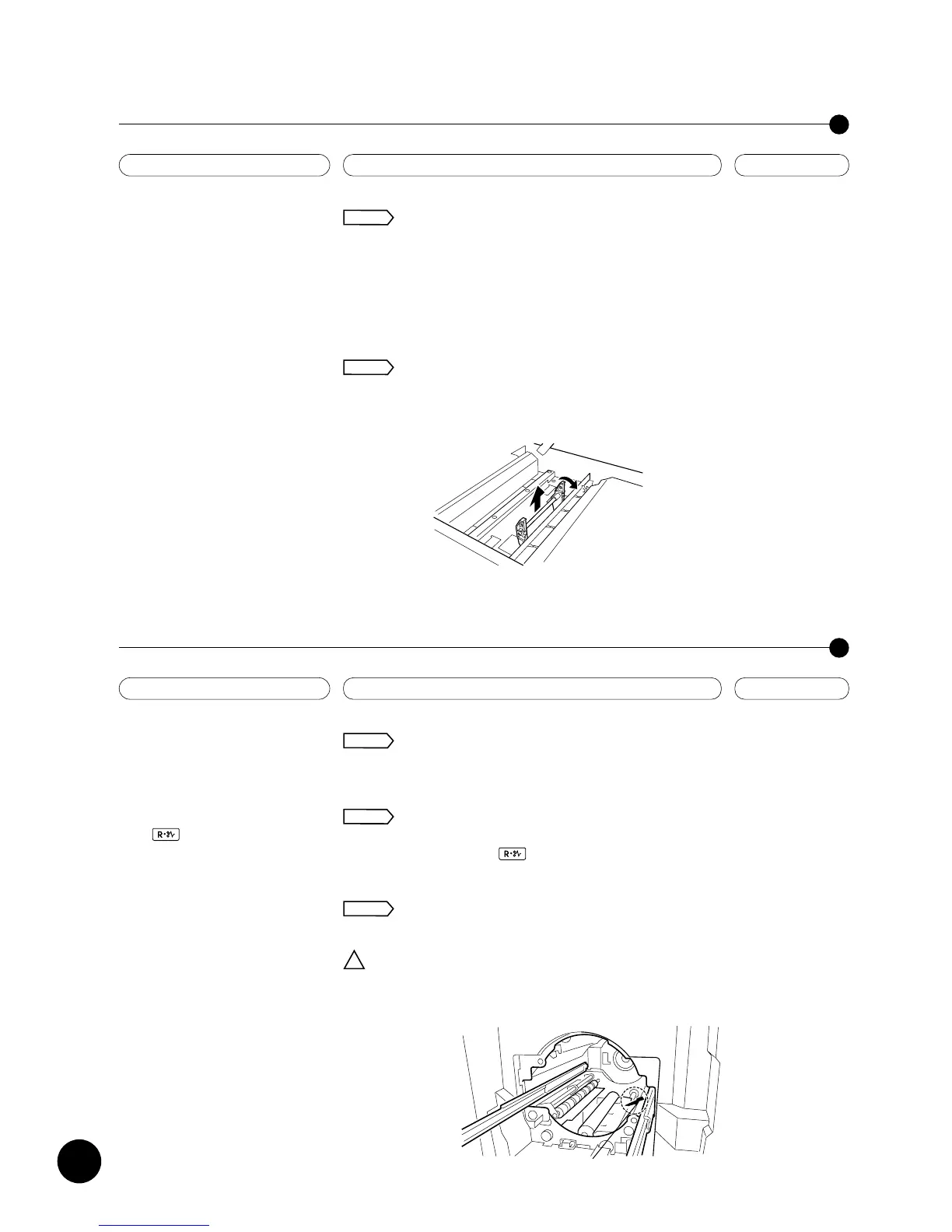
Open the Scanner table and the Disposal entrance
cover, and then remove the stuck master inside.
To open the Disposal entrance cover, pull up the
handle, tilting down the green lever.
p.74
p.98
Master Disposal Error
Pull Out Print Cylinder (Drum) and
Discard Master
Master Jammed in Disposal Unit
Open Scanner Table and
Disposal Entrance Cover,
then Remove Master
Action
Action
Informing Troubles in Printing Area
Message Description and Action Reference
There is no master on the Print Cylinder (Drum).
Place an original on the Stage glass or in the
optional ADF unit and press the START key.
Paper was not fed or was improperly fed.
Check paper on the Paper feed tray and remove
jammed paper if any.
Then press the function key.
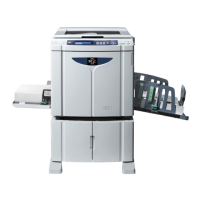
Paper is jammed on or under the Print Cylinder (Drum).
Open the Front cover, pull out the Print Cylinder
(Drum) and remove the paper.
Caution Take extra care not to hurt your hand
by the sharp tip of the paper separation
hook when removing the paper jammed
inside the unit.
p.28
p.20
p.74
No Master on Print Cylinder (Drum)
Make a New Master
Paper Jam
Check Paper Feed Area and
Press Key
Paper Jam
Pull Out Print Cylinder (Drum) and
Remove Paper
Action
Action
Action
!
Paper Separation Hook










 To Next Page