Interfacing with a Computer
(Optional for the RN20 Series Models)
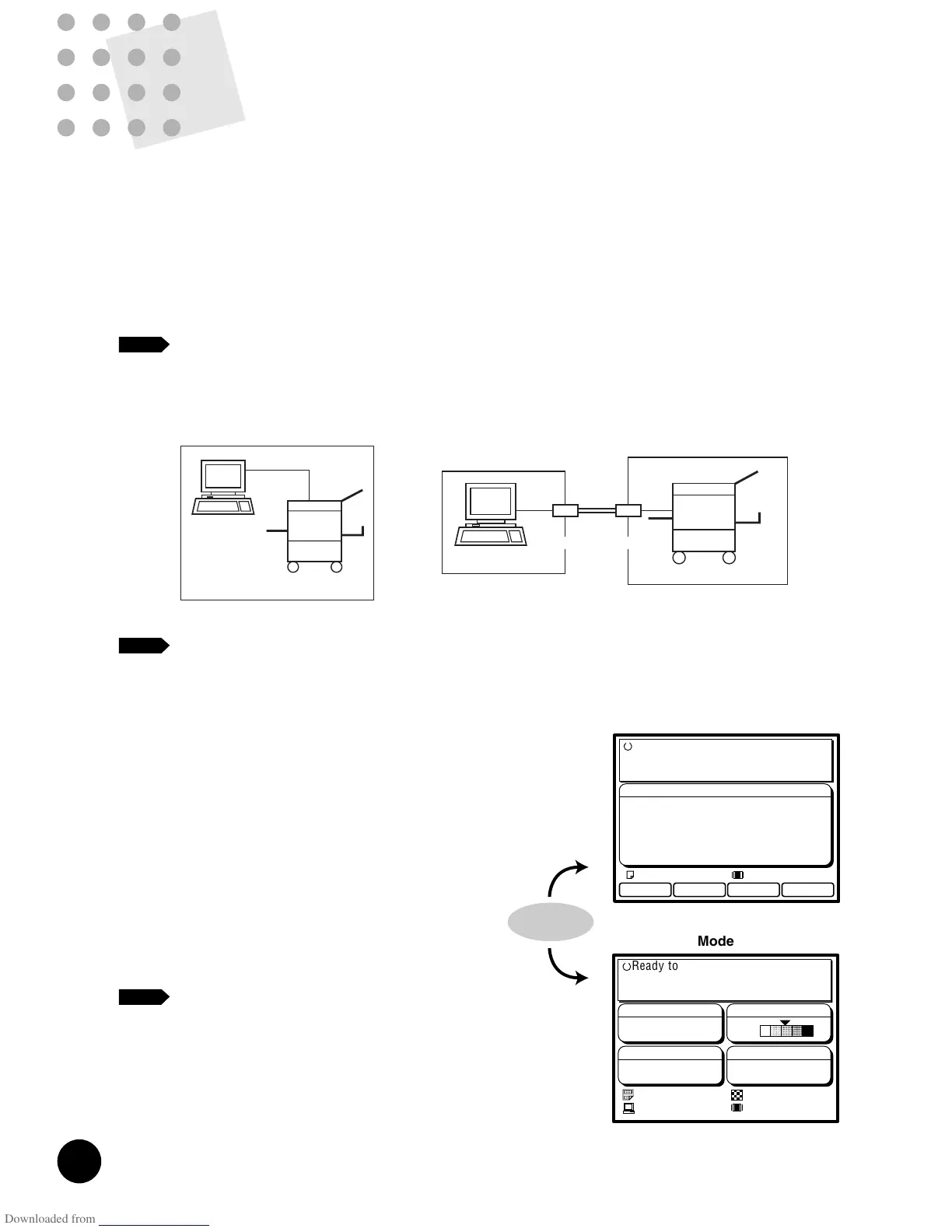
Your RISOGRAPH can be interfaced with personal computers (Windows and
Macintosh) in two ways: by directly connecting a computer printer cable to them (local
connection mode) and over the public telecommunication line (remote transmission
mode).
The network enhancement is also available as optional.
For detailed description about operations with personal computers, see the section
"Computer Interface Guides".
☞ p.77
The optional Network Interface Card RISORINC2-NET-A is required to
connect your RISOGRAPH to Macintosh.
The dedicated interface control boxes are also connectable to the RN20
series models.
☞ p.122
When the RISOGRAPH is processing PC document data,
the PC data mode basic window appears in the Main
Display.
In this window, you can print out the document data sent
from the personal computers.
The data processing status of the PC data mode is also
indicated in the standard (Scan data mode) basic window,
allowing you to check if any PC document data is waiting
to be printed out in the PC data mode, during operation in
the Scan data mode.
If you want to print out the waiting PC document data, in
this case, press the Data Source Selection key in the Sub
control panel and open the PC data mode basic window.
When the PC data mode basic window appears
in the Main Display, you cannot make copies of
originals.
If you want to make copies of originals, in this
case, press the Data Source Selection key in the
Sub control panel and change the window in the
Main Display.
= Local connection mode = = Remote transmission mode =
PC
PC
RISOGRAPH
RISOGRAPH
76
NOTE
NOTE
NOTE
73
Title
Energy Save Timer
Auto Idle Period
Semi-Auto>Master
(Available only when the
optional ADF Unit is
installed)
Minimum Print
Quantity
Master Image Limit
Paper Feed Mode
Job Separator Line
LCD Mode Priority
(Optional for RN20 series
models)
Beep Sound
Displayed Language
Clock/Calendar
Meter Display
Description
Selects the idle period required to lead
your RISOGRAPH into the energy saving
mode.
Selects the period required for automatic
activation of the Auto idle feature.
Activates the Semi-auto process feature
or not, when multiple originals are placed
in the optional ADF Unit.
If this feature is activated, the master-
making process will start automatically
for the following original placed in the
optional ADF Unit after the current
printing, even when the Auto process
feature is not activated.
Selects the minimum print quantity which
should be produced from one master.
Selects the maximum image area for a
master.
When “Auto” is selected, the maximum
image area is automatically set according
to the size of the printing paper loaded
on the Feed tray.
Selects the current paper feed mode.
"Light-weight" is for light-weight paper
and "Custom" for the paper which
requires special adjustment in feeding.
Select an appropriate one according to
paper type.
Selects if the data line is required to be
opened for the optional Job Separator.
Select "Open" when attaching the Job
Separator.
Selects the initial basic window shown in
the Main Display.
"Scan Data Mode" is to be used when
operating your RISOGRAPH stand-alone.
"PC Data Mode" is, on the other hand, to
be used when printing out the PC
document data.
Selects if a beep sound is to be emitted
or not, to signal the following elements;
key operation, status change and errors.
Choices
5 minutes, 10 minutes,
30 minutes
12 hours, 6 hours,
OFF (No auto activation)
ON, OFF
1, 10, 20, 30 [copies]
RN2050/2150 : Auto,
B4, A4, B5, B5-Wide,
Foolscap , Custom
RN2030/2130 : Auto,
Legal, Letter,
Statement, Custom
RN2000 : Auto, Letter,
Statement, Custom
Standard, Card Stock,
Light-weight, Custom
Closed, Open
Scan Data Mode,
PC Data Mode
ON, OFF
Consult your service
representative.
Ref.Page
p.72
p.69
p.55
p.20
p.122
p.14, 76,
80
* The framed item is the default setting.
Customizing the Initial Settings
Adjusts the time and date of the system clock and calendar. (The system
clock time is used as the data receipt time given in the PC data mode.)
Displays the Master Count, Copy Count, and Cylinder(Drum) Meter.
• Master Count: the total number of masters made on your RISOGARAPH
• Copy Count: the total number of copies printed on your RISOGARAPH
• Cylinder(Drum) Meter: the total number of copies printed with the existing
Print Cylinder (Drum).
When you want to check the meter of another Print Cylinder (Drum), install it
before this operation.
Selects a displayed language.










 To Next Page