51
5
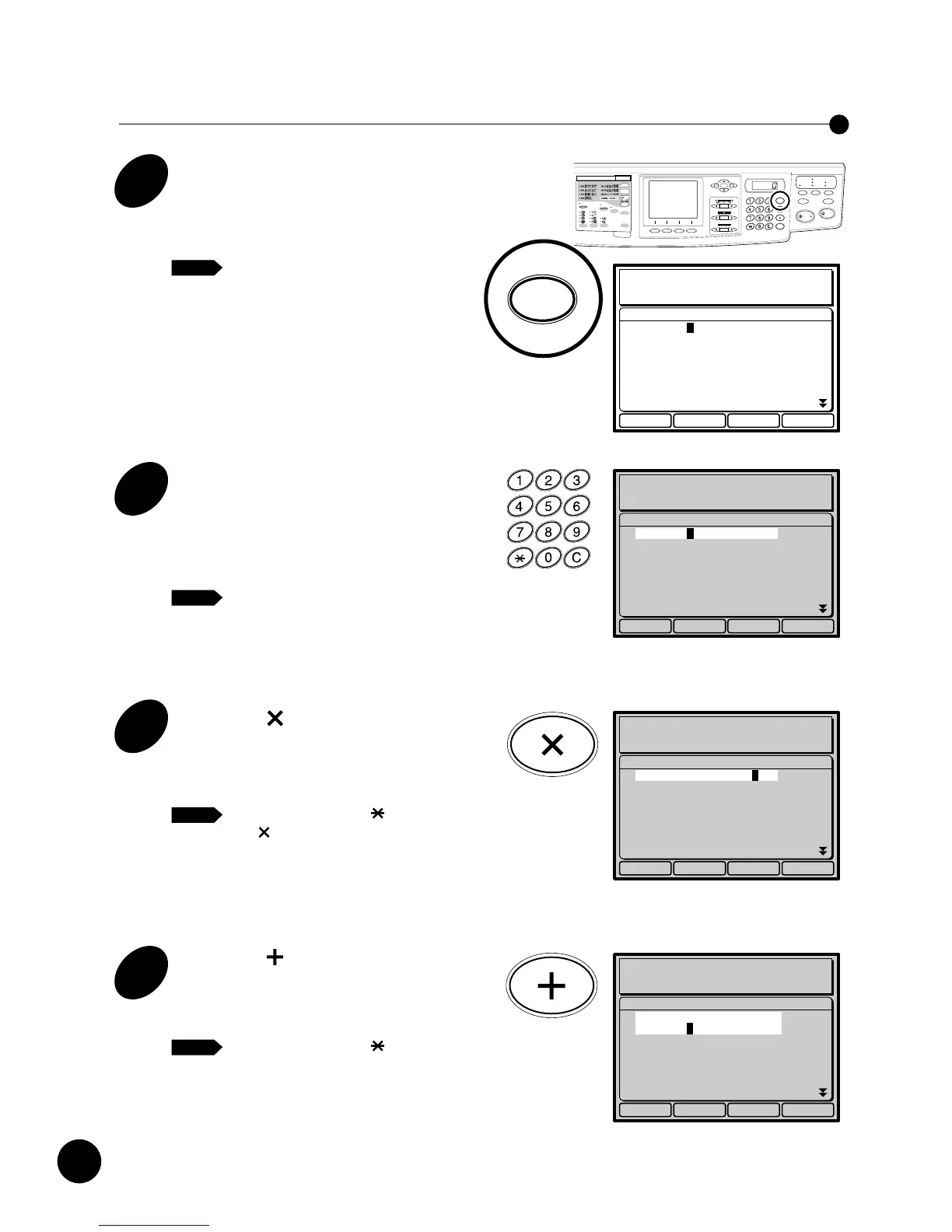
Use the Print Quantity keys, " "
key and " " key and input print
quantities and cluster numbers for
any remaining groups.
Up to 20 groups can be specified.
If you want to correct the number of clusters and/
or copies already specified, move the cursor ■ to
a desired position using the cursor keys and enter
a correct number. Press the "C" key to reset the
number to zero.
To cancel the current program setting,
press the
t
function key. (This
window is closed and the basic window
appears again.)
List Cancel OK
New Program
Program--Single Original--
Group1: 20Copies x 2Set
Group2: 30Copies x 3Set
Group3: 40Copies x 4Set
Group4: 0Copies x 0Set
Group5: 0Copies x 0Set
Group6: 0Copies x 0Set
Group7: 0Copies x 0Set
NOTE
NOTE
6
Press the e function key.
The current program setting is confirmed and
made available for the original you selected.
The Single-original program entry window is
closed and the basic window appears again in the
Main Display, showing the program for the group
specified last.
You can save the current program setting
in memory for repeated use.
☞ p.56
7
Place an original face-down on
the Stage Glass.
If the optional ADF Unit is installed, more
than one original can be placed there.
NOTE
Automatic Sorting into Groups
AUTO IDLE
CONFIDENTIAL
REDUCE
ENLARGE
1 : 1
ZOOM
PRINT POSITION
DENSITY
LIGHT DARK
DUO
LINE
START
STOP
AUTO IMAGE
PROCESS
TEST
PRINT
RESET
PHOTO PRINT
MASTER
MAKING
AUTO
PROCESS
SLOW FAST
CENTER
PROGRAM
MEMORY
NORMAL
NORMAL
SPEED
CUSTOM
SETTING
SCANNING
CONTRAST
MULTI-UP
PRINT
DOT
PHOTO
BOUND
ORIGINAL
DATA
PC/SCAN
Line (Auto)
Image Processing
Group3->4Set
100%
Reproduction Size
Scanning Contrast
Letter
Paper
Black
Ready to Make Master
A
Idle
AUTO IDLE
CONFIDENTIAL
REDUCE
ENLARGE
1 : 1
ZOOM
PRINT POSITION
DENSITY
LIGHT DARK
DUO
LINE
START
STOP
AUTO IMAGE
PROCESS
TEST
PRINT
RESET
PHOTO PRINT
MASTER
MAKING
AUTO
PROCESS
SLOW FAST
CENTER
PROGRAM
MEMORY
NORMAL
NORMAL
SPEED
CUSTOM
SETTING
SCANNING
CONTRAST
MULTI-UP
PRINT
DOT
PHOTO
BOUND
ORIGINAL
DATA
PC/SCAN
50
4
Press the " " key to set the print
quantity for the second group.
The cursor ■ moves to the next group.
Yon can also use the " " key in place of
the "+" key.
NOTE
List Cancel OK
New Program
Program--Single Original--
Group1: 20Copies x 2Set
Group2: 0Copies x 0Set
Group3: 0Copies x 0Set
Group4: 0Copies x 0Set
Group5: 0Copies x 0Set
Group6: 0Copies x 0Set
Group7: 0Copies x 0Set
Automatic Sorting into Groups
Setting Up Single-original Program
1
Press the PROGRAM key.
The Single-original program entry window
appears in the Main Display.
To close this window, press the
t
function key.
2
Input the number of copies to be
printed for each cluster of the first
group using the Print Quantity
keys.
If you enter a number incorrectly, press
the "C" key to reset the number to zero
and then enter the correct number.
3
Press the " " key and input the
number of clusters of the first
group.
You can also use the " " key in place of
the " " key.
NOTE
List Cancel OK
New Program
Program--Single Original--
Group1: 0Copies x 0Set
Group2: 0Copies x 0Set
Group3: 0Copies x 0Set
Group4: 0Copies x 0Set
Group5: 0Copies x 0Set
Group6: 0Copies x 0Set
Group7: 0Copies x 0Set
List Cancel OK
New Program
Program--Single Original--
Group1: 0Copies x 0Set
Group2: 0Copies x 0Set
Group3: 0Copies x 0Set
Group4: 0Copies x 0Set
Group5: 0Copies x 0Set
Group6: 0Copies x 0Set
Group7: 0Copies x 0Set
List Cancel OK
New Program
Program--Single Original--
Group1: 20Copies x 0Set
Group2: 0Copies x 0Set
Group3: 0Copies x 0Set
Group4: 0Copies x 0Set
Group5: 0Copies x 0Set
Group6: 0Copies x 0Set
Group7: 0Copies x 0Set










 To Next Page