87
When operation is stopped before printing (the "Ready to Print" window is opened),
you can renew (remake) the master with/without image rotation.
Renewing the Current Page
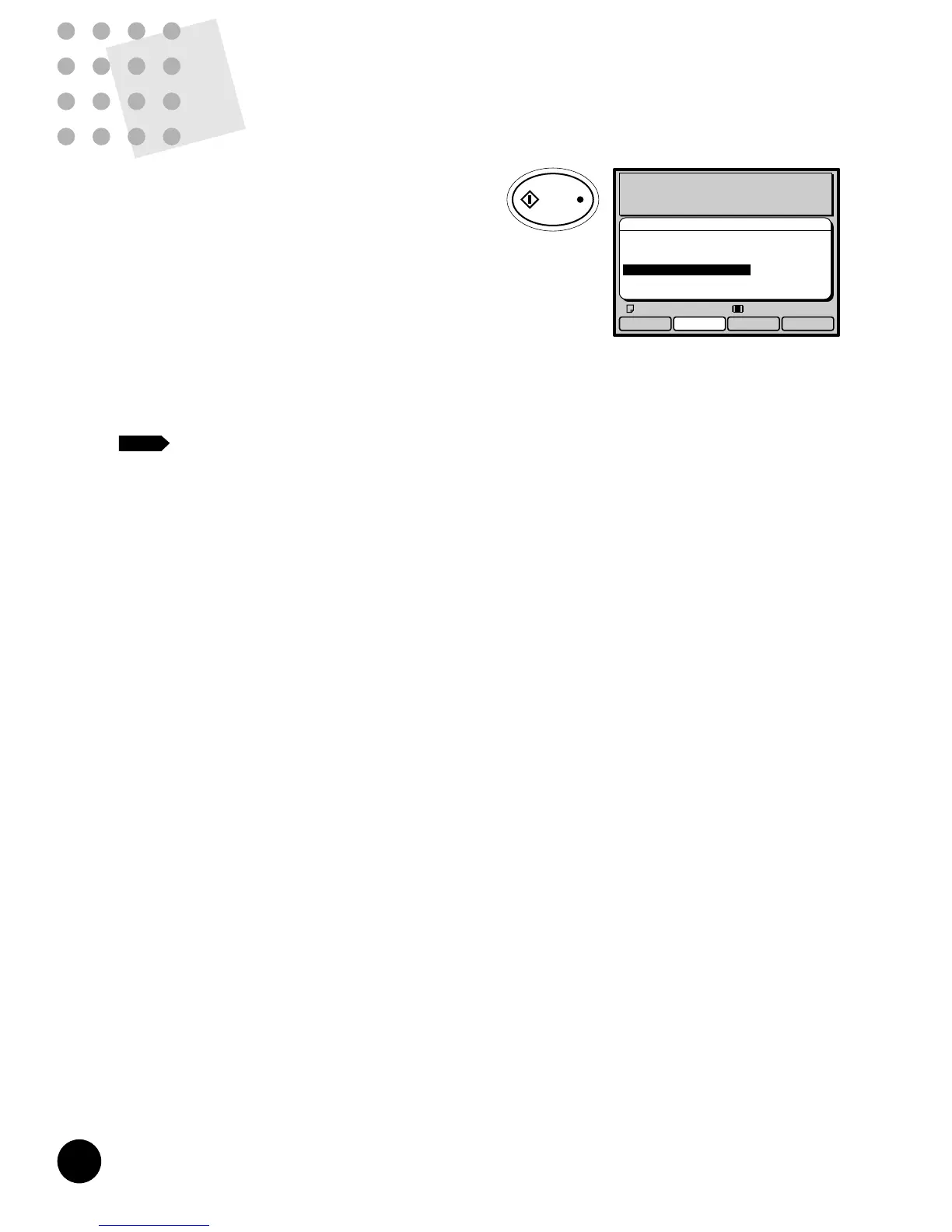
1
Press the f function key.
The Utility window appears.
PC Data Mode
Black
RotateUtility Details
Ready to Print
Communication Mode :Local Connection
Doc.Data Spooling :ON
Data Process Step :PC Selection
180˚ Rotation :OFF
Letter
Page No.1/10
2
Select "Renew Current Page" or
"Rotate and Renew Current Page"
by pressing the w or q
function key.
To cancel this operation, press the
o
function key to close this
window.
PC Data Mode
Black
Close
Ready to Print
Communication Mode :Remote
Doc.Data Spooling :ON
Data Process Step :Semi-Auto (Master)
180* Rotation :OFF
Communication :Data Receivable
Select with [ ][ ] and Start
Skip Current Page
Renew Current Page
Rotate and Renew Current Page
Cancel Current Print Job
Letter
Page No.1/10
NOTE
3
Press the START key.
The current page will be renewed.
PC Data Mode
Black
Making Master
Communication Mode :Local Connection
Doc.Data Spooling :ON
Data Process Step :PC Selection
180˚ Rotation :OFF
Communication :Data Receivable
Page No.1/10
Letter
You can change the print job flow specified when the current document data was sent
to the RISOGRAPH according to the current print job requirements.
The new job flows which are available for the current print job are listed in the Utility
window, which can be opened by pressing the
f
function key.
Select a desired job flow by pressing the
w
or
q
function key and press
the START key.
The current print job is resumed in the selected new job flow.
Changing Print Job Flow
86
You can rotate images in the received document data by
180 degrees before printing them out. This function will be
useful to improve paper ejection condition in case printed
copies cannot be ejected well due to the presence of large
solid areas at the page top, or to print on special paper
whose feed direction is limited to one way.
To activate this function, press the
n
function key to
change the status display of "180˚ Rotation" to "ON" in the
Mode configuration window. Then press the START key to
make a new or another master for the current document
data, rotating images by 180 degrees.
To cancel this function, press the
n
function key
again.
• This function is available only before master-
making process. Once a master is made,
therefore, return to the master-making process
by pressing the Process Selection key or select
"Rotate and Renew Current Page" in the Utility
window, if you want to rotate images on the
current page.
• When you select the 180-degree image rotation
feature for the current print job on the
computer, avoid selecting this function.
Otherwise, the 180-degree image rotation
feature will be canceled.
PC Data Mode
Black
RotateUtility Details
Ready to Receive Data
Communication Mode :Local Connection
Doc.Data Spooling :ON
Data Process Step :Semi-Auto>Master
180˚ Rotation :ON
Letter
NOTE
Rotating Images by 180 Degrees










 To Next Page