12
The Control Panel
Main Control Panel
q START Key
Starts printing or master-making process. The
indicator is "GREEN" when the key is active. This key
is also used to resume operation after troubleshooting.
w STOP Key
Interrupts printing, and cancels confidential feature.
e RESET Key (☞ p.42)
Returns all settings to initial status.
r TEST PRINT Key (☞ p.31)
Prints a sample from the current master to allow you
to check print quality and printing position.
t PROCESS Selection Key
Switches between master-making and printing
processes. Normally, selection is made automatically
according to the current process.
y IMAGE PROCESSING Selection Key (☞ p.30)
Switches the current processing mode among Line,
Photo and Duo. The indicators light according to the
selected mode.
u AUTO PROCESS Key (☞ p.32)
Automates the process of master-making through
printing. The indicator lights when the feature is
active.
i PROGRAM Key (☞ pp.49-55)
Provides access to programmed grouping of prints.
o Key (☞ pp.50-52)
Use when making program settings.
!0 + Key (☞ pp.50-55)
Use when making program settings.
!1 MEMORY Key (☞ pp.62-68)
Provides access to the Print job memory mode.
!2 Print Quantity Keys (0 to 9 Keys)
Use these keys to enter the number of copies to be
printed, or to enter other numeric values.
!3 C Key (☞ p.58, 64)
Cancels the number entered and resets the Print
Quantity Display to zero. Or deletes a word in naming
programmed items.
!4 Key (☞ p.50, 53)
Used for making settings for programs.
!5 NORMAL PRINT SPEED Key (☞ p.40)
Returns the print speed to the initial setting.
!6 PRINT SPEED Adjustment Keys
(
hhgg
)(☞ p.40)
Adjust print speed (on a 1 to 5 scale).
!7 NORMAL PRINT DENSITY Key (☞ p.41)
Returns the print density to the initial setting.
!8 PRINT DENSITY Adjustment Keys
(
hhgg
)(
☞ p.41)
Adjust print density (on a 1 to 5 scale).
9
Overview of Features
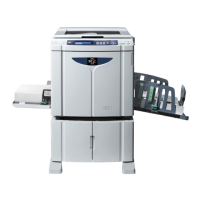
Your RISOGRAPH is a high-quality digital printer that is as easy to use as a copier.
• User-friendly Display Design
The large-size LCD display provides you with
helpful information for the current operation in
well-designed screens, enabling you to finish your
print jobs with much ease.
• Print Speed and Density Control
Any of five print speeds and densities can be
selected for optimum performance.
• Confidential Feature
An original can be printed and the master can be
automatically discarded to prevent further,
unauthorized printing.
•Image and Text Processing
Options
In addition to the standard processes for sharp
line definition and accurate shading patterns,
4-pattern dot-screen processes are available.
The binding of a bound document can also be
erased.
• Color Printing Options
Optional ink colors are available, by simply
changing the Print Cylinder (Drum).
•Vertical Print Position Key Control
The Print position can be shifted vertically only by
pressing the adjustment keys on the control
panel.
• Zoom Enlargement and Reduction
Capabilities
Prints can be reduced or enlarged from 50% to
200% in 1% increments, according to your needs.
Preset standard reduction and enlargement are
also available (e.g., legal/letter or A3/A4).
•Programmable Print Groupings
Simple control panel entries can automate
different types of groupings to save time finishing
your print jobs.
•Programmable Print Jobs
Frequently used or complex print job settings can
be stored in memory for instant recall.
• Multi-Up Printing
Originals can be printed side by side on a single
sheet.
You can select their arrangement pattern from 4
choices.
•Automatic Idle
This feature ensures an excellent first copy when
printing starts again after a period of idle time.
• Preventive Maintenance Call
An advice display is given in advance when the
periodical maintenance service is required,
preventing your RISOGRAPH from remaining out
of operation unexpectedly.
• Direct PC Connection (optional for
RN20 series models)
PC document data can also be printed out by
connecting your RISOGRAPH directly to the PC
with a printer cable. No additional control box is
required.










 To Next Page