88
- Skip Current Page
Cancels the print job of the current page and starts to make a master for the
following page.
- Renew Current Page
Cancels the print job of the current page and starts to make another master for the
current page.
- Rotate and Renew Current Page
Cancels the print job of the current page and starts to make another master for the
current page, rotating images by 180 degrees.
The above two job flow options cannot be selected when the specified
number of copies have been produced for the current page without the
Document Data Spooling function activated.
If you want to select either of them, therefore, press the STOP key to
interrupt printing.
- Cancel Current Print Job
Cancels the total print job of the multiple pages specified for the current document
data.
When the Document Data Spooling function is not activated, the current document
data will be cleared from the memory of your RISOGRAPH.
When this function is activated, on the other hand, you can select another output
option for the current document data in the Output option window.
Changing Print Job Flow
NOTE
Job Flow List
85
Selecting Output Pages on Your RISOGRAPH
• You can cancel the current print job in the
Utility window if you select a multiple-page
output option.
☞ p.87
• If you press the v function key in this
window, the detailed information of the received
document file whose pages can be printed out
can be checked in the File data window, which
is available only in the Remote transmission
mode.
When the dedicated communication utility
software, RISORINC Manager, is used to
transmit the document data, all listed items of
information will be given in this window.
If another communication software is used
instead, however, no data will be provided for
some listed items. In this case, "Unknown" will
appear in the lines of the corresponding items.
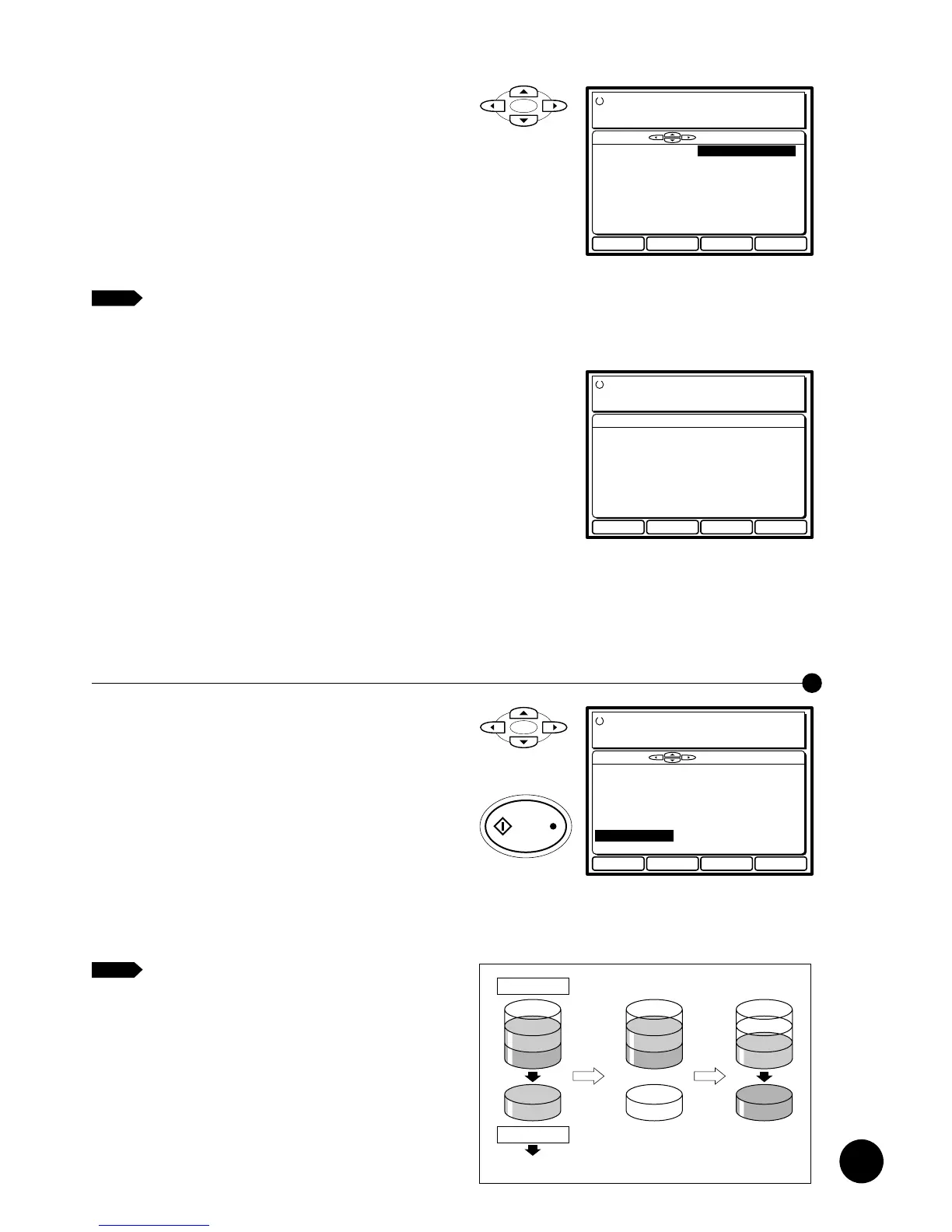
= Selecting multiple pages =
Press the cursor keys on the control panel and highlight a
desired output option.
The following output options are available.
• All Pages (1➝2➝): To print all pages in order.
• All Pages (➝2➝1): To print all pages in reverse order.
• Odd Pages (1➝3➝): To print only odd pages in order.
• Odd Pages (➝3➝1): To print only odd pages in reverse order.
• Evn Pages (2➝4➝): To print only even pages in order.
• Evn Pages (➝4➝2): To print only even pages in reverse order.
Next
>
Details
<
Back
Select with and Start
Ready to Make Master
Select Pages/Action
Select Pg.1/10 All Pages (1/2/)
All Pages (/2/1)
Odd Pages(1/3/)
Odd Pages(/3/1)
Evn Pages (2/4/)
Evn Pages (/4/2)
Clear All Pages
Details
Received File Data No.1
File Name RISO JOB 1
Page Count Page.4
Paper Size 8.5 x 11
Resolution 300 x 400 dpi
Receipt Data 11:00 7/1 2000
Host Name RISO SERVER
Ready to Make Master
Select Pages/Action
Next
><
Back
NOTE
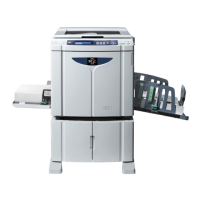
Clearing Document Data from the Memory
Only one document data file can be printed out at one
time.
To print out another data file stored in the memory, you
are required to clear the current document data from the
memory after all required pages are printed out.
When the selected print job is finished, the Output option
window appears again in the Main Display.
To clear the current document data, select "Clear All
Pages" in this window by pressing the cursor keys on the
Control panel and press the START key.
The following document data stored in the memory will
then be available in the Output option window.
All document data that are received by your
RISOGRAPH will be cleared when turning off the
Main power switch.
Next
>
Details
<
Back
Select with and Start
Ready to Make Master
Select Pages/Action
Select Pg.1/10 All Pages (1/2/)
All Pages (/2/1)
Odd Pages(1/3/)
Odd Pages(/3/1)
Evn Pages (2/4/)
Evn Pages (/4/2)
Clear All Pages
JOB3
Job memory
Print memory
Print out
Clear data Transfer
data
JOB2
JOB1
JOB3
JOB2 JOB3
JOB2










 To Next Page