35
Using Zoom
You can specify any reduction or enlargement between
50% and 200%.
When you press the 1:1 key, the Zoom mode is
canceled and the percentage returns to the
original size (100%).
Reducing and Enlarging Originals
1
Press the ZOOM Key.
The Zoom selection window appears in the Main
Display.
NOTE
3
Press the e function key.
The Zoom selection window is closed and the
specified percentage is indicated in the
[Reproduction Size] frame.
To return the percentage to 100%, press
the 1:1 key.
NOTE
2
Specify a desired reproduction
size.
Specify a desired percentage by pressing the
q
or
w
function key.
q
: The percentage is increased by one
each time this button is pressed.
w
: The percentage is decreased by one
each time this button is pressed.
• You can specify the percentage also
by pressing the cursor keys on the
Main Control Panel.
• To cancel the zoom mode, press the
t
function key.
NOTE
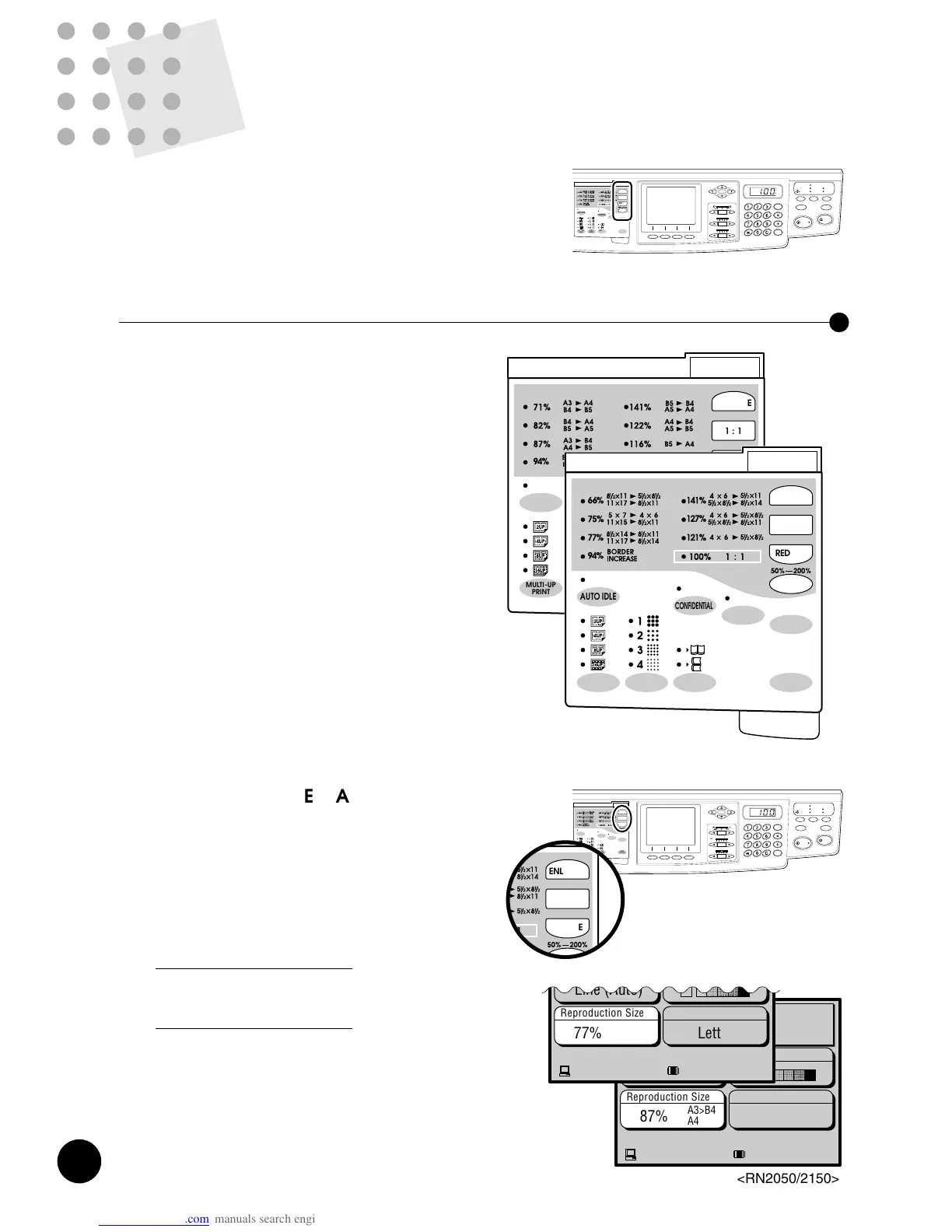
Press the REDUCE or ENLARGE key
to select a desired percentage.
Each time the REDUCE or ENLARGE key is
pressed, the indicators light and the percentage
appearing in the Main Display changes in the
following order:
< RN2000/2030/2130 >
94%/77%/75%/66%/94%
121%/127%/141%/121%
< RN2050/2150 >
94%/87%/82%/71%/94%
116%/122%/141%/116%
When you press the 1:1 key, the percentage
returns to the original size (100%).
Holding down the RESET key longer than one
second returns print size to the initial setting
(1:1).
Reducing and Enlarging
Originals
Originals can be reduced or enlarged, using either preset
reduction and enlargement or zoom that you specify.
☞ p.62 ....Reproduction percentage can be adjusted and
saved in memory for quick recall.
<RN2050/2150>
<RN2000/2030/2130>
Using Preset Reduction and Enlargement
To reduce or enlarge any standard-size original to another
standard size, use the Preset Size method. Seven Preset
Reduction and Enlargement percentages are available.
The chosen percentage appears in the Main Display, and
the Preset Reduction/Enlargement Size indicator in the
Sub Control Panel lights up.










 To Next Page