47
Printing Originals Side by Side
3
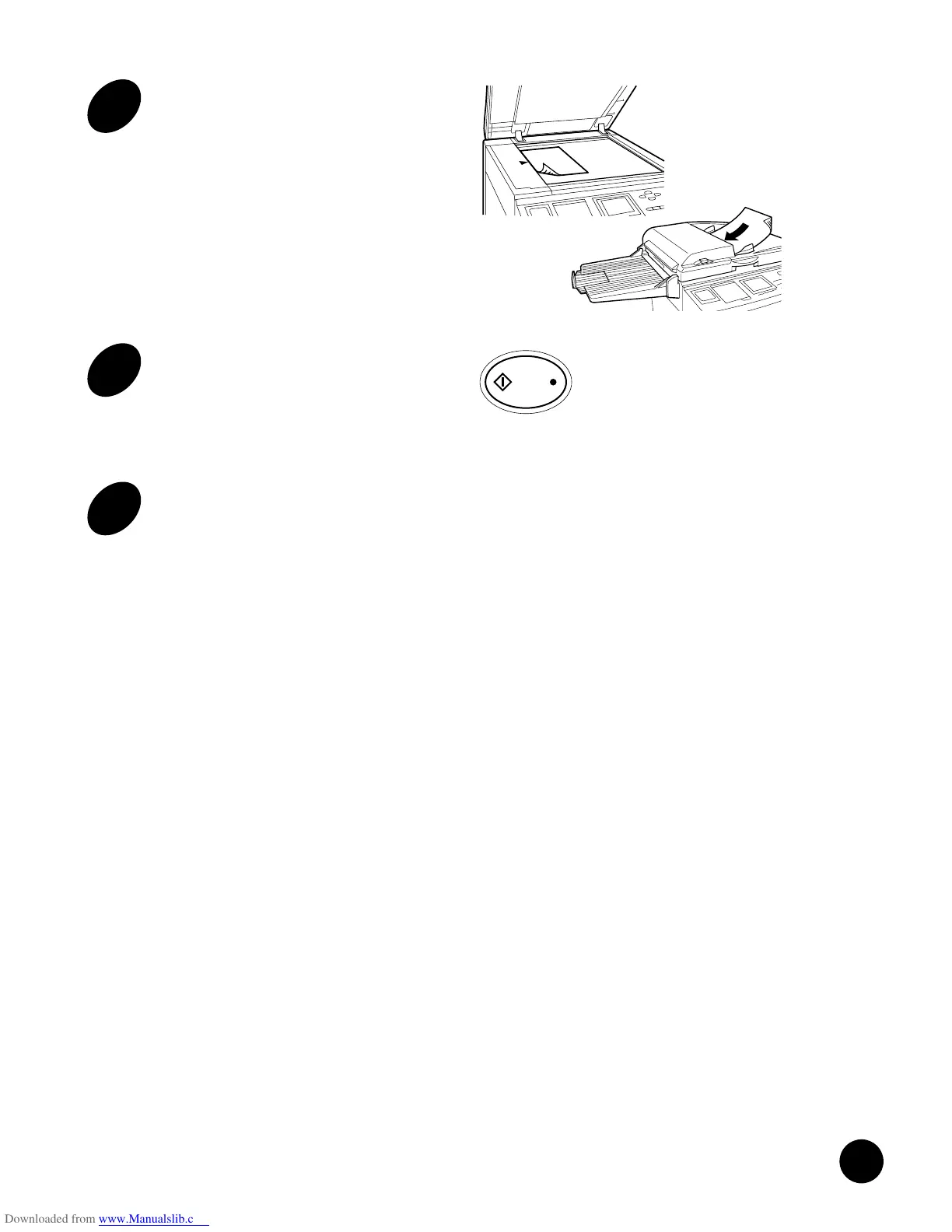
Place an original face-down on
the Stage Glass or in the optional
ADF Unit.
4
Press the START key.
After the first original is scanned, a 15-second
beep sounds.
5
During the 15-second beep, enter
the setting for the second original,
if necessary, and place the
second original on the Stage
Glass or in the optional ADF Unit.
- When selecting 2Up or 4Up pattern -
After it is sanned, a sample 2Up or 4Up print is
automatically printed.
- When selecting 8Up or 16Up patten -
After it is scanned, a 15-second, beep sounds
again to request the third original to be placed.
When the third one is placed, it is scanned and
another 15-second beep requests the placement
of the fourth original.
After the fourth one is placed and scanned, a
sample 8Up or 16Up print is automatically printed.
46
Printing Different Originals Multi-Up
Printing Originals Side by Side
If the optional ADF Unit is installed on your RISOGRAPH:
You can place all originals there at the same time. In this case, you have only to press the START key after
selecting a desired Multi-Up pattern and placing originals, in order to make desired-pattern Multi-Up prints.
By activating the Auto Process feature, besides, different Multi-Up prints can be produced without interruption
until all originals placed there are processed.
For the Auto Process feature, refer to page 32.
When different settings are required for each original, place originals on the Stage Glass or in the
optional ADF Unit individually, as instructed below.
When different originals are used in the Multi-Up printing feature, place them on the
Stage Glass individually. The RISOGRAPH scans the first original and then provides a
15-second period (a beep sounds) within which to place the second original.
If you press the STOP key or do not place the following original during the 15-
second period, the sample print will be produced, partly blank.
2
Press the MULTI-UP PRINT key to
select a desired pattern.
The corresponding indicator lights and the
corresponding message appears in the Main
Display when a desired pattern is selected.
To cancel this feature, press the key
repeatedly until the indicators are
turned off.
NOTE
AUTO IDLE
CONFIDENTIAL
REDUCE
ENLARGE
1 : 1
ZOOM
PRINT POSITION
DENSITY
LIGHT DARK
DUO
LINE
START
STOP
AUTO IMAGE
PROCESS
TEST
PRINT
RESET
PHOTO PRINT
MASTER
MAKING
AUTO
PROCESS
SLOW FAST
CENTER
PROGRAM
MEMORY
NORMAL
NORMAL
SPEED
CUSTOM
SETTING
SCANNING
CONTRAST
MULTI-UP
PRINT
DOT
PHOTO
BOUND
ORIGINAL
DATA
PC/SCAN
Line (Auto)
Image Processing
100%
Reproduction Size
Scanning Contrast
Letter
Paper
Black
Ready to Make Master
A
Idle
2UP
NOTE
NOTE
1
Change the initial setting of the
Multi-Up printing feature to
provide a 15-second interval for
placing the following originals.
☞ p.72
Skip this step when you place an original
in the optional ADF Unit.
NOTE
Close OK
Custom Initial Settings
Image Processing Line
Print Speed Level 3
Printing Density Standard
Scanning Contrast Auto
Auto Print Feature OFF
Book Size(Wide) Legal
Book Size(Long) Letter
Book Erasure Width 0.5inch
Multi-Up Interval
None
15 seconds










 To Next Page