C2 User Manual, Release 1.0.0
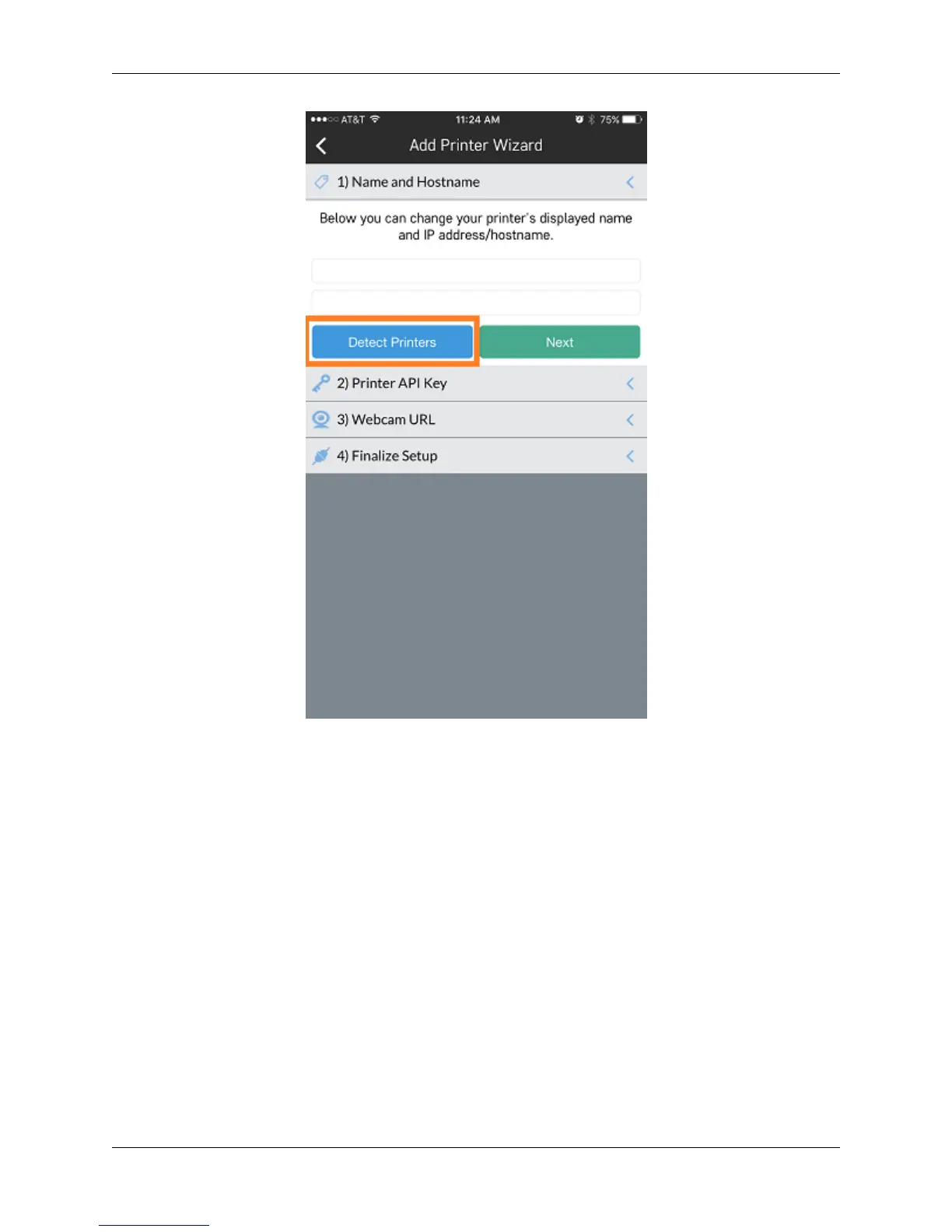
Then, you will want to add the API key that is located on your printer. Press the ‘scan’ button and it will bring up the
camera. Now, you will need to scan the QR code that is physically located on your printer. Go to your printer and
from the main screen go to Utilities> Network> API Key. Here, an API key will show. Go ahead and scan this API
key with your iOS device and it will get added automatically to that section of the app.
7.3. Adding a Printer 103


 To Next Page