C2 User Manual, Release 1.0.0
In order to view the Lani plugin, you must first disable the Robo Theme plugin. To do this, see section “How to enable
and Disable Plugins” below. Next, you must enable the Lani plugin from the plugins list. Now, when you restart
Octoprint, you will be able to view Lani and all of its contents.
Mainboard Connection Plugin
• This connection plugin is built to maintain a connection from the on-board computer to the main board that
drives the hardware on the printer.
Robo Theme
• This is a theme that has been created specifically for Robo 3d printers. It is a more unique experience, and has
been built to layout the web dashboard so it is easier to access and view.
RoboLCD
• RoboLCD is the plugin that lets the on-board computer run the front facing LCD screen on the Robo C2 and
Robo R2.
How to Enable and Disable Plugins
Below is a way of disabling a plugin, but you can use this method for other plugins as well as enabling them.
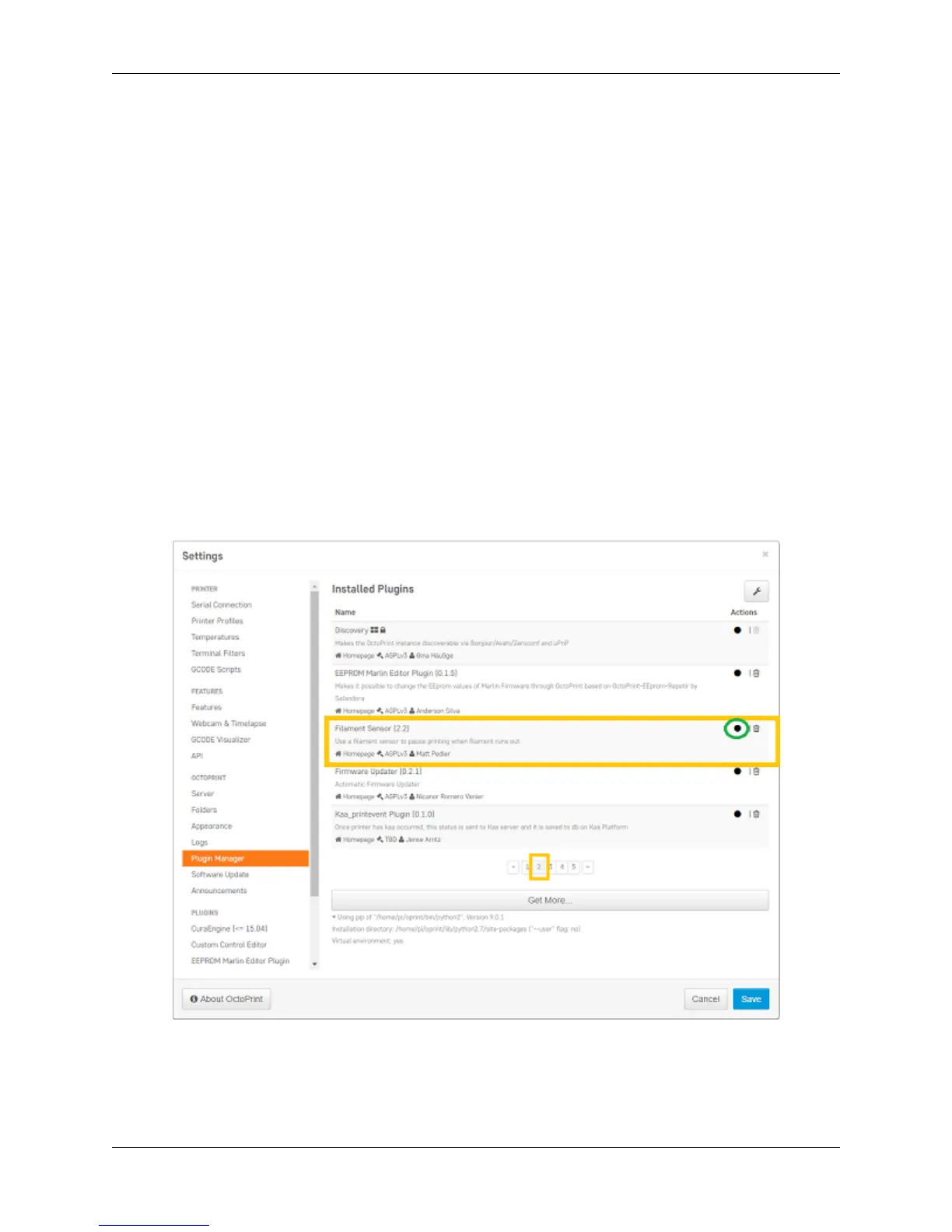
From the plugins section of the settings, click the next page over until you see the line item labeled ‘Filament Sensor’.
Click on the small black button to the right of the item (circled in green in the picture below). This will disable the
plugin. (If you are trying to enable the plugin, it will be an unshaded circle. Click it to enable and it will fill in to be a
solid black circle).
Once you have de-selected this plugin, you will need to restart Octoprint. A pop up will show on the top right of the
interface - click ‘restart now’. Your plugin will now be disabled and ready for printing.
90 Chapter 6. Robo Web Dashboard


 To Next Page