115
Playing a Movie (Video) File
Theprocedurestoplayavideoleregisteredtothe
MOVIELibraryaredescribedbelow.
FortheprocedurestoregisterlestotheLibrary,see
page 116.
1
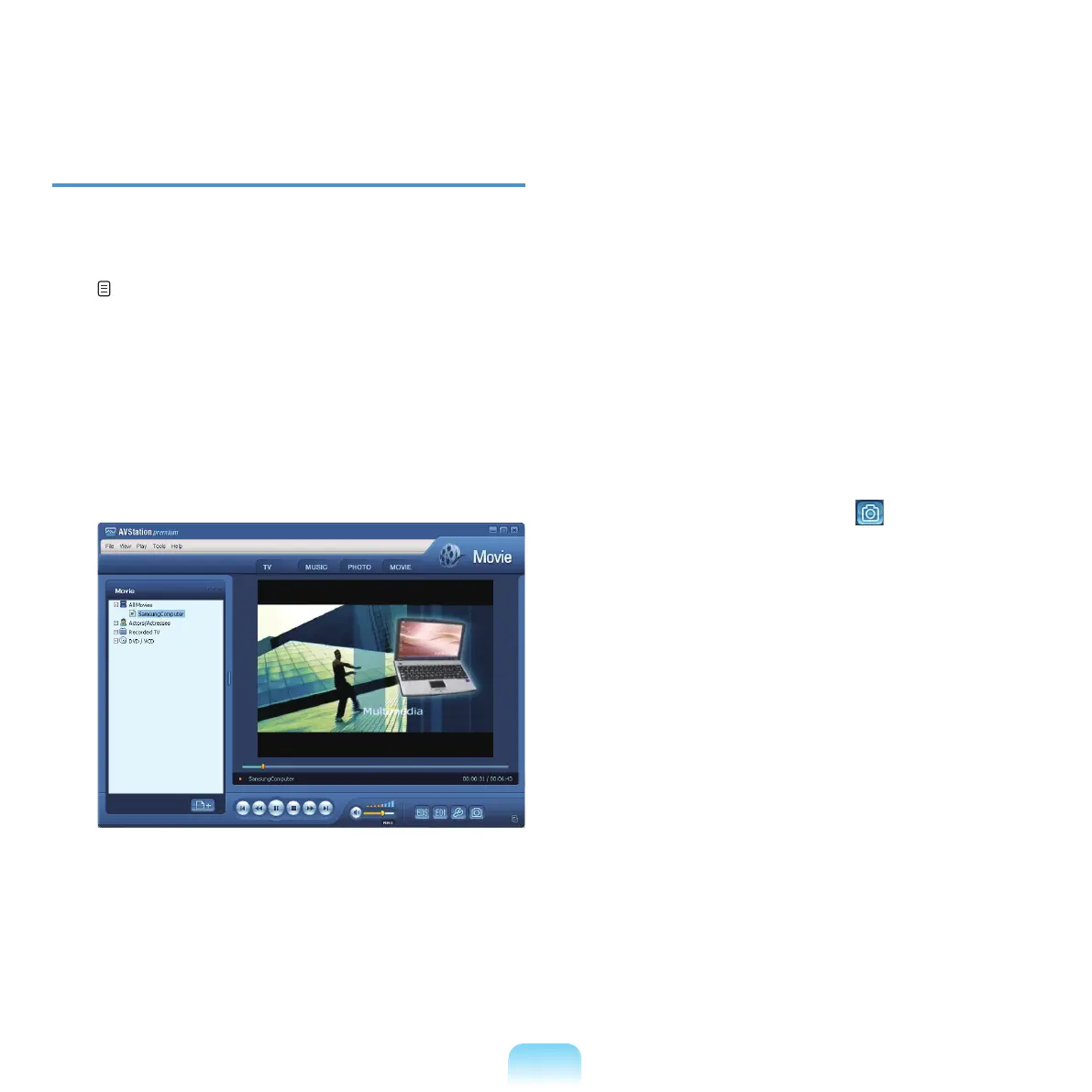
MovetoMOVIEStationanddouble-clickAll Movies.
2
Double-clickavideole.Theleisplayed.
■ Playing a Video le not registered to the Library
Click File > Open,
selectavideoletobeplayed
and click Open.Theselectedleisregisteredtothe
Libraryandplayed.
■ Playing a Video File in Full Screen
Double-clickthecurrentplaybackscreen.
Thevideoisplayedinfullscreen.Infullscreen,
movethemousepointertothebottomofthescreen
to show the Play Controlbar.
Toplayatthedefaultscreensize,pressthe<Esc> key
or
double-clickthescreen.
■ Capturing the Video Screen
Click Capture Current Screen (
)belowthePlay
window when the desired image appears on the
screen and click OK.
Captured images are saved in the C:\Program Files\
Samsung\AVStation Premium xx\Data\Captured
Images folder.
In
addition,youcanviewcapturedimagesinthe
PHOTO Station > Captured Images folder.


 To Next Page