Connecting to Wireless LAN
IfanAPexistsnearyourlocation,youcaneasilyconnect
towirelessLANinthemethodprovidedbyWindowsXP.
IfyouusetheprogramprovidedbyawirelessLANcard
provider,connecttowirelessLANafterseeingpage 78
of this document.
ThefollowingdescriptionisbasedonWindowsXP
ServicePack2;thus,thepicturesmayvary.
1
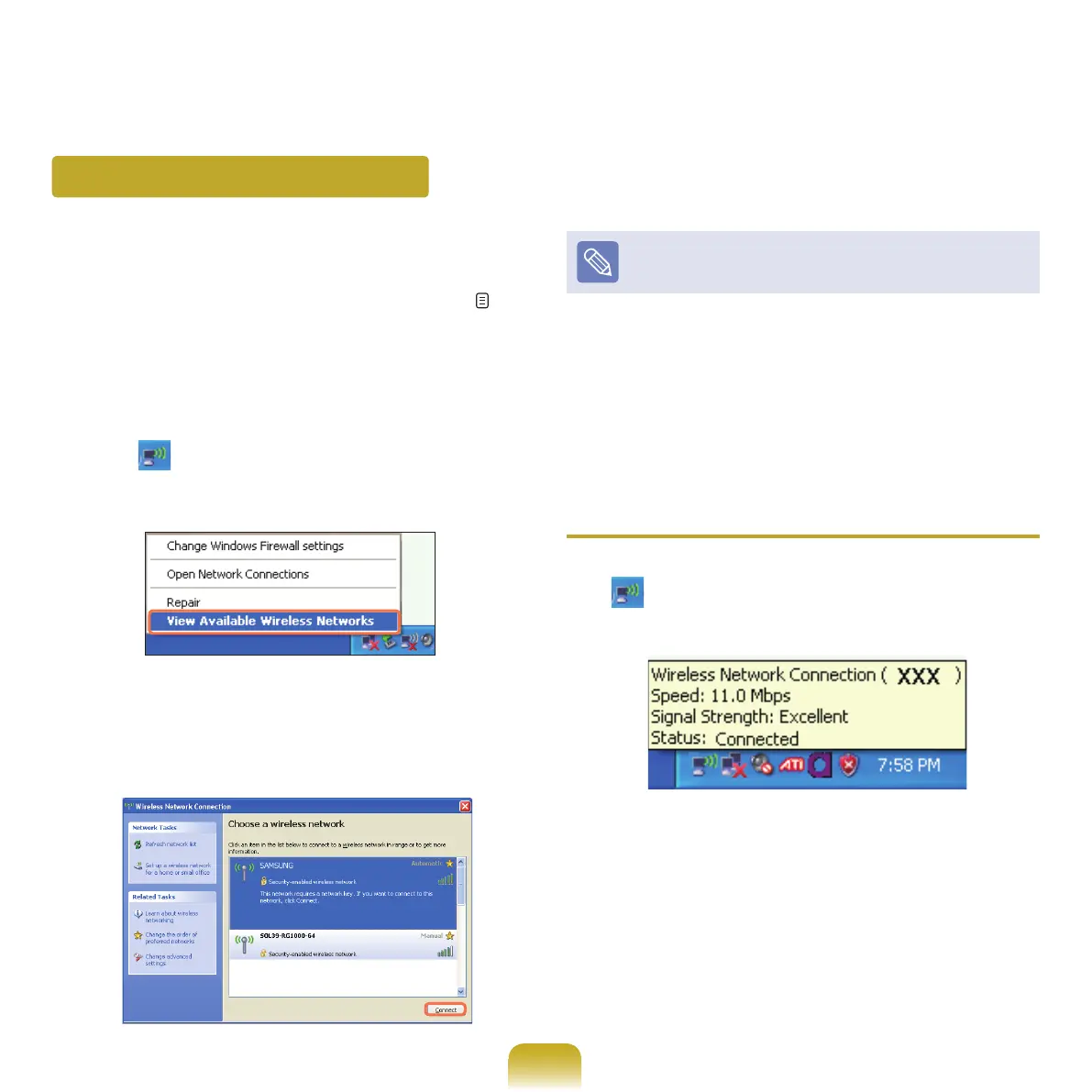
Click the Wireless Network Connection
icon ( )fromtheTaskbarusingtherightbuttonof
thetouchpad.Then,clickView Available Wireless
Networks.
2
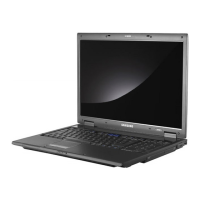
SelectanAPtobeconnectedandclickConnect.
IfanetworkkeyissetintheAP,thenetworkkey
input window will appear. Enter the network key in
the input window and click OK.
Foranetworkkey,contactthenetworkadministrator.
3
Once Connected to APisdisplayed,youcanusea
wireless network.
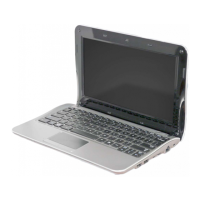
To check the network connections
Place the mouse on the Wireless Network Connection
icon ( )fromtheTaskbar.Then,thestatuswillappear.


 To Next Page