75
Incomputer-to-computerwirelessnetworks,youcan
wirelessly connect 2 or more computers that have
wirelessLANmodules.Usingthismethod,acomputer
that is not connected to the Internet can share the Internet
byaccessinganothercomputerconnectedtotheInternet.
(Referto“SharingInternetAccess”onpage 83.)
Youcanconnectbycompletingthefollowingsteps:
■ Step1.Setupacomputer-to-computernetworkona
computer.
■ Step2.Connecttotheconguredcomputerfromother
computers.
Step 1. Setting up a computer-to-
computer network
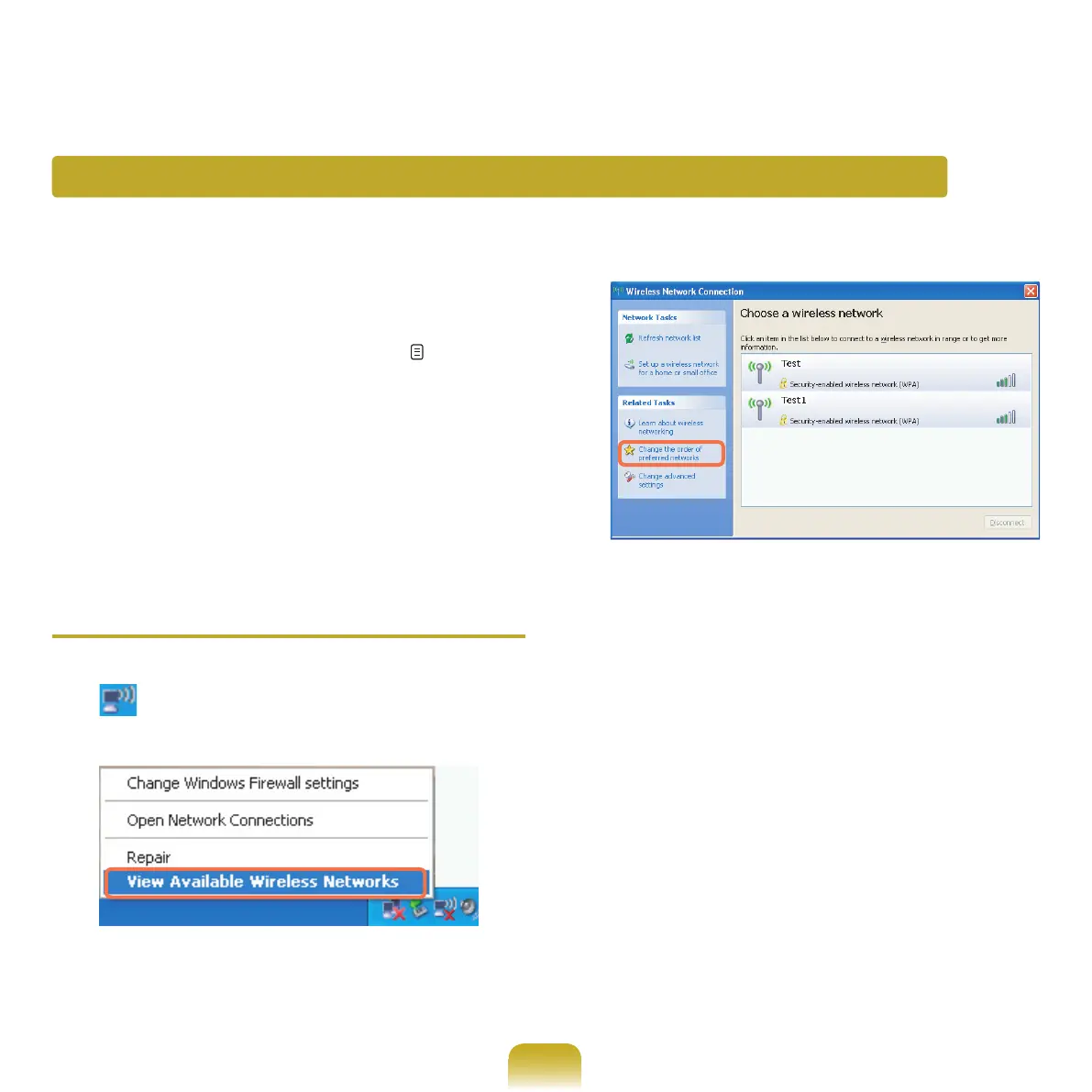
1
Right-clickontheWireless Network Connection
( )icononthetaskbar,andselectView
Available Wireless Networks.
2
ClickChangetheorderofPreferredNetworks.
3
OntheWirelessNetworktab,clickAdvanced.
4
Clear‘Automaticallyconnecttonon-defaultnetwork’
checkbox,ifitisselected.Select‘Computer-to-
computer(adhoc)networksonly’,andclickClose.
5
IntheWirelessNetworkstab,clickAdd.
Connecting to computer-to-computer networks (peer-to-peer or ad hoc)


 To Next Page