135
Charging Battery
1
InsertthebatteryandconnecttheACadaptertothe
powerinputjackonyourcomputer.
Battery charging starts.
2
Whenchargingiscomplete,thestatusindicator
changes to light green.
Status Indicator
While being charged Orange
When charging is complete Light Green
When the AC adapter is
disconnected
Turns off
Checking Battery Residual Amount
Thissectiondescribeshowtocheckthebatteryresidual
amount.
Using Shortcut keys
If you press the Fn + ( )onthekeyboard,thebattery
residualamountwillbedisplayedonthescreenforashort
time.
It is displayed only if the Samsung Display Manager is
installed.
Viewing in Battery
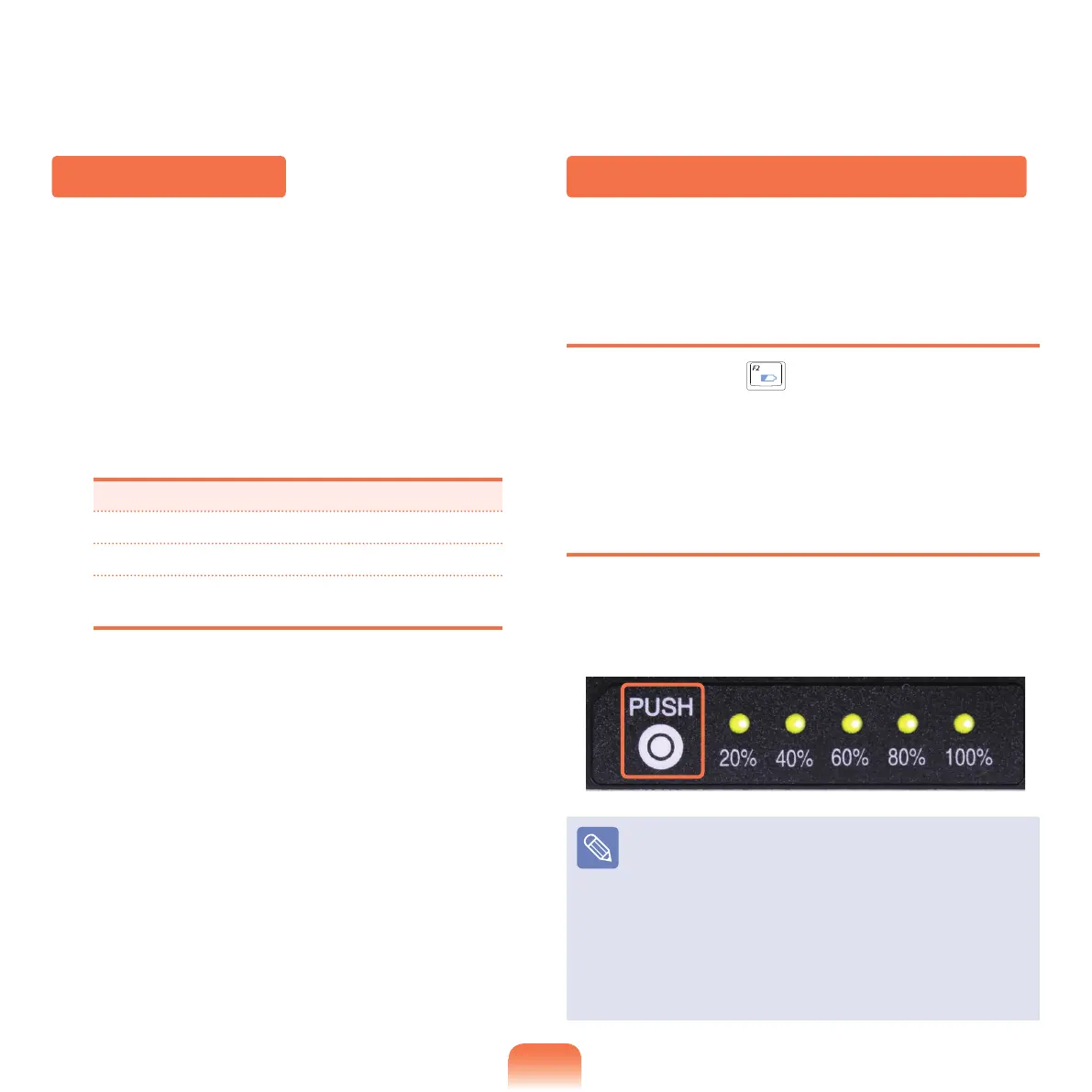
IfyouseparatethebatteryandpressthePUSHbutton
locatedinside,thebatteryresidualamountwillbe
displayed.
Warning of Battery Shortage
■
Ifthebatteryresidualamountislessthan10%,a
warning alarm rings.
In
thiscase,connecttheACadaptertothecomputer
orreplacethebatteryafterturningoffthesystem.
■
Ifthebatteryresidualamountis3~5%,thecomputer
automatically shuts down after saving the data.
The
batteryresidualamountmayvarydependingon
the computer model.


 To Next Page