Select system boot
options
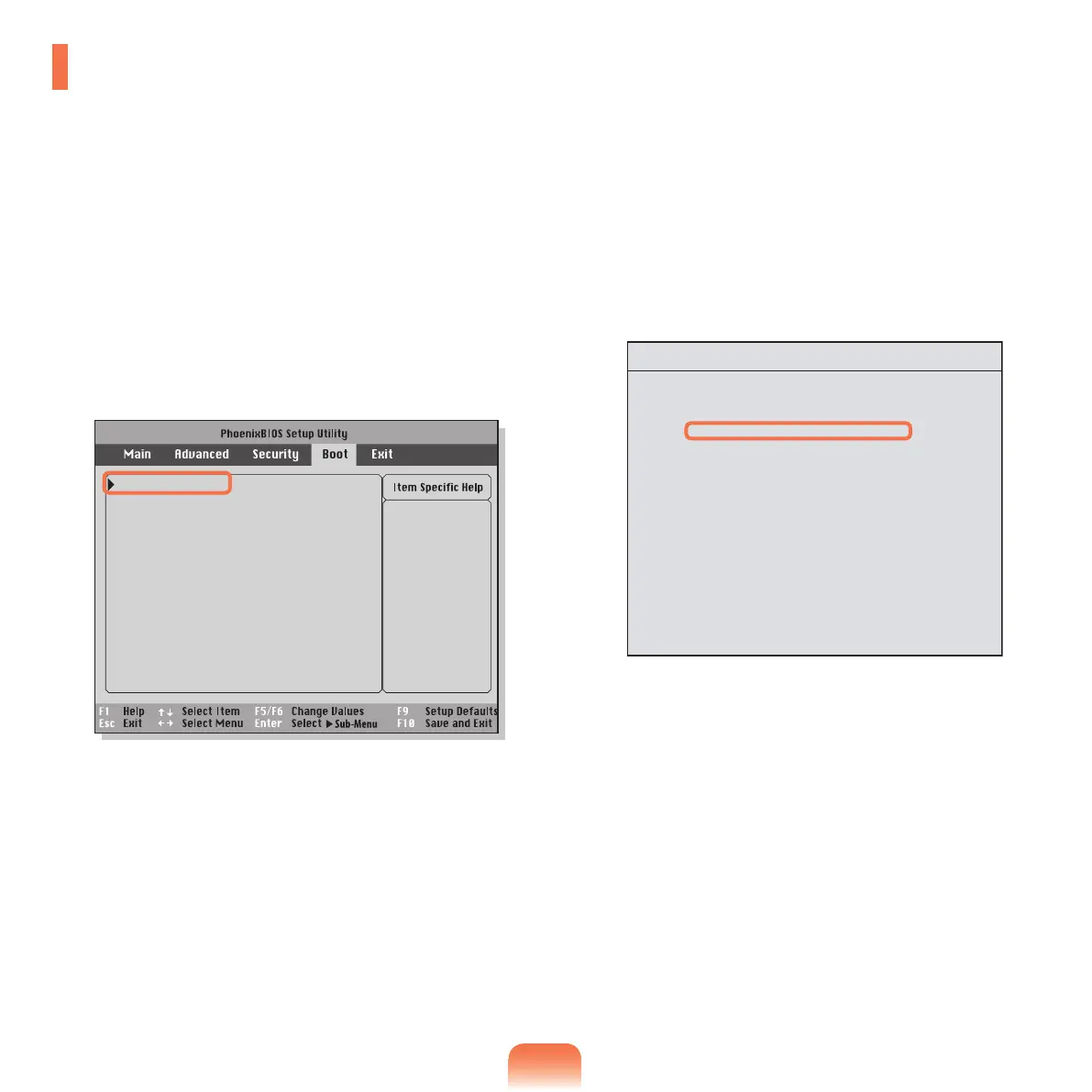
Boot Device Priority
NumLock [Off]
Enable Keypad [By NumLock]
Summary screen [Disabled]
Boor-time Diagnostic Screen [Disabled]
PXE OPROM [Only with F12]
Brightness Mode Control [Auto]
Wireless Device Control [Always On]
Smart Battery Calibration
131
1
Select the Boot menu in the BIOS Setup.
2
Press <Enter> on the Boot Device Priority item.
3
Move to the IDE HDDusingthe↓keyandpressthe
F6 key to move it to the top.
4
Press the F10keytosavethesettingsandexit
Setup.Thehighestbootprioritydeviceisnowsetto
the Hard Drive.
Boot Device Priority
Boot priority order:
▼ IDE CD : Slimtype COMBO SSC-2485K
▼ IDE HDD : SAMSUNG xxxxxxx
▼ USB KEY : Not Installed
▼ USB CDROM : Not Installed
▼ USB FDC : Not Installed
▼ USB HDD : Not Installed
▼ PCI BEV : Not Installed
▼
▼ USB ZIP : Not Installed
▼ USB LS120 : Not Installed
Excluded from boot order:
Changing the Boot Priority
ThedefaultbootpriorityofyourcomputeristheCD-ROMrst,thenaremovabledeviceandthentheharddiskdrive
in this order.
Bydefault,thehighestbootprioritydeviceissettotheCD-ROM/DVDdrive.Asanexample,theproceduresto
changethehighestbootprioritydevicetotheharddiskdrivearedescribedbelow.


 To Next Page