68
Changing Resolution and Color
Aresolutionisthenumberofpixelsdisplayedonthe
screen.Ifyousettheresolutiontoahighervalue,items
onthescreenwillbedisplayedsmallerandthescreen
lookswiderthanthepervious.Ascolorqualitygetshigher,
morecolorscanberepresented.
1
Click Start > Control Panel > Appearance and
Themes > Change the screen resolution.
2
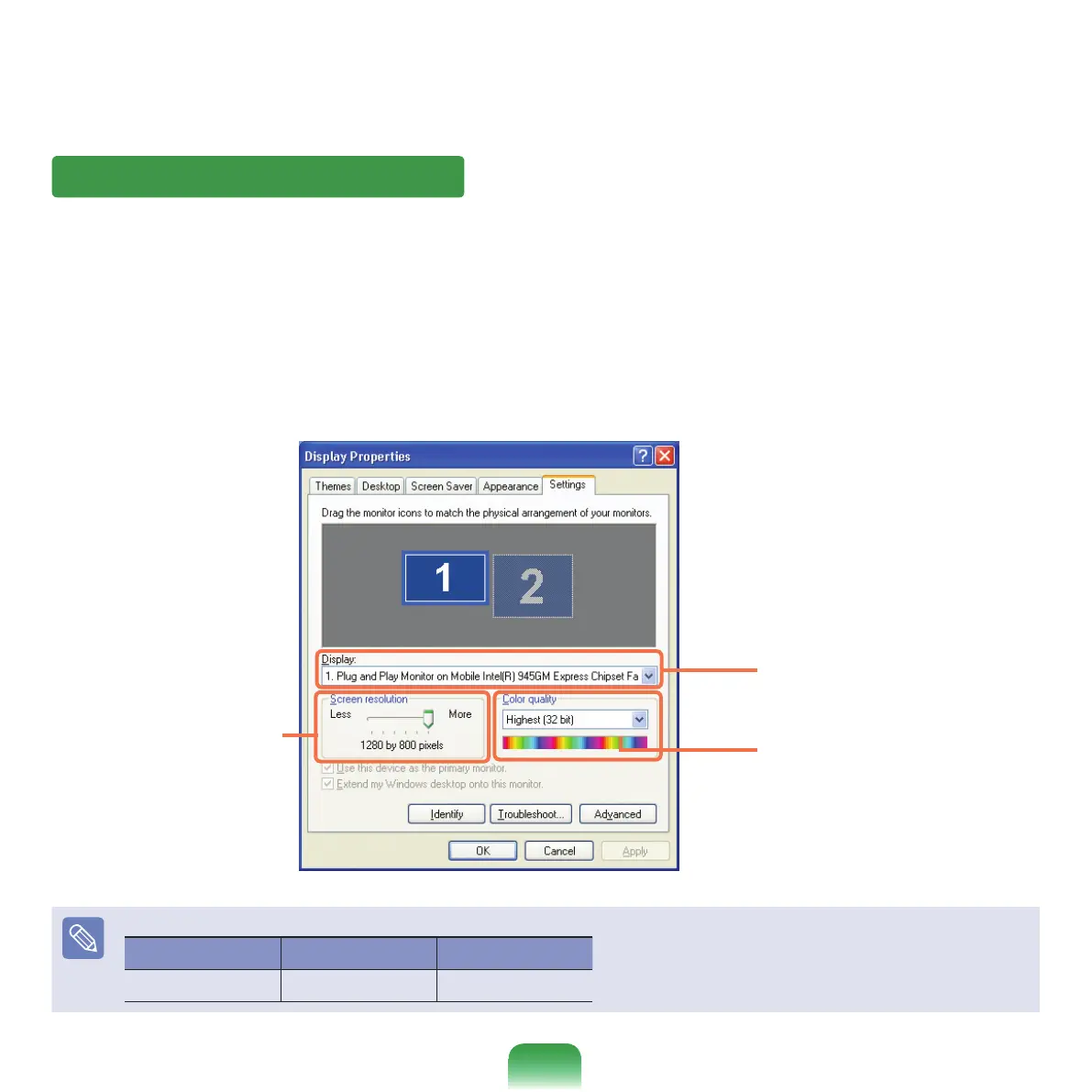
Click Settings and change the resolution and color
quality.Then,clickOK.
You can select a graphic chip set.
Clickthepull-downmenubuttonto
selectthenumberofcolorsyouwant.
Movethesliderbartosetthe
resolution.
ItisrecommendedtosettheresolutionandcolorqualitydependingontheLCDtypeofyourcomputerasthefollowing:
LCD Type Resolution Color Quality
WXGA 1280
x800 Strongest(32-bit)


 To Next Page