52
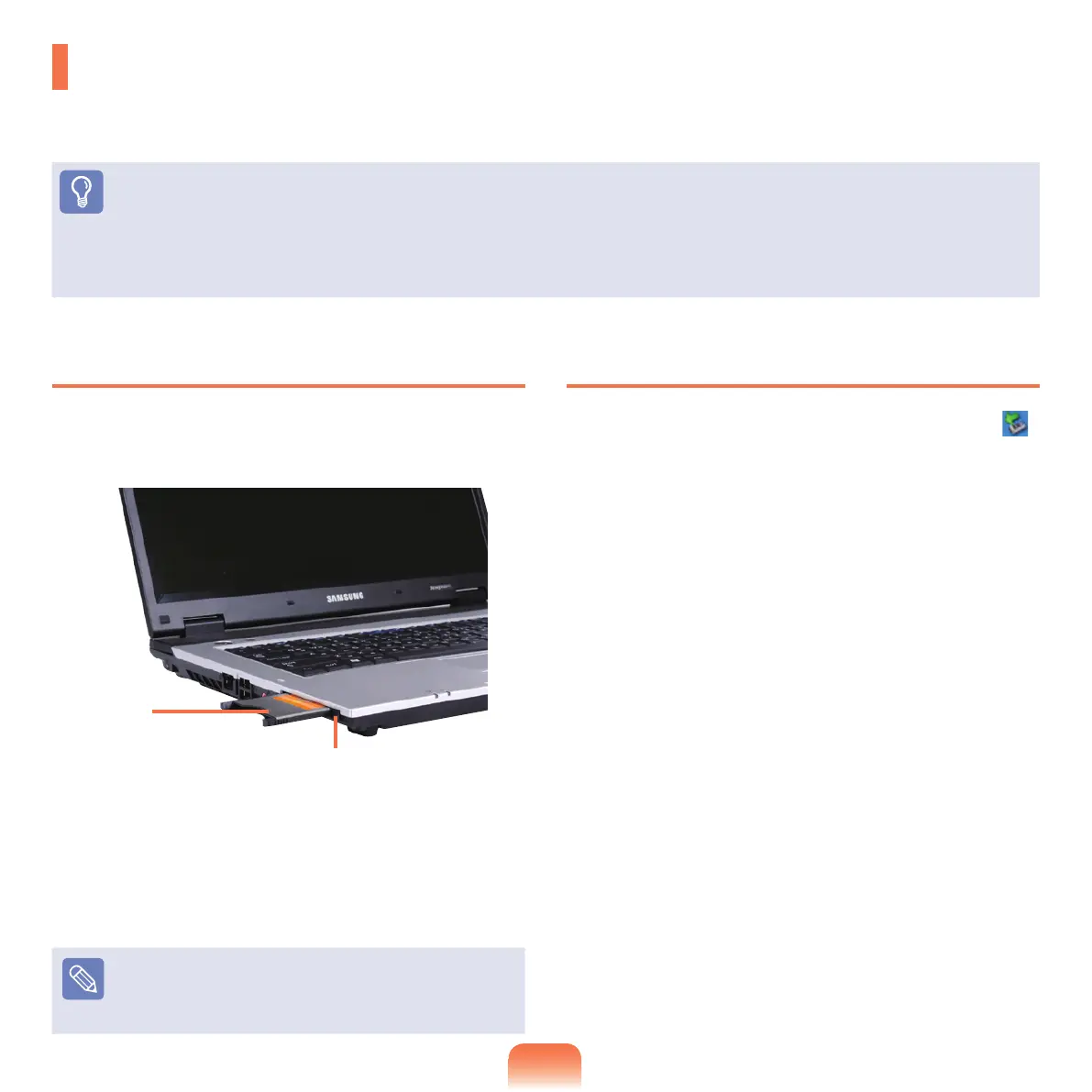
To insert a card
1
Insert a PC card into the PC card slot on the side of
the computer.
2
Ifyouinsertacardintotheslot,Windowsrecognizes
the card automatically or a message telling
you to install a driver appears. If the card is not
automaticallyrecognized,installthedevicedriver
supplied with the card.
Note
If a window asking whether you want to scan and
changeappears,clickonContinue Without Scan.
This
willproceedtoStep2above.
To remove a card
1
Double-clicktheSafelyRemoveHardwareicon( )
onthetaskbar.
2
SelectthePCcardtoberemovedandclickStop.
3
If the Stop a Hardware devicewindowappears,
click the OKbutton.
4
Push the EjectbuttonofthePCcardslotlightly.
Then the Ejectbuttonpopsup.
5
Press the Ejectbuttonfullytoejectthecard.
PC Card Slot
You can insert and use various PC cards using the PC card slot.
ThiscomputerprovidesonePCcardslotsupportingthe16/32bittype.
Before You Start!
■
Removethedummycardinstalledtoprotecttheslotrst.Lightlypushthedummycardoftheslot.Thedummycardpopsup.
Ejectthedummycard.
■
The PC card slot does not support the ZV and PC card III types.
Example)
PCMCIA Card
Eject Button


 To Next Page