Chapter 4 PAS Application Software Remote Device Control
Branch Feeder Monitor 136_Installation Operation and Manual 55
4.9 Remote Device Control
This section describes some online operations on the BFM136 you can perform through PAS. To access
device control options you should have your device online.
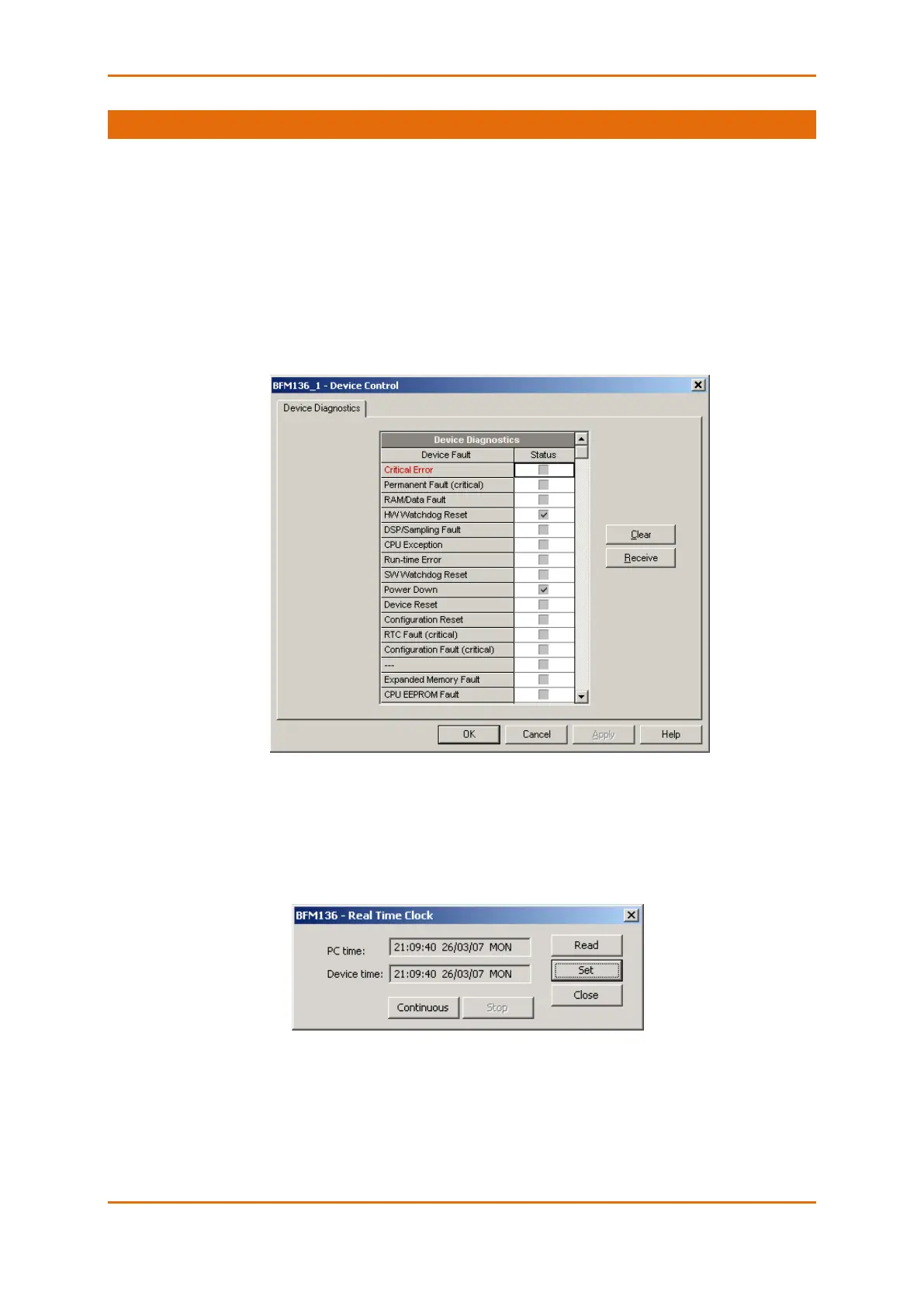
4.9.1 Viewing and Clearing Device Diagnostics
To view or clear the device diagnostics status, check the On-line button on the PAS toolbar and select
Device Control from the Monitor menu.
Refer to Device Diagnostic Codes in Appendix F for the list of diagnostic codes and their meanings. See
Device Diagnostics in Chapter 2 for more information on the BFM136 built-in diagnostics.
Click on the Clear button to clear the device diagnostics. You must be connected to the BFM136 using
the device base address to be able to clear the diagnostics status.
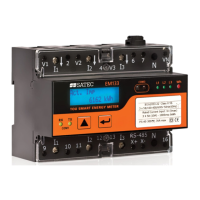
4.9.2 Updating the Clock
To update the RTC clock in your device, select a site with base device address from the list box on the
toolbar, check the On-line button on the toolbar, and then select RTC from the Monitor menu.
The RTC dialog box displays the current PC time and the time in your device. To synchronize the device
clock with the PC clock, click Set.


 To Next Page