14
III.2 Connect using Local Wi-Fi
This section explains how to connect a client device to ScreenBeam 1100 Plus using the
local AP on ScreenBeam 1100 Plus.
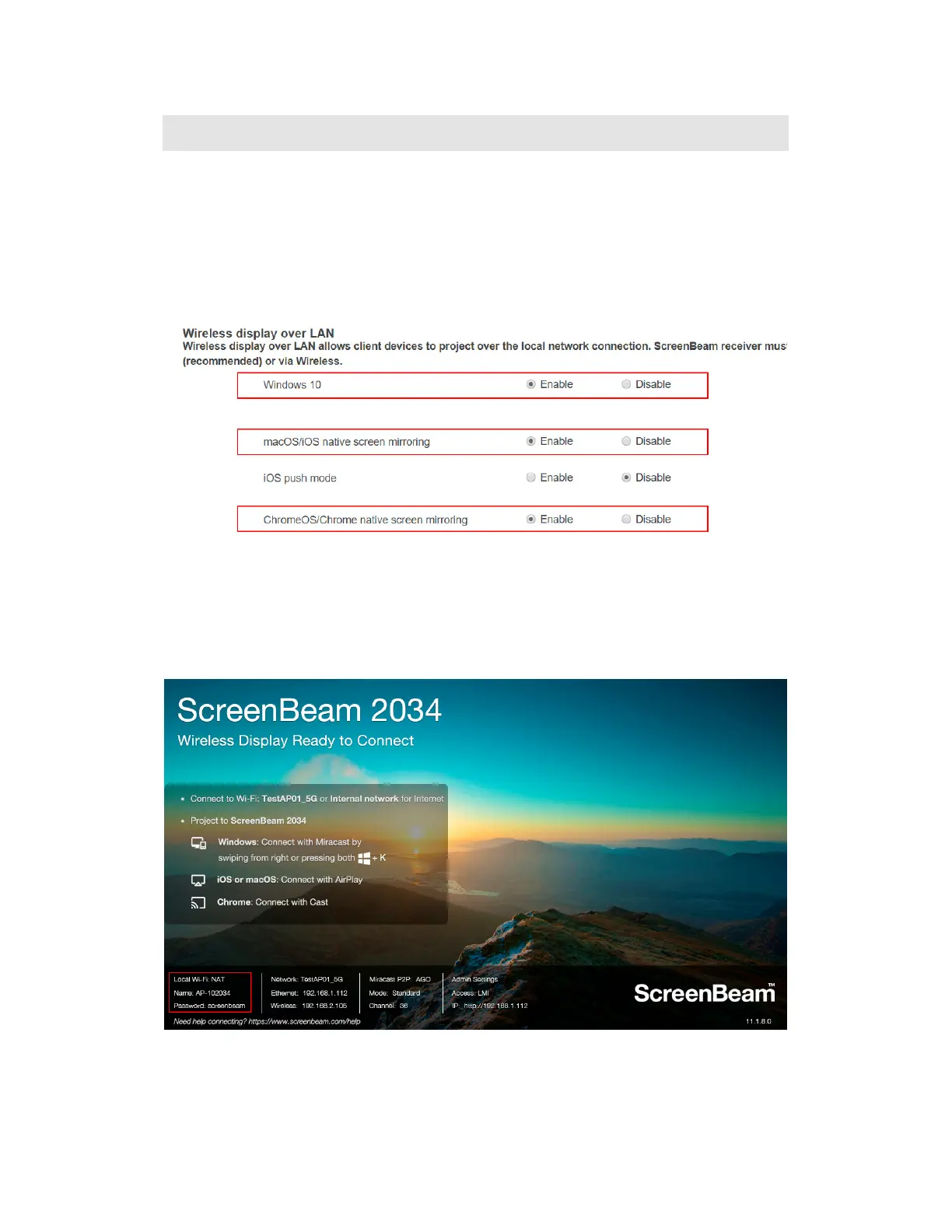
1. Make sure that the Wireless display over LAN feature is enabled for Windows 10,
macOS/iOS AirPlay and/or Google Cast screen mirroring. Refer to section V.3.3 Wireless
Display over LAN for detail.
Note: You can also configure your receiver with CMS.
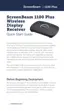
2. Connect the client device’s Wi-Fi to the wireless network (AP SSID) as shown on the TV
display. And enter the password for the wireless network. By default, the password is
screenbeam (case-sensitive).
Note: For Windows 10/8.1 or Android devices with Miracast, you can skip to Section III.3
Connect using Wi-Fi Miracast.



 To Next Page