52
V.3.4.2 Setting up P2P Operating Channel
ScreenBeam 1100 Plus allows you to define an operating channel for communication
between the wireless display receiver and the source device.
To set up the receiver’s operating channel, follow this procedure:
1. Go to the Features tab page by clicking the Features tab.
2. Go to the P2P Wireless Setting section, and select a desired channel from the P2P
Operating Channel drop-down box.
Channels from 1 to 13 belong to the 2.4 GHz band; and channels from 36 to 165 belong to
the 5 GHz band. By default, channel 36 is used.
Availability of channels depends on the sales region (country code).
You should select a channel based on your network environment. Generally, cleaner
channels (where less devices work) will provide better performance. You can use Wi-Fi
Analyzer to help you identify a clean channel.
Note: ScreenBeam receivers do not support Dynamic Frequency Selection (DFS) channels,
50 through 144, because it's prohibited in a direct Wi-Fi usage model. You should disconnect
your source device from the DFS-capable router (AP) or connect to a non-DFS AP if the Wi-
Fi adapter of your source device cannot work in dual bands.
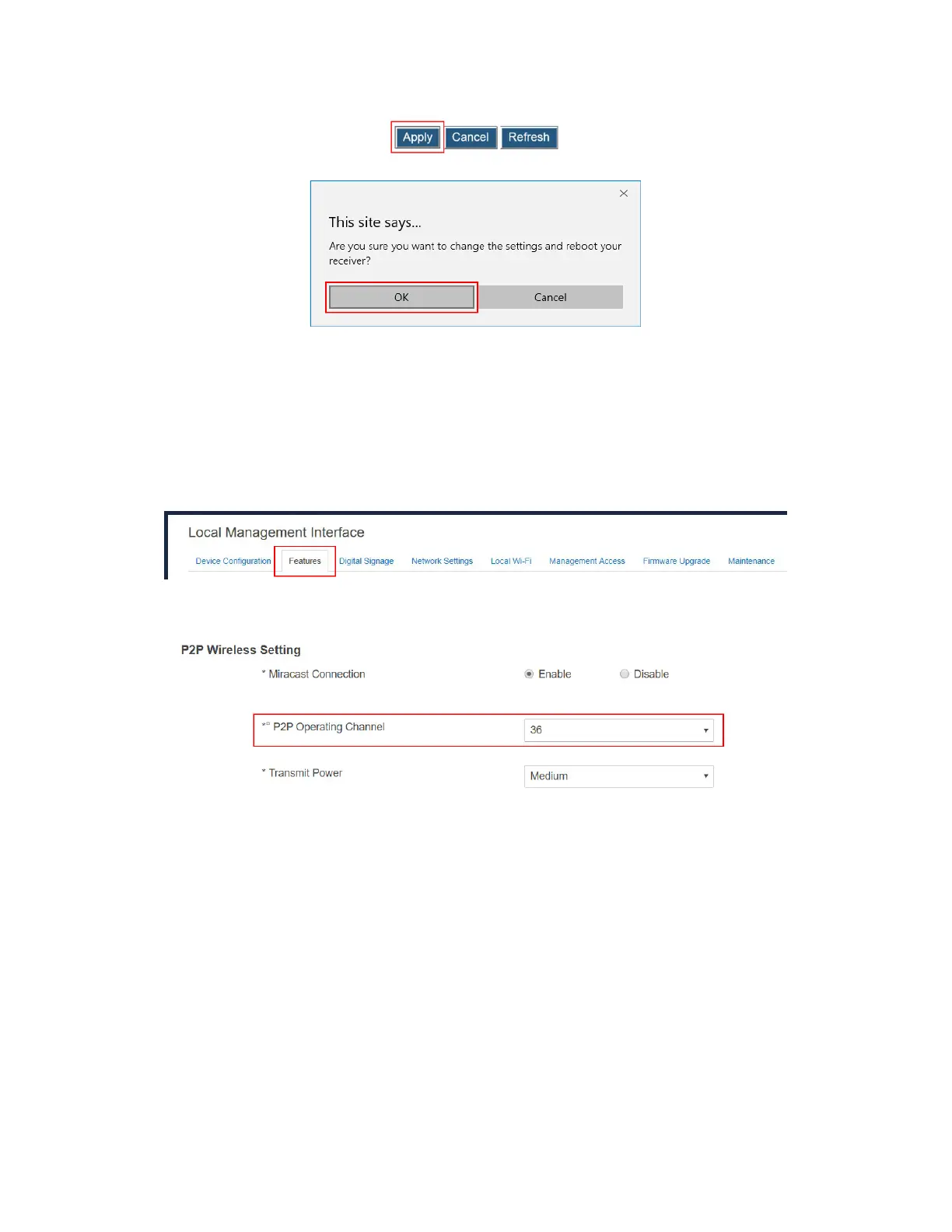
3. Click the Apply button, and then click OK on the pop-up message box to confirm.



 To Next Page