30
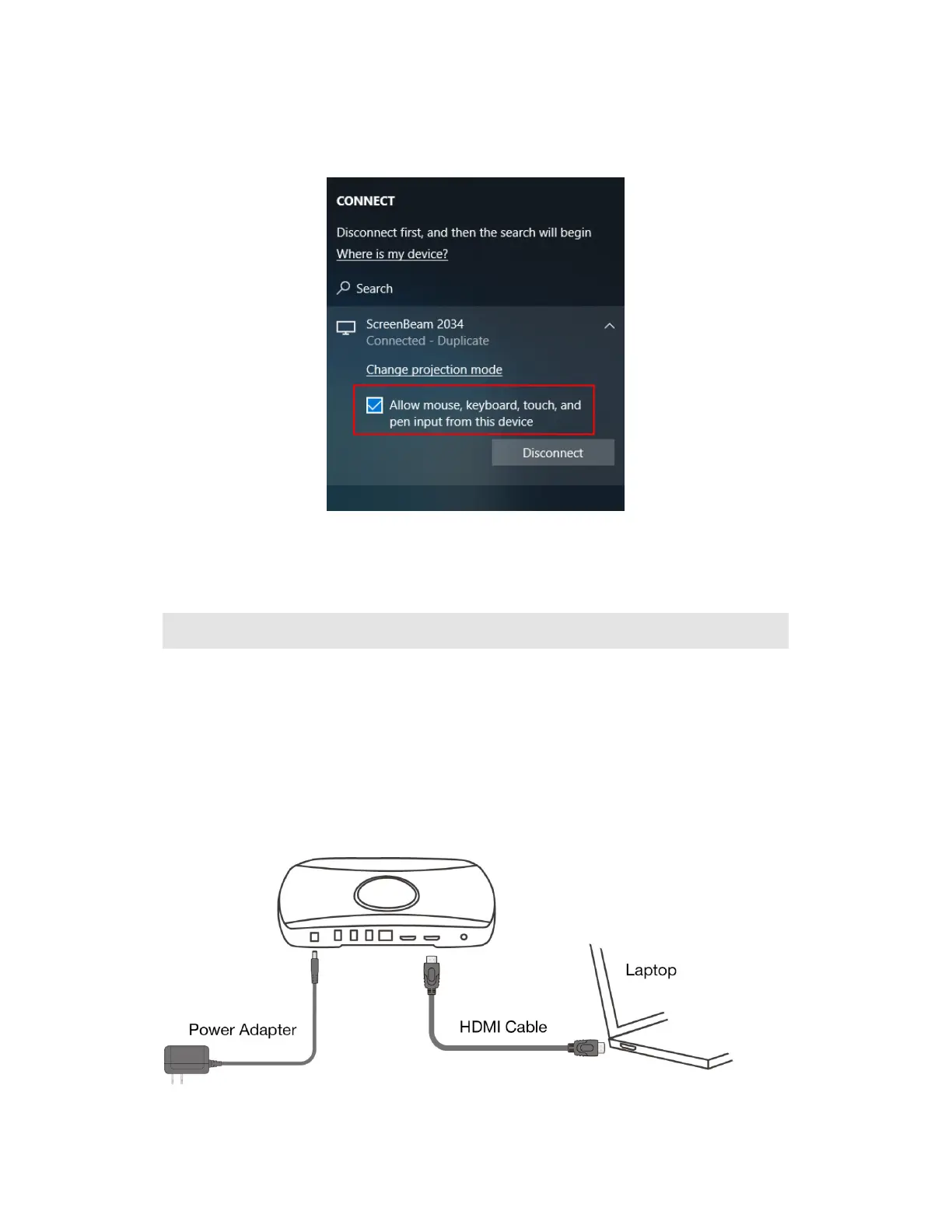
8. If the display has touch functionality, Windows 10 devices can take advantage of the
touch and inking feature by selecting Allow mouse…. (Refer to section IV.3 USB over
Network Control for more details.)
Note: To disconnect, follow instructions in step 5 to return to the screen mirroring menu and
select mirroring off.
III.5 Displaying with a connected HDMI cable
While most users will be able to connect to ScreenBeam wirelessly using their native
application, there may be the occasional user that will prefer to use a wired HDMI connection
and ScreenBeam can even support those users.
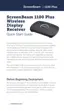
To connect with an HDMI cable, connect the HDMI cable to the receiver’s HDMI IN port, and
then plug the HDMI cable into the user’s HDMI output port. ScreenBeam will automatically
display the users screen. Refer to Section IV.2 HDMI Output Behaviors for more information
on how the hardwired connection works when a wireless session is already active.



 To Next Page