50
V.3.3.3 Setting up Wireless Display over LAN for Chrome OS Device and
Device with Chrome Browser
Your device can connect to ScreenBeam for wireless display, as long as the following
requirements are met:
Operating system: Chrome OS 74.0.3729.159 (and later) with Cast, or Chrome Browser
with Cast
100M/1000M Ethernet adapter (optional, but recommended) and Wi-Fi adapter are
available
Stable local area network
Source device and ScreenBeam 1100 Plus receiver are connected to the same LAN
To set up wireless display over LAN for Chrome OS devices or devices with Chrome browser,
follow this procedure:
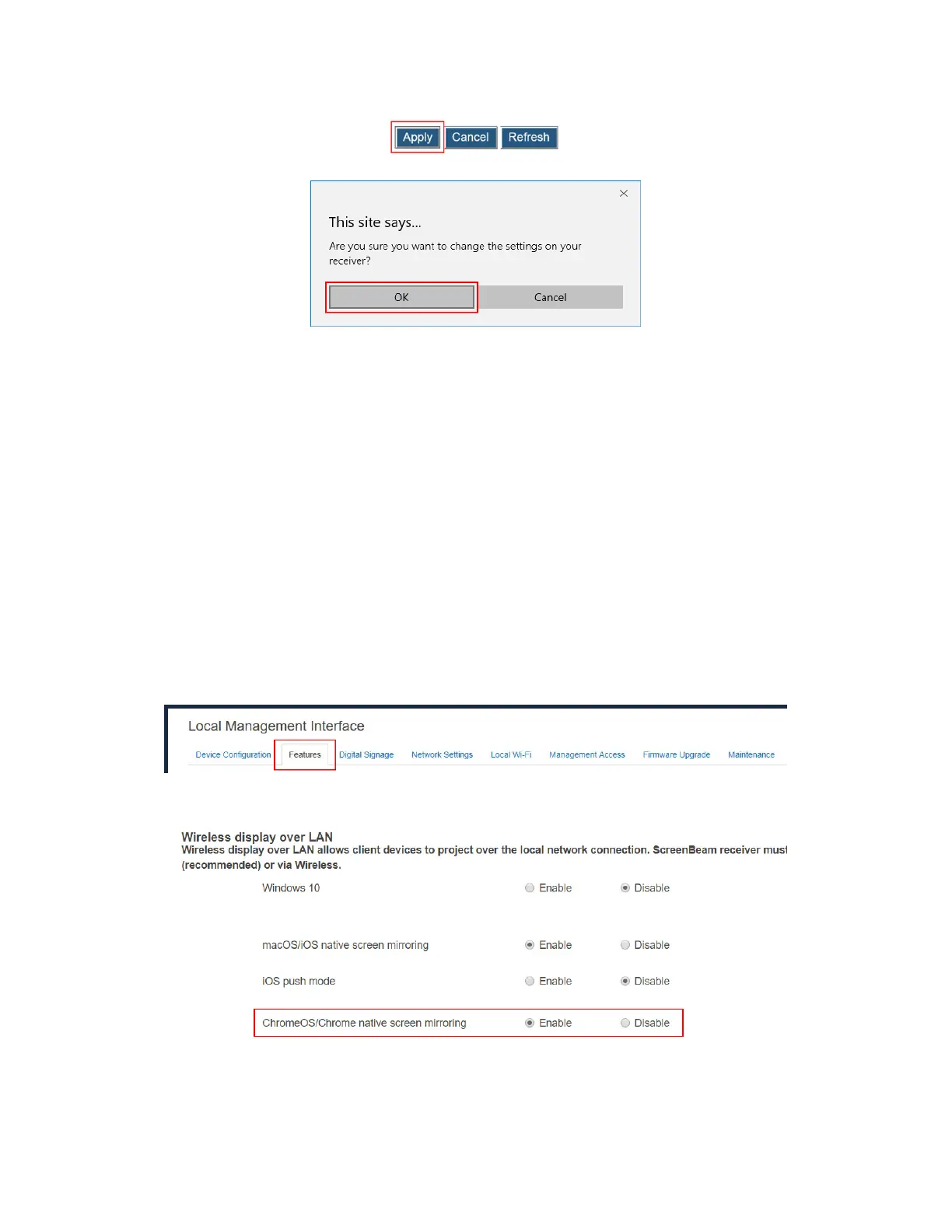
1. Go to the Features tab page by clicking the Features tab.
2. Go to the Wireless display over LAN section, and set ChromeOS/Chrome native
screen mirroring to Enable or Disable.
Enable: Chrome OS devices or devices with Chrome browser are allowed to project
over the local network.
Disable: Chrome OS devices or devices with Chrome browser are not allowed to project



 To Next Page