48
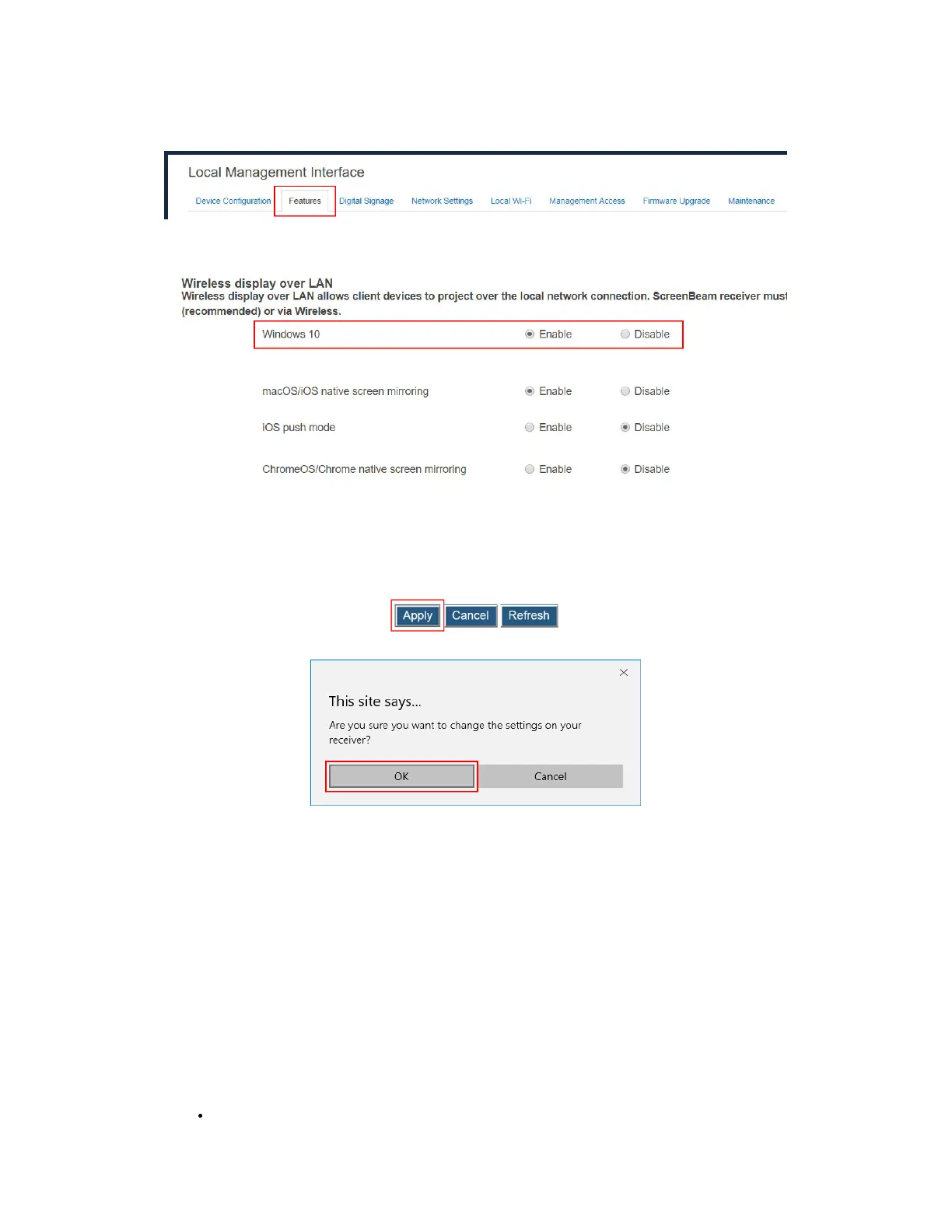
To set up wireless display over LAN for Windows 10 devices, follow this procedure:
1. Go to the Features tab page by clicking the Features tab.
2. Go to the Wireless display over LAN section, and set Windows 10 to Enable or
Disable.
Enable: Windows 10 devices are allowed to project over the local network.
Disable: Windows 10 devices are not allowed to project over the local network.
3. Click the Apply button, and then click OK on the pop-up message box to confirm.
V.3.3.2 Setting up Native Screen Mirroring for macOS/iOS Devices
The Wireless Display over LAN feature allows macOS/iOS devices to project over the local
network with native screen mirroring.
Make sure the following requirements are met:
Operating system: macOS or iOS
100M/1000M Ethernet adapter (optional, but recommended) and Wi-Fi adapter are
available
Stable local area network
MacOS/iOS device and ScreenBeam 1100 Plus receiver are connected to the same LAN
Required ports: UDP 5353, TCP 47000, TCP 7000, TCP 7100, TCP 18000-18009
•
UDP 5353, for Multicast DNS (mDNS) discovery



 To Next Page