43
The receiver’s Device Name supports the characters listed below:
A-Z
a-z
0-9
~!@#$%^&*()_+{}|:?\-=[];',./
Japanese characters with Unicode in the following range: \u3040-\u30FF, \u31F0-
\u31FF, and \u4E00-\u9FBF.
Simplified and Traditional Chinese characters
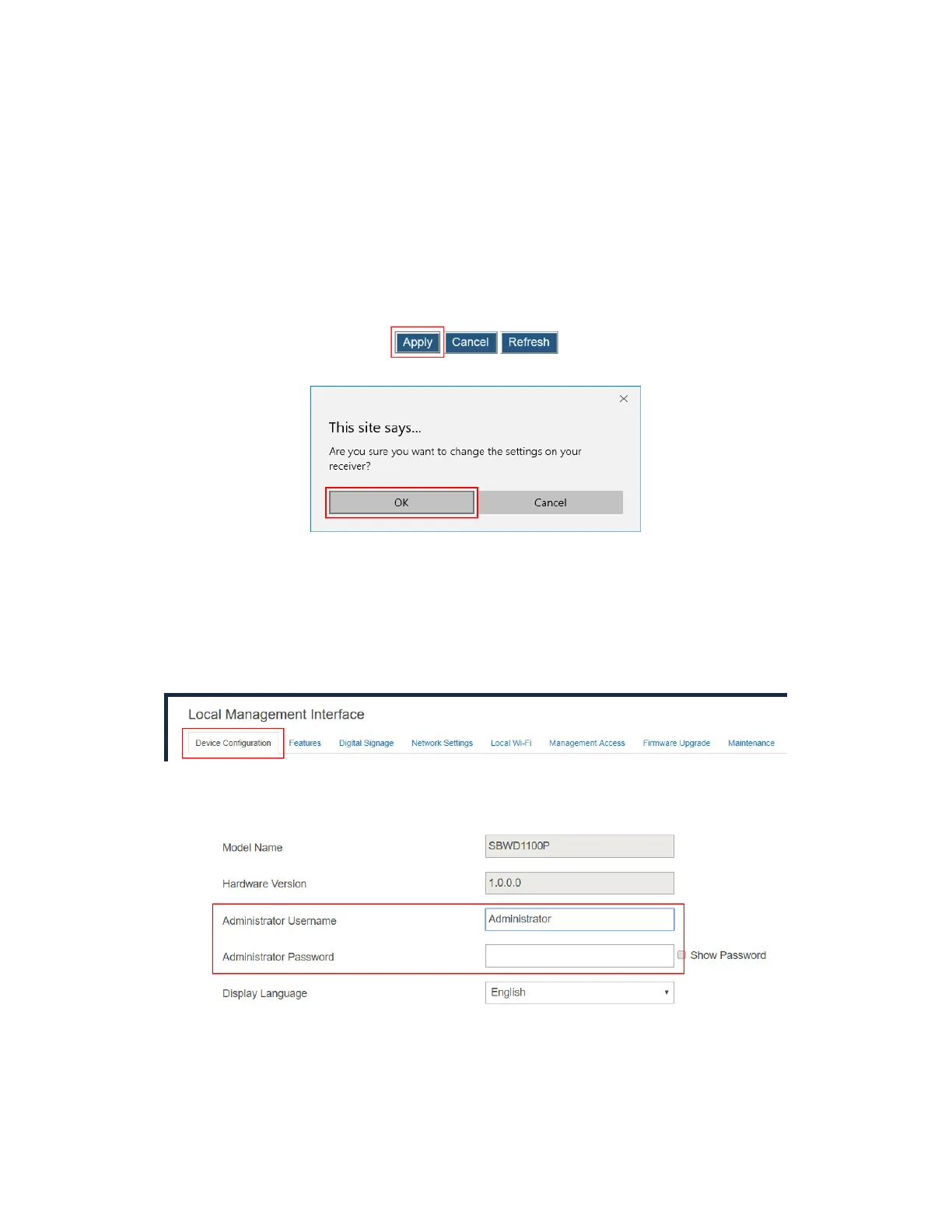
3. Click the Apply button, and then click OK on the pop-up message box to confirm.
Note: New settings take effect immediately.
V.3.1.2 Setting up the Login Username and Password
To modify the username and password for user login, follow this procedure:
1. Go to the Device Configuration tab page by clicking the Device Configuration tab.
2. Go to the Administrator Username and Administrator Password lines, and type new
username and password in the Administrator Username and Administrator Password
boxes, respectively.



 To Next Page