71
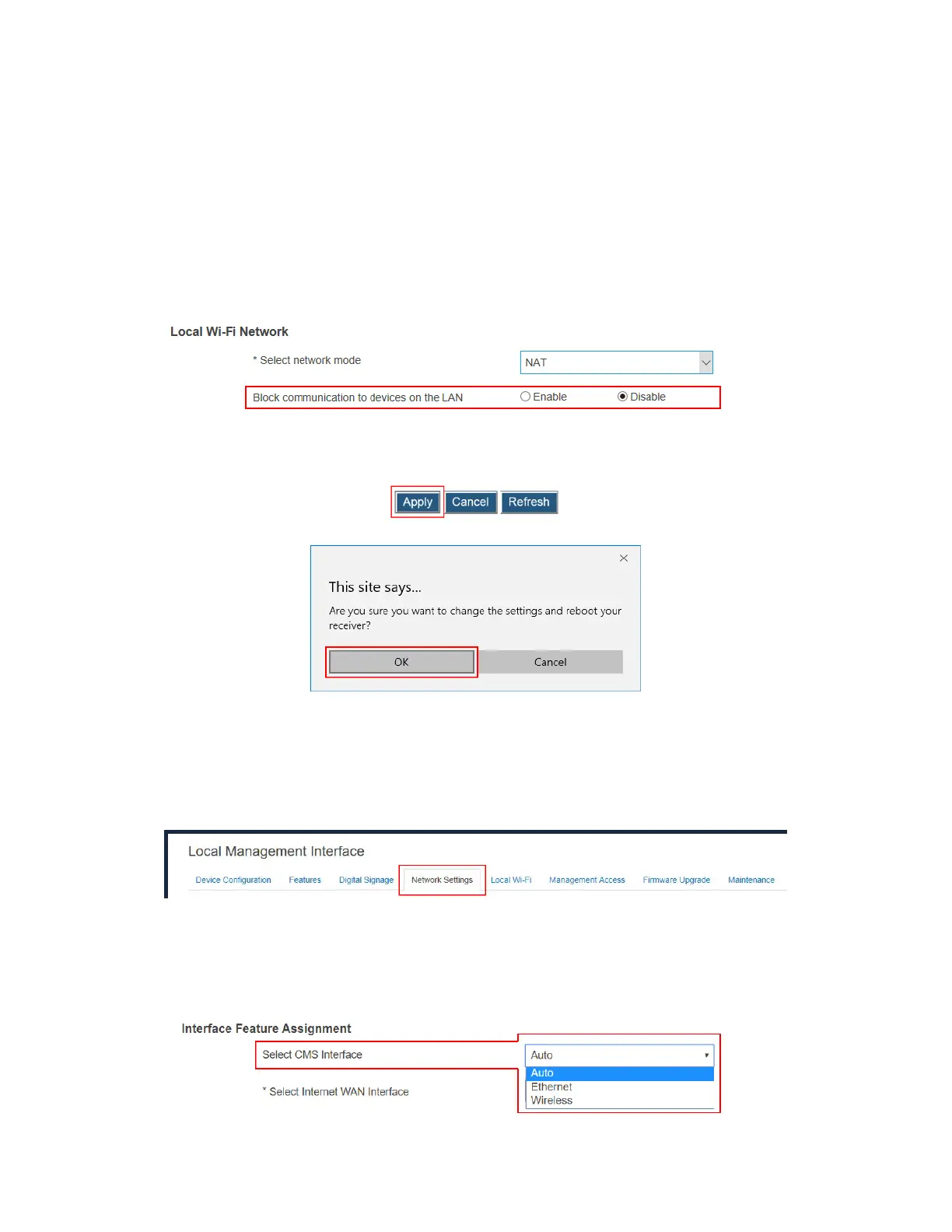
3. Set Block communication to devices on the LAN to Enable or Disable. By default,
this feature is set to Disable.
Enable: Communication to the devices that connect to the receiver’s local Wi-Fi is
blocked, which means these devices that connect to the receiver’s local Wi-Fi can’t
see or talk to each other.
Disable: Communication to the devices that connect to the receiver’s local Wi-Fi is
not blocked, which means these devices that connect to the receiver’s local Wi-Fi
can see or talk to each other.
Note: This feature is available when the network mode is set to NAT.
4. Click the Apply button, and then click OK on the pop-up message box to confirm.
V.3.8.2 Setting up an Interface for CMS Connection
ScreenBeam 1100 Plus allows customizing an interface for connecting to CMS.
To define an interface for connecting to CMS, follow this procedure:
1. Go to the Network Settings tab page by clicking the Network Settings tab.
2. Go to the Interface Feature Assignment section, and select an option from the Select
Internet CMS Interface box. Available options include: Auto, Ethernet, and Wireless.
Auto: The receiver will automatically select an interface to connect to CMS.
Ethernet: The receiver will connect to CMS using the Ethernet interface only.
Wireless: The receiver will connect to CMS using the wireless interface only



 To Next Page