76
V.3.9 Local Wi-Fi Settings
ScreenBeam 1100 Plus provides a local Wi-Fi network for wireless display over LAN (such
as Windows 10 Infracast, Apple AirPlay, and Google Cast) and receiver management.
To set up the receiver’s local Wi-Fi, follow this procedure:
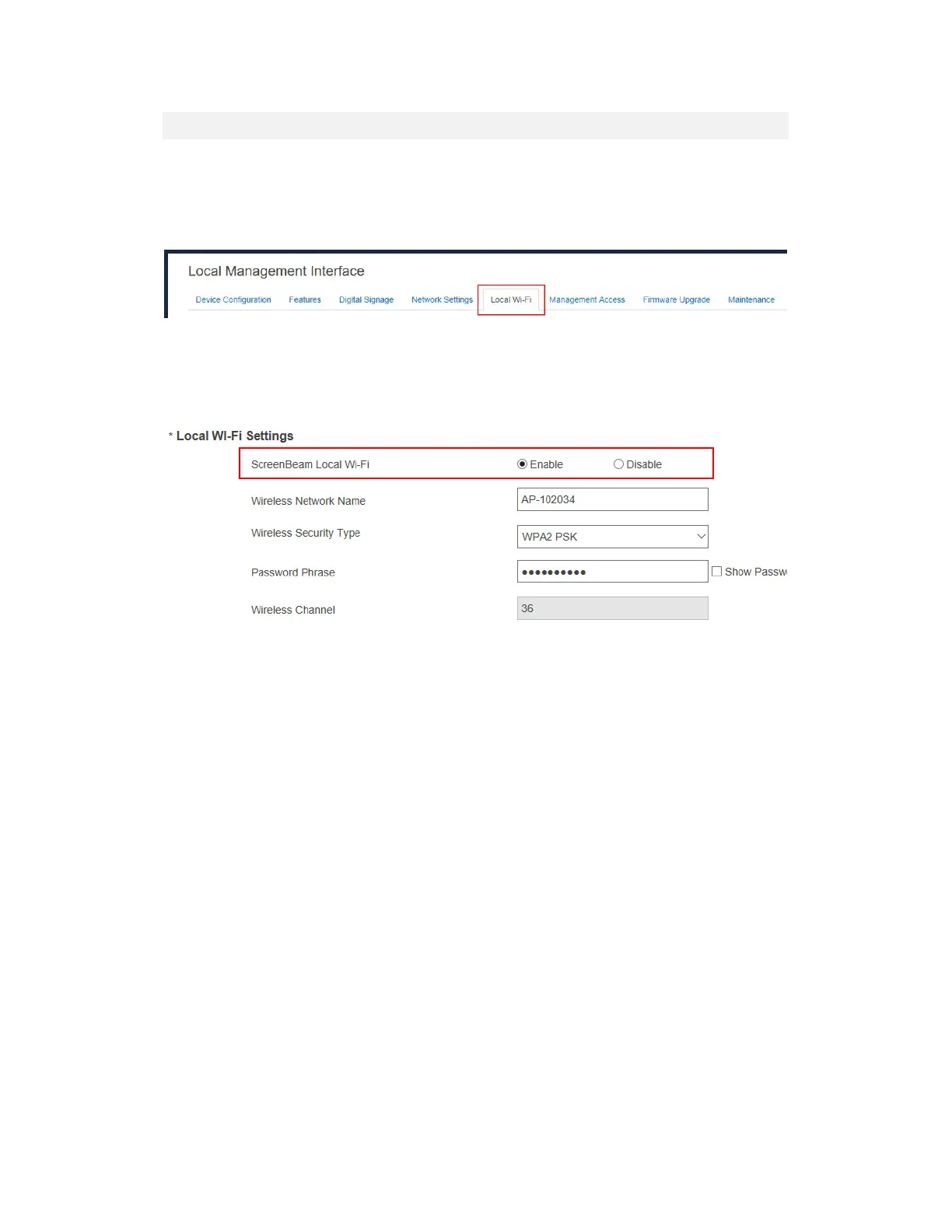
1. Go to the Local Wi-Fi tab page by clicking the Local Wi-Fi tab.
2. Go to the Local Wi-Fi Settings section, and set ScreenBeam Local Wi-Fi to Enable
or Disable.
Enable: The receiver’s local Wi-Fi is turned on.
Disable: The receiver’s local Wi-Fi is turned off.
3. When the receiver’s local Wi-Fi feature is enabled, configure the Wireless Network
Name, Wireless Security Type, Password Phrase, and Wireless Channel.
Wireless Network Name: It is the network name of the receiver’s local Wi-Fi. This
network name can be detected on a Wi-Fi (5 GHz) enabled device if the local Wi-Fi
is enabled.
Wireless Security Type: It is the security verification method for connection to the
Wi-Fi.
Password Phrase: It is the password for connecting to the Wi-Fi. The default
password is screenbeam.
Wireless Channel: It is the wireless channel used for the Wi-Fi connection. This
channel is associated with the P2P operating channel. Refer to Section V.3.4.2
Setting up P2P Operating Channel for detail.



 To Next Page