85
VI.2 Firmware Update using a USB Flash Drive
To update the receiver’s firmware with a USB flash drive, follow this procedure:
1. Download the latest firmware from ScreenBeam’s website:
https://support.screenbeam.com.
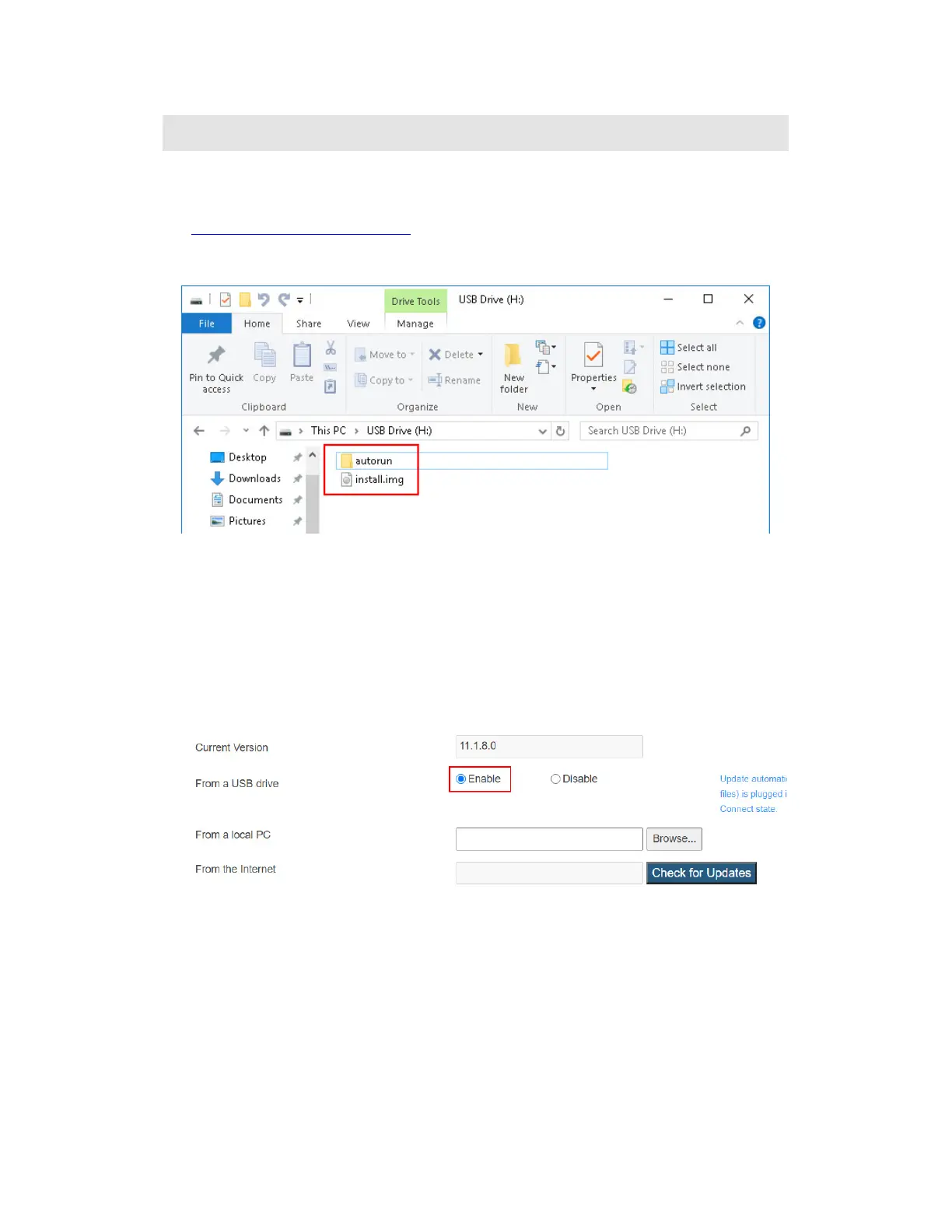
2. Extract the downloaded file and copy the “install.img” file and the “autorun” file folder
to the root directory of a USB flash drive.
Note:
Do not use a portable hard drive. It is recommended to use a FAT/FAT32 formatted
USB flash drive only.
Do not make any change to the extracted files.
3. Ensure the "Wireless Display Ready to connect" screen appears on your TV.
Note: Ensure that the receiver is in idle state before starting the upgrade process.
4. Log into the receiver’s LMI. Go to the Firmware Upgrade page, and make sure From a
USB Drive is set to Enable.
5. Plug the USB flash drive into the USB port on the receiver.
6. The receiver starts to update its firmware automatically. Firmware upgrade status
messages appear on your TV.
Warning! Do not power off the receiver or remove the USB flash drive while the upgrade
is in progress. Otherwise, firmware upgrade fails.
7. The receiver reboots after firmware update completes.
8. You may now remove the USB flash drive when you see the "Wireless Display Ready
to connect" screen again.
Note: Ensure that the sbrun.txt file is not present on the USB flash drive if you want to
use the same USB flash drive to upgrade the same receiver again.



 To Next Page