Introduction
Additional displays and display op-
tions
The displays appearing on the screen may
vary depending on the settings, and may dif-
fer from those described here.
The status bar on the screen can display, for
example, the current time and outside tem-
perature.
All displays can be viewed only after com-
pletely restarting the Infotainment system.
Initial configuration wizard
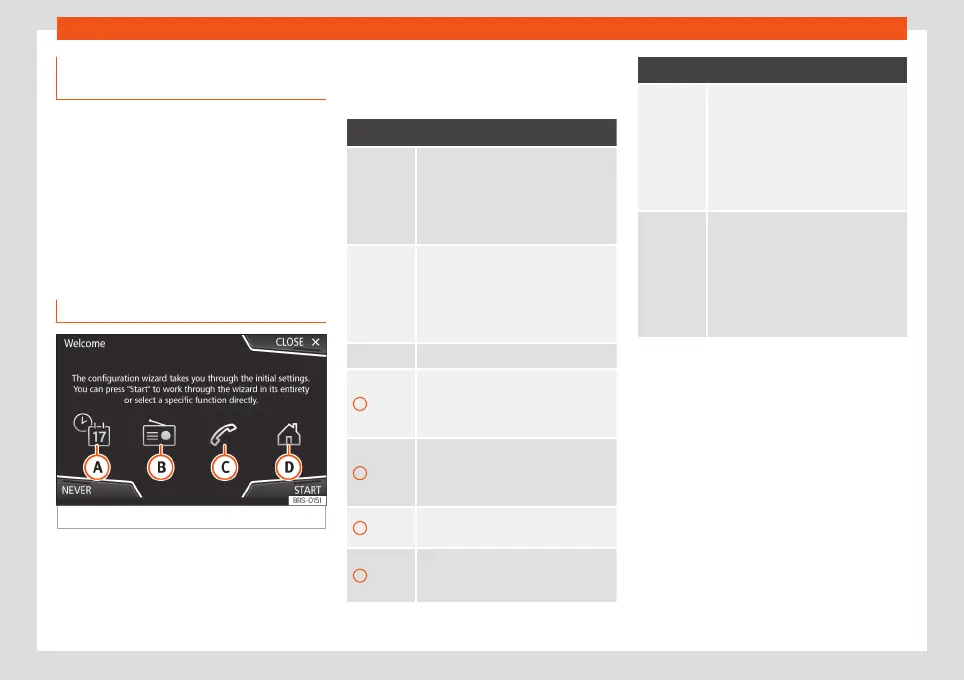
Fig. 10
Initial configuration wizard
The initial configuration wizard will help you
to set up your Infotainment system the first
time you switch it on.
Every time you switch on the Infotainment
system, the initial setup screen will appear
›››
Fig. 10 if any parameters have not been
set or if the NEVER function button has not
been pressed.
Function button: function
CLOSE
Closes the Configuration Wizard, and
the main menu or last mode in which
you used the Infotainment system will
appear. The next time you switch on
the system, the Configuration Wizard
will start up again.
NEVER
Disables the possibility of changing
the settings of the Infotainment sys-
tem. If you want to perform the initial
system setup, you must enter via
Sys-
tem setup
and select
Configura-
tion Wizard
›››
page 92.
START Starts up the Configuration Wizard.
A
Press to configure the time and date (if
it has a navigation system it will be
configured automatically with the
GPS).
B
Press to search and store to memory
the radio stations that have the best
reception at that moment on all avail-
able bands (AM, FM and DAB).
C
Press to link your mobile telephone to
the Infotainment system.
D
a)
Press to select your home address us-
ing your current position or by man-
ually entering an address.
Function button: function
PREVIOUS
NEXT
To go to the previous or next parameter
to set.
When a parameter has been set, the
only way to reset it is from the main
menu, clicking on it, and not using the
Previous/Next buttons.
When setting any parameter, a confir-
mation mark will appear on it
.
FINISH
Once one or more settings have been
applied, click on this in the main menu
of the wizard to confirm and finalize
the settings.
If there are any parameters you have
not set, the next time you connect the
Infotainment system, the Initial Config-
uration Wizard will start up.
a)
Only valid for Navi System and Navi System Plus.
14



 To Next Page