Introduction
Input masks with on-screen keypad
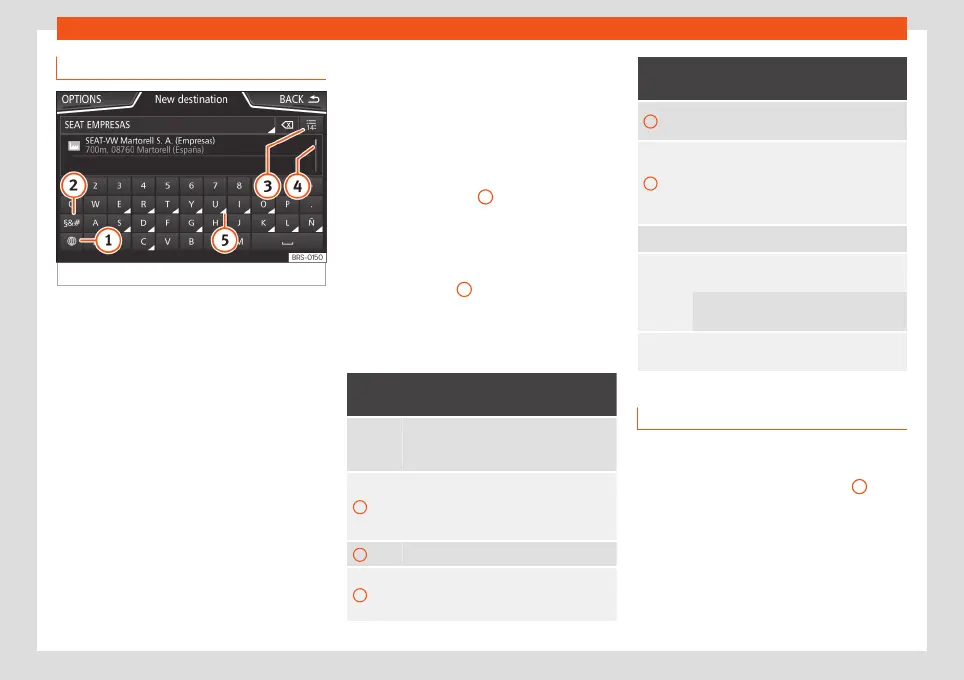
Fig. 9
Input window with on-screen keypad.
Input windows with on-screen keypad are
used for functions such as entering an entry
name, selecting a destination address or en-
tering a search term for searching long lists.
The function buttons listed below are not
available in all countries or for all topics.
Subsequent chapters only explain those
functions that differ from those in the screen
shown in the figure.
The input line with cursor is located in the top
bar of the screen. All inputs are displayed
here.
Input windows for “free text input”
In the input masks for open text, you may en-
ter letters, numbers and special characters in
any combination.
Input windows for selecting a saved entry
(e.g. selection of a destination address)
It is only possible to select a sequence of let-
ters, numbers and special characters that
matches a stored entry.
Suggestions for matching destinations ap-
pear depending on the characters entered in
the input line
›››
Fig. 9
4
. In the case of com-
pound names, it is necessary to enter a
space.
If there are fewer than 99 selectable entries,
the number of remaining entries is displayed
after the input line
3
. Pressing this function
button displays these remaining entries in a
list.
Overview of the function buttons
Function icon and text: operation and ef-
fect
Letters
and dig-
its
Press them to copy them into the input
line.
1
Press to change the keypad to another
language. Keypad languages can be se-
lected from the menu
system setup
›››
page 92.
2
Press to show symbols on the keypad.
3
Displays the number and opens the list of
remaining selectable entries that match
the entered text.
Function icon and text: operation and ef-
fect
4
Scroll bar, the size of which depends on
the number of matching entries.
5
Hold and press to display a pop-up win-
dow with the special characters based on
said letter. Press the desired character to
enter it. Some special characters can be
written out instead (e.g. “AE” for “Ä”).
Press to enter a space.
Press to delete characters in the input line
from right to left.
Press and hold to delete several charac-
ters.
BACK
Press to close the input window.
Proximity sensors
3
Valid for: Navi System and Navi System Plus.
The Infotainment system is equipped with an
integrated proximity sensor
›››
Fig. 2
11
.
The image on the screen changes from dis-
play mode to automatic operation when your
hand moves toward it. In operation mode, the
function buttons are automatically highligh-
ted to facilitate their use.
13



 To Next Page