Introduction
Display and function buttons: operation
and effect
C
The scroll bar is shown on the right and its
size depends on the entries in the list.
Move the bar on the screen by pressing
lightly and without lifting the finger, see
›››
page 12, Open list entries and
search lists.
D
Movable cursor: Move the cursor around
the screen by pressing lightly and without
lifting the finger.
OR: To move the cursor to a particular po-
sition, press that spot on the screen.
Fixed crosshair: Press the up, down, left
and right arrows to move the sound ac-
cording to preference. The cursor
D
will
move.
OR: Press the central button to centre the
stereo sound in the centre of the passen-
ger compartment
Press it on some lists to move up a level,
one by one.
BACK
Press to return from the submenus one at
a time to the main menu or to undo the
entries made.
When pressed, a pop-up window opens
(options window) which displays other
setup options.
Display and function buttons: operation
and effect
/
Some functions or messages are accom-
panied by a check box and are activated
or deactivated
by pressing said
check box.
OK
Press to confirm an entry or a selection.
×
Press to close a pop-up window or an in-
put window.
/
Press them to change the setup adjust-
ments one at a time.
Move the slider around the screen by
pressing it lightly and without lifting your
finger.
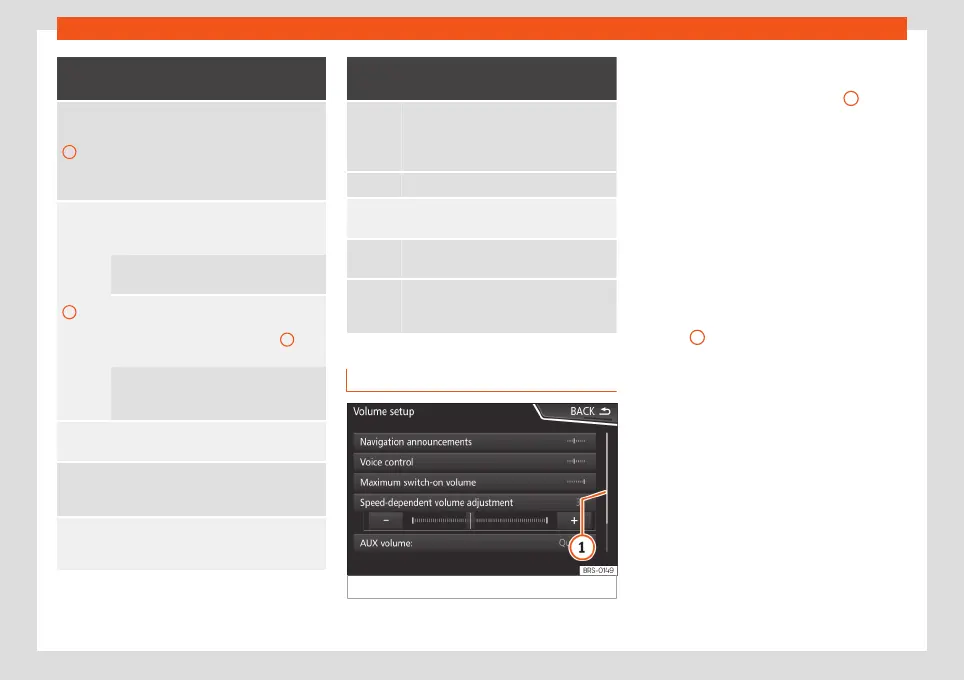
Open list entries and search lists
Fig. 8
Entries on a setup menu list.
The entries on a list can be activated by
pressing them on the screen directly or by us-
ing the adjustment button
›››
Fig. 2
12
.
Mark list entries using the setup button
and open them
●
Turn the setup button to mark the entries on
the list with a rectangle one by one and con-
tinue searching the list in this manner.
●
Press the setup button to activate the
marked entry on the list.
Search lists (scrolling the screen)
The scroll bar is shown on the right and its
size depends on the entries in the list
›››
Fig. 8
1
.
●
Briefly press the screen above or below the
scroll marker.
●
OR: Place a finger over the scroll marker
and without lifting it, move it around the
screen. Lift your finger off the screen when
you reach the desired position.
●
OR: Place your finger in the centre of the
screen and without lifting it, move it around
the screen. Lift your finger off the screen
when you reach the desired position.
12



 To Next Page