Introduction
In this case, the changes in volume are dis-
played on the instrument panel by a volume
bar.
It is possible to preset certain volume settings
and adjustments
›››
page 93, Sound and
volume settings.
Muting the Infotainment system sound
●
Turn the volume control
anti-clockwise
until it displays
.
Muting the Infotainment system sound stops
the media source that is playing The screen
displays
.
Note
If the base volume has been considerably
increased to play a certain audio source,
lower the volume again before switching to
another audio source.
Operation of the function buttons
and the instructions on the screen
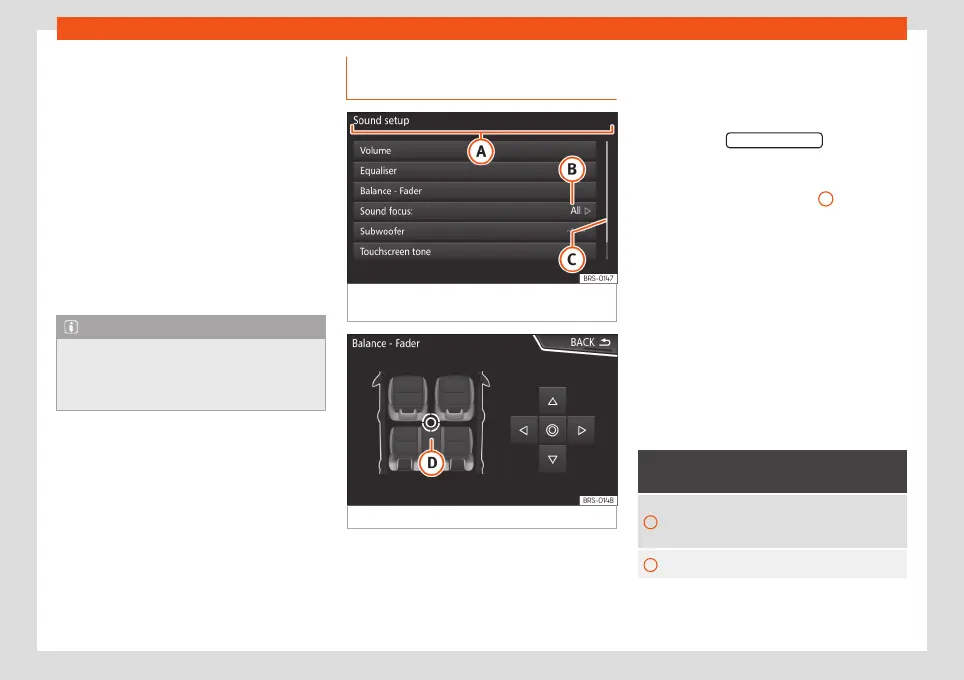
Fig. 6
View of some of the function buttons on
the screen.
Fig. 7
Sound setup menu
The Infotainment system comes equipped
with a touchscreen.
Active areas of the screen that call up a cer-
tain function are called “function buttons”.
These buttons are operated by
briefly press-
ing the screen or by pressing and holding.
The function buttons appear in the instruc-
tions with the label “function button” and a
button symbol inside a rectangle .
Function buttons start functions or open sub-
menus. The currently selected menu is dis-
played in the title bar
›››
Fig. 6
A
of the sub-
menus.
Inactive (grey) function buttons cannot be se-
lected.
Increase or decrease the size of the im-
ages displayed on the screen
The size of the navigation map image
›››
page 58 and, for example, photos when
viewing images
›››
page 39 can be enlarged
or reduced. To do so, enlarge or reduce the
image displayed by moving two fingers.
Overview of screen and function buttons
Display and function buttons: operation
and effect
A
The title bar shows the selected menu
and, where applicable, other function
buttons.
B Press it to open another menu.
»
11



 To Next Page