Audio and Media Mode
●
To obtain information on the status of the
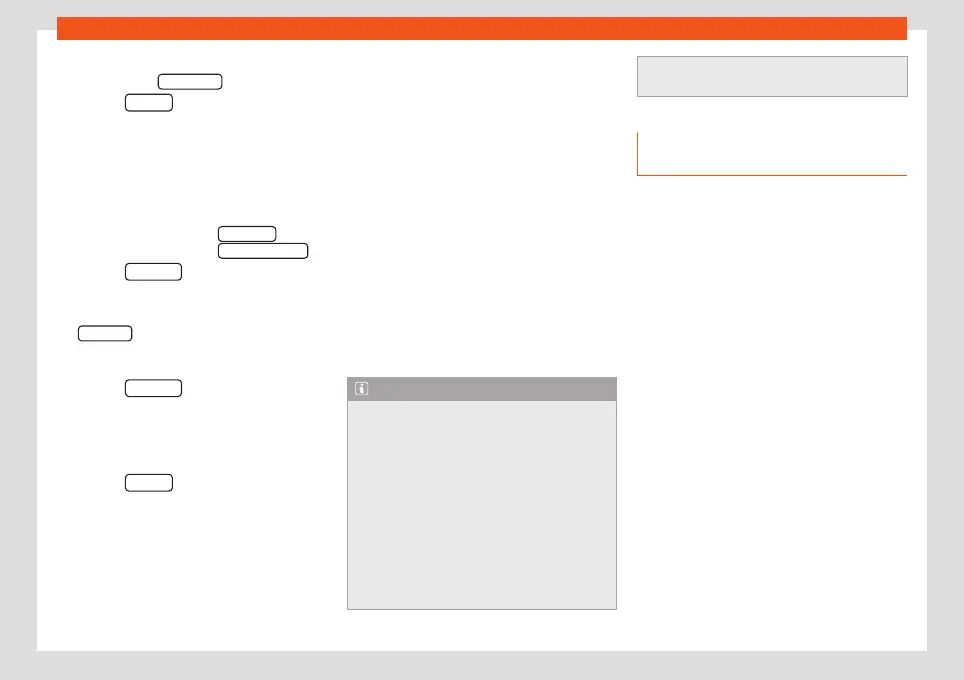
import, press the Information function button.
●
Press the BACK
function button to close
the import screen with the progress informa-
tion.
●
When the file import ends, a message will
appear.
Deleting files
●
In Media mode, press the SETTINGS func-
tion button and then select Manage jukebox
.
●
Press the DELETE
function button.
●
Activate the checkboxes to the right of the
files or folders to be deleted.
●
If Select all is activated, all the files and
folders on the data storage device will be de-
leted.
●
Press the DELETE
function button. The
files and folders will be deleted according to
the selection made.
●
When the files have been deleted, a mes-
sage will appear.
●
Press the BACK
function button to close
the menu.
Opening stored audio and video files
●
Change to
Jukebox
(SSD) content
›››
page 46.
When storing the tracks, they are stored un-
der different categories and lists according to
the information available.
The tracks saved can be checked and
opened from these lists according to different
categories.
Jukebox
●
Playlist
●
Artist
●
Album
●
Music genre
●
Title
●
Video
●
Non-playable files (an unsupported file has
been imported).
Note
●
If the Infotainment system cancels a
copying operation, check the storage
space on the internal hard drive and check
the data storage device.
●
Due to copyright laws, before any
change in ownership of the Infotainment
system, all files stored on the jukebox must
be deleted.
●
There are several possible reasons why
files may be shown as inactive (grey): files
that cannot be imported (e.g. images), files
that are already stored in the Jukebox or
files that take up more space than availa-
ble in the internal memory.
Connecting an external audio
source via WLAN
3 Only available for the model: Navi System
(with WLAN connection) and Navi System Plus.
WLAN allows wireless connection between an
external audio source (for example a smart
phone) and the Infotainment system.
To use this connection, the device being con-
nected must have an app compatible with
the UPnP (Universal Plug and Play) communi-
cation protocol, allowing the app to provide
the system with the available media content.
Conditions
●
Having a compatible (UPnP) app installed
on the mobile device.
●
Having the
Enable WLAN connection
op-
tion active, which can be found in the wireless
connection configuration
›››
page 54,
WLAN setup.
●
Pairing the mobile device to the Infotain-
ment system using a password generated by
the system. The pairing must be done from
the mobile device that you wish to connect to
the Infotainment system.
»
53



 To Next Page