4.3
Date Code 20170207 Field Reference Guide SEL-734B Capacitor Bank Control
Configuring the SEL-734B
Establish SEL Communication Between PC and the SEL-734B
After the SEL-734B is turned on, the status of the device should be checked.
You can check the status of the SEL-734B with the QuickSet HMI directly
from the front-panel menu or by using a terminal program. Please refer to the
appropriate section for instructions to check the status of the SEL-734B.
Check the Status of the Controller Using QuickSet
Complete the following steps to check the status of the device by using the
QuickSet HMI. The following information is available: meter and firmware
identifiers, serial number, diagnostic messages, date, and the time.
Step 1. Establish communication to the SEL-734B.
Step 2. Click on the Human Machine Interface (HMI) icon ( ) on
the header ribbon. QuickSet will open the HMI window.
Step 3. Navigate to the Status page, from the list on the left of the
screen. The Status window will open.
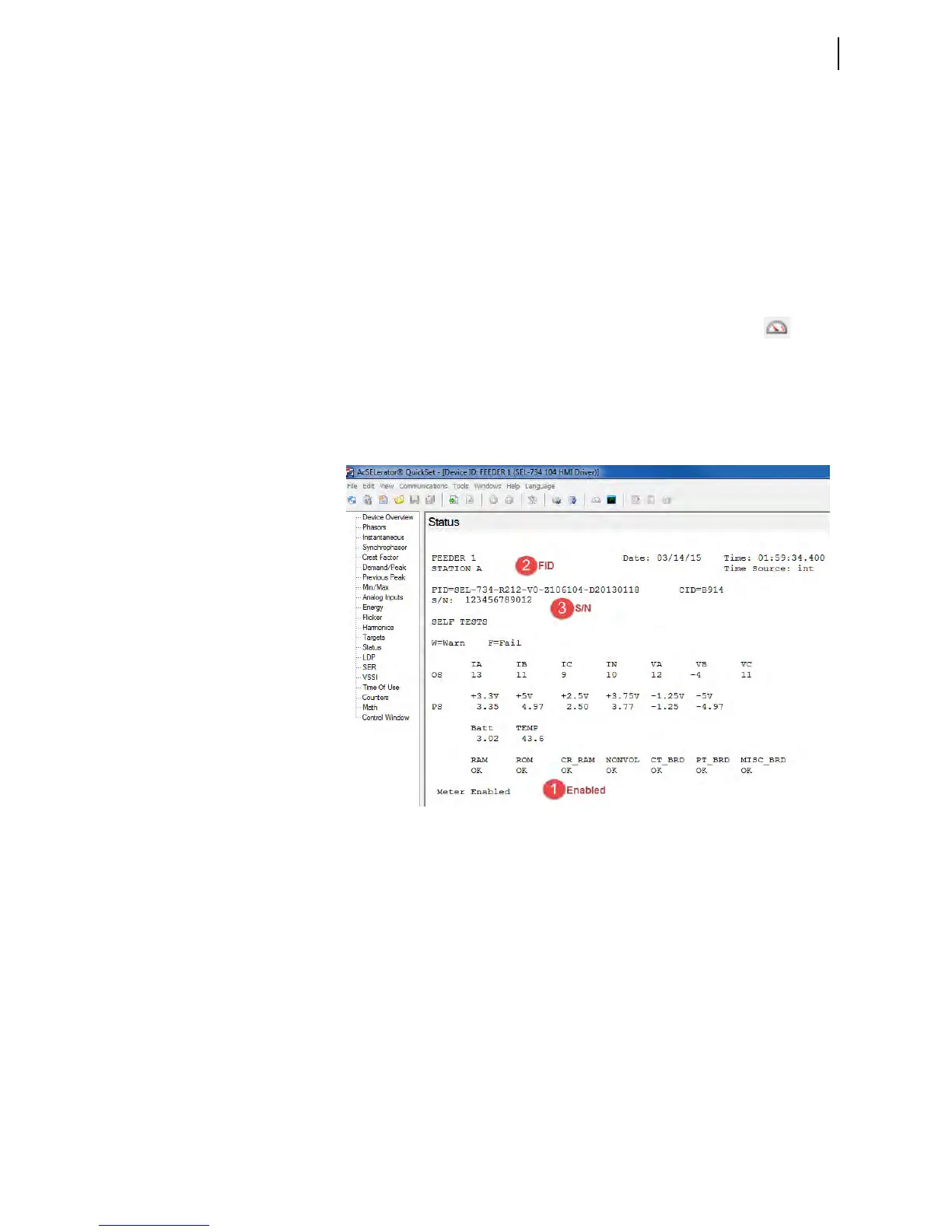
Step 4. Verify that the meter is enabled and note the firmware identifier
(FID) and the serial number (S/N).
Figure 4.2 QuickSet HMI Status Window Example
Check the Status of the Controller Using the Front-Panel Menu
Complete the following steps to check the status of the device by using the
menu pushbuttons on the front of the SEL-734B.
Step 1. Press the ENT button on the front panel.
Step 2. Use the up/down arrow keys to select the
Status option and
press ENT.
Step 3. Verify that the meter status displays
Meter Enabled and note
the firmware identifier FID and the serial number.



 To Next Page