7 PICOSCALE CONTROL GUI
• File The data stream is directed to a file. The data are stored in binary format but using the
included Data Reader you can convert them to *.csv files, see section 7.6.5. A header file is
stored as well containing information on frame rate and a time stamp. If you stop and start
the stream several times, this information is also stored in this file and you can isolate the
data block later.
The white text box in the middle of the Receiver Settings window shows the active data sources
for this plot. Sources can be added and deleted using the appropriate buttons. The drop-down
menus below the text box allow to select the different channels and data types.
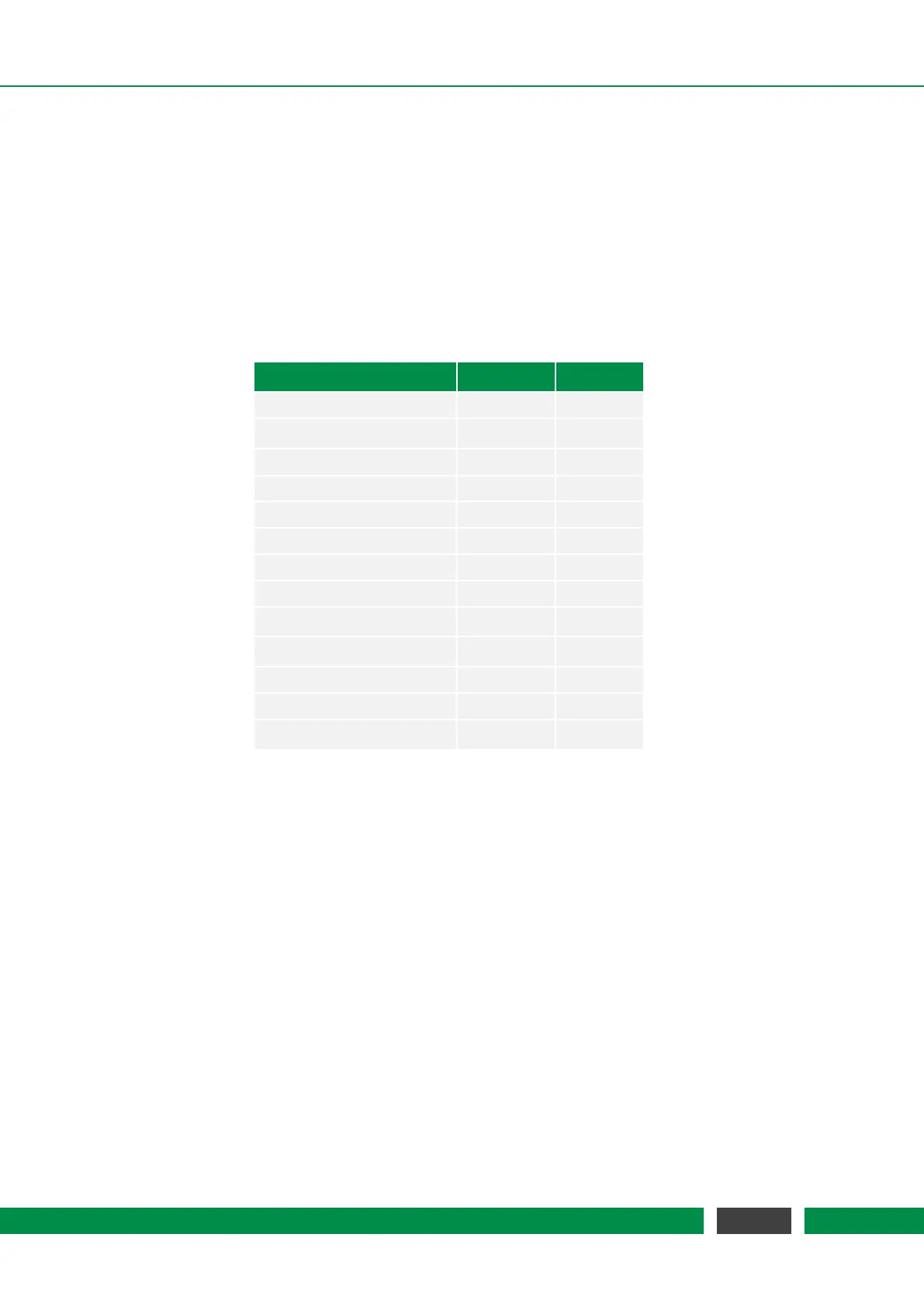
The available data sources have different data types which are summarized in table 7.1.
Data source Data type Size [bit]
Position int48 48
Velocity int64 64
Acceleration int64 64
Sw Raw uint16 16
S2w Raw uint16 16
Sw uint16 16
S2w uint16 16
Counter 1–2 uint48 48
Env Sensor Temperature int32 32
Env Sensor Humidity int32 32
Env Sensor Pressure int32 32
GPIO ADC1–3 uint16 16
Calculation System 1–3 float32 32
Table 7.1: Overview of all data sources and their respective data types and sizes.
After selecting the Receiver Type and adding one or more data sources, the plot window is con-
figured using the Apply button. A plot is closed using the cross in the upper right corner of the
window.
7.6.3 Manipulate the data
The Clear all Plots button allows to clear the history of all active time plots simultaneously. For
most applications it is useful to zero the interferometer positions. This is achieved by clicking the
Set Zero Ch1, Ch2 and Ch3 buttons. To zero all channels simultaneously the Zero All button is used.
7.6.4 Configure the data stream
In the Settings region the Frame Rate drop-down menu changes the streaming frame rate to opti-
mize the data visualization corresponding to the experimental needs. You may choose data rates
73
PicoScale User Manual


 To Next Page