6 SETUP AND INSTALLATION
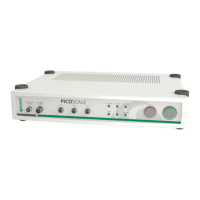
No. 4). Press the power button at the right-hand-side of the front panel to power up the system
(figure 5.2, No. 6). A green LED ring should now illuminate the power button. The status LEDs start
blinking, indicating the boot sequence of the embedded controllers. After a few seconds, the LED
blinking stops and the system is ready to use.
With the Pilot Laser button (figure 5.2, No. 5) at the front panel, an additional red laser can be
activated, which is very helpful during the alignment of the sensor heads.
6.5
PICOSCALE software and API installation
The
PICOSCALE Software provides you with a graphical user interface (GUI) as well as an applica-
tion programming interface (API). For proper operation of the software Windows 7 or later should
be used.
The minimum requirement regarding the cpu is an Intel Core-i5 processor of the fourth generation
or similiar and 4 GB of RAM. Recommended is an Intel Core-i7 processor of the fourth generation
or similiar with at least 3GHz and 8 GB of RAM.
To install the
PICOSCALE software and API, open the included software CD and start the installer
program PicoScale_Installer_<version>.exe. At first, the installer dialogue presents some
important information about software and API changes. After confirming these information, you
can select a destination folder (default: C:\SmarAct\). Lastly, you can select which components
should be installed. After the installer is finished the
PICOSCALE software and documentation
can be found in the
PICOSCALE folder in the destination path.
To uninstall the
PICOSCALE software navigate to the Uninstall folder in the PICOSCALE main
folder. Execute the program unins000.exe. After the program is finished, the complete
PICO-
SCALE
software is removed from the system.
6.6 Firmware updates
SmarAct will release firmware updates for the
PICOSCALE from time to time. Firmware updates
usually contain updated software that fixes bugs, improves the system performance or adds new
features. Some firmware updates can be skipped, because later updates contain all the content
of earlier updates. However, some firmware version updates are required before later versions
can be installed. This holds for relatively old firmware versions. For example, if your
PICOSCALE
has firmware version 1.0.5 installed, and you want to install version 1.1.7, you must first update
to version 1.1.0 and then to 1.1.7. The following firmware versions have to be installed before
updates to more recent versions are possible:
• picoscale-1.1.0_2015-12-18_160315.fw (contains
PICOSCALE firmware version 1.1.0)
• picoscale-2.0.0_2017-09-22_093253.fw (contains
PICOSCALE firmware version 2.0.0)
46
PicoScale User Manual


 To Next Page