7 PICOSCALE CONTROL GUI
ranging from about 1 Hz to 10 MHz. The possible frame rates are dependent on the selected data
sources and the performance of your PC and network. Depending on the active data sources the
system automatically determines the maximum frame rate and corrects the displayed value in the
Frame Rate menu. You can also select triggers as frame rates so that you can use external clocks
for data sampling.
The Mode menu allows either Direct or Triggered streaming. In case of Triggered streaming the
Start and Stop triggers can be selected. After the stream is stopped by a corresponding trigger,
the stream generator in the PICOSCALE FPGA still sends a certain amount of data frames, speci-
fied by the Post Frame Count value. After receiving a stop trigger the stream generator is disabled
and needs to be enabled again, if further stream data should be recorded. Thus after receiving a
stop trigger, a subsequent start trigger event does not activate the data stream again. However,
sometimes this is necessary. With the Reset on Stop function the stream generator can be auto-
matically reactivated/armed, after a stop trigger was received and the corresponding post frames
were acquired.
The streaming is started and stopped with the Enable button.
With the drop-down menu Filter Rate, in the
PICOSCALE status window, a low-pass filter can be
selected, used to filter the data inside the FPGA before transmitting it. The button to the right
side of the Filter Rate changes the drop-down menu to the corresponding Cutoff Frequency. The
Filter Rate and Frame Rate options should be set carefully to avoid aliasing. The system indicates
potential aliasing by a red logo on-top of the Frame Rate menu. By clicking on this logo, the Frame
Rate is automatically adjusted to meet the Filter Rate.
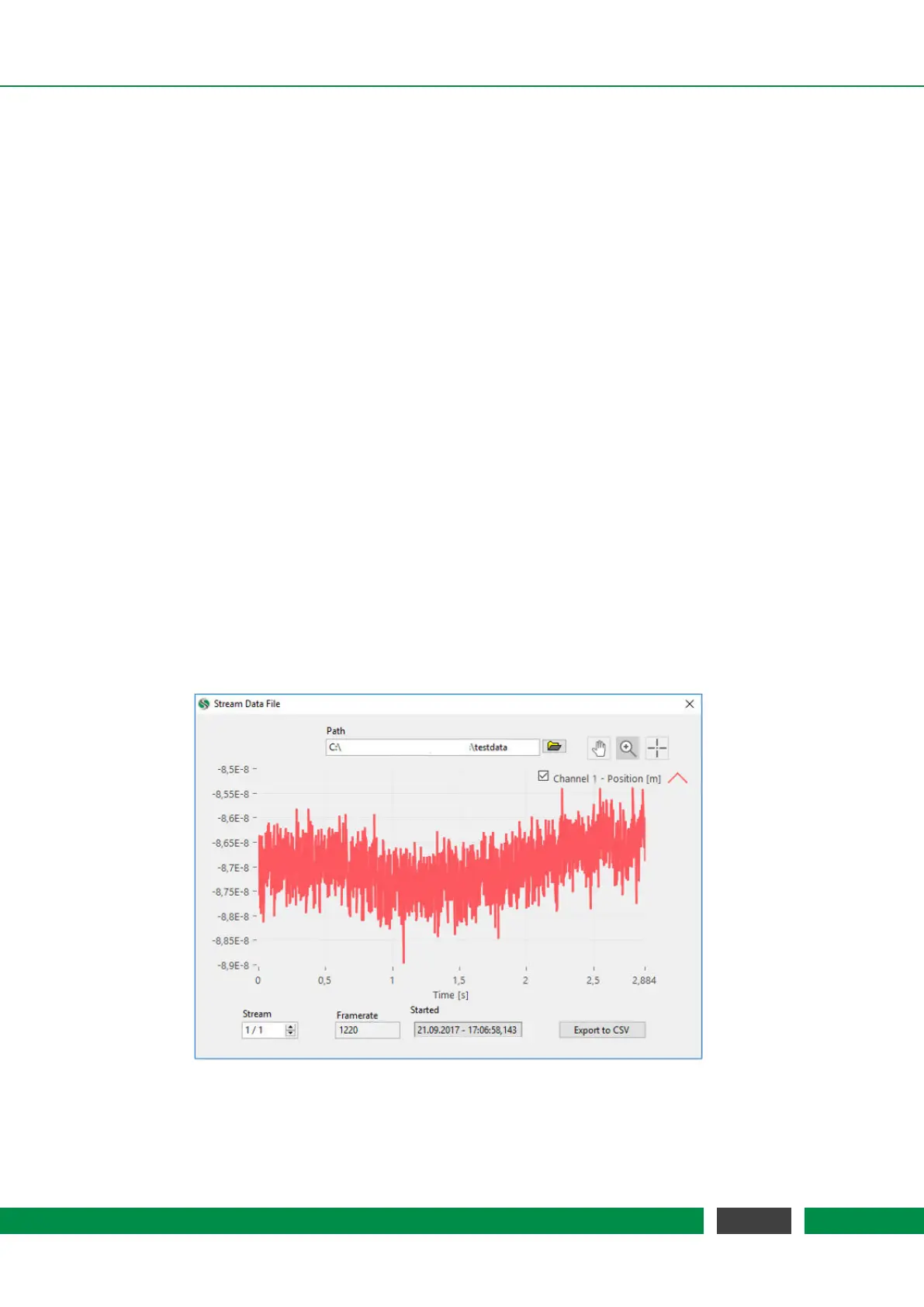
7.6.5 PicoScale Data Reader
Figure 7.23: PICOSCALE Data Reader. A data file has been loaded and the data are shown. Im-
portant information on frame rate and a time stamp are also given.
74
PicoScale User Manual


 To Next Page