11.
Continue to select frames by positioning the CURSOR on the frame number and
depressing the Space Bar. Each frame selected will be underlined.
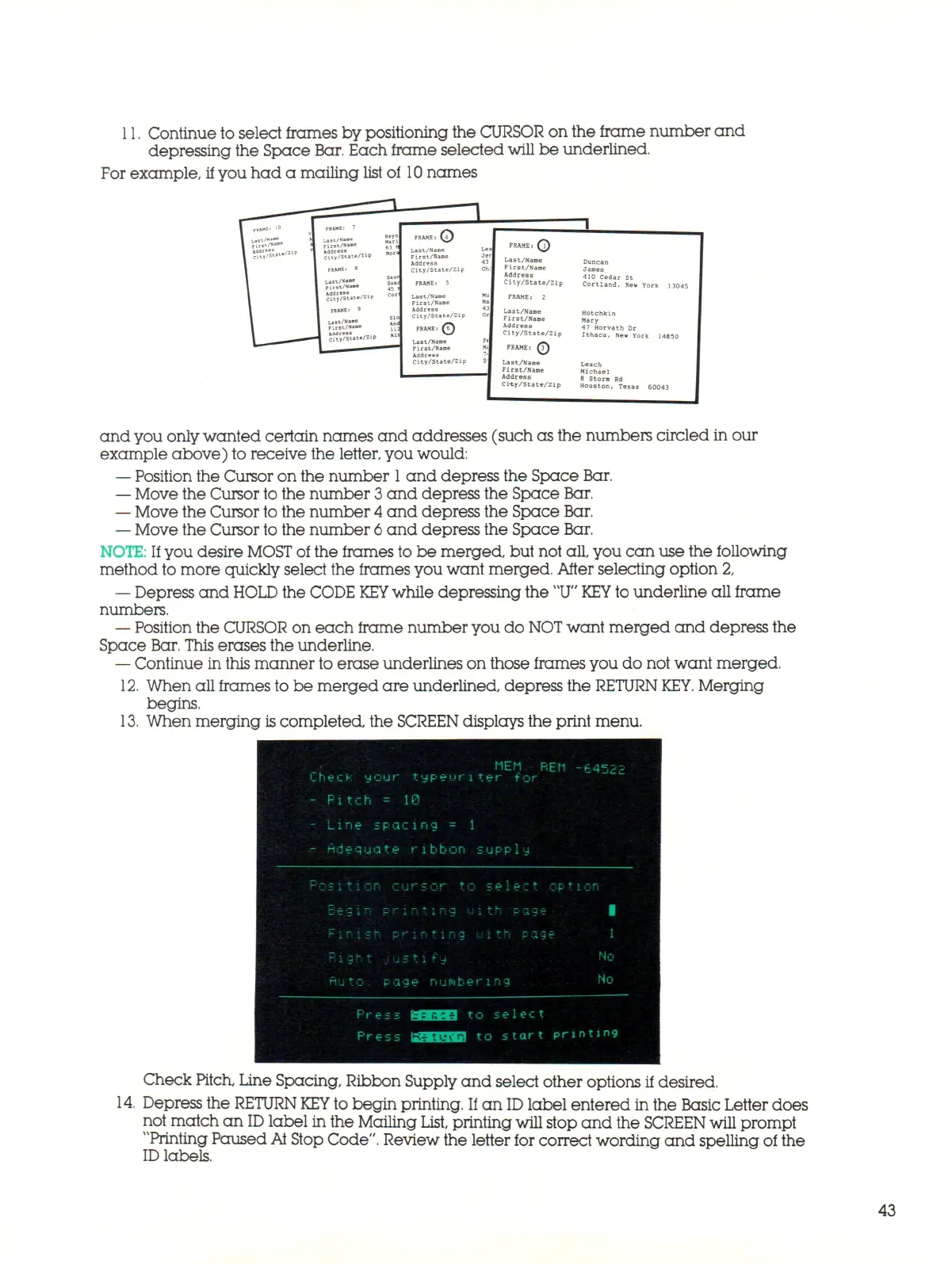
For example,
if
you had a mailing list of
10
na me s
Last/Name
First/Name
Address
City/State/Zip
O
FRAME
Last/Name
First/Name
City/State/Zip
FRAME:
Last/Nani
First/Nai
Address
City/Stal
FRAME
Last/Nam
First/Na:
Address
City/Sta
2
•©
n
Mary
47 Horvath Dr
Ithaca,
New York
Leach
Michael
8 Storm
and you only wan te d certain names and addresses (such as the numbers circled in our
example above) to receive the letter, you would:
—
Position the Cursor on the number
1
and depress the Space Bar.
—
Move the Cursor to the number 3 and depress the Space Bar.
—
Move the Cursor to the number
4
and depress the Space Bar.
—
Move the Cursor to the number 6 a n d depress the Space Bar.
NOTE:
If you desire
MOST
of the frames to be merged, but not all, you can use the following
method to more quickly select the frames you want merged. After selecting option 2,
—
Depress and
HOLD
the CODE
KEY
while depressing the
"U"
KEY
to underline all frame
numbers.
—
Position the CURSOR on each frame number you do
NOT
want merged and depress the
Space Bar. This erases the underline.
—
Continue in this manner to erase underlines on those frames you do not want merged.
12.
When all frames to be merged are underlined, depress the RETURN
KEY.
Merging
begins.
13.
When merging is completed, the SCREEN displays the print menu.
14,
Check Pitch, Line Spacing, Ribbon Supply and select other options if desired.
Depress the
RETURN KEY
to begin printing. If an
ID
label entered in the Basic Letter does
not match an
ID
label in the Mailing
List,
printing will stop and the
SCREEN
will prompt
"Printing Paused
At
Stop Code". Review the letter for correct wording and spelling of the
ID
labels.
43



 To Next Page