All Enhanced Features are not applicable to all typewriter models.
Auto Center
Auto Center automatically centers text between the margins currently in use.
To
Activate
AUTO
CENTER:
1.
Depress and
HOLD
the CODE
KEY
while depressing the appropriate top row key for
AUTO
CENTER.
The cursor moves to the center of the margins.
2.
Type the text to be centered. If a mistake is made, simply repeat step
#1
or use the Correct
Key or WordEraser
Key.
Type the correct characters.
3.
Depress the
RETURN KEY
to complete centering and automatically deactivate
AUTO
CENTER.
NOTE:
You can insert centered text by following the above steps after depressing the Insert Key
on your Keypad. You cannot, however, insert the Auto Center command alone and expect it to
center text already in memory. To do
this,
first delete the existing text then insert the text again
along with the Auto Center command.
Auto Underscore
The Auto Underscore feature automatically underlines a word or several words but not the
spaces between, or underlines all words including the spaces.
Example: word(s) The quick brown fox
or word( s )
&
spaces( s ) The quick brown fox
To
Activate
AUTO
UNDERSCORE-WORD(S):
1.
Depress and
HOLD
the CODE
KEY
while depressing the appropriate top row key for
AUTO
UNDERSCORE WORD.
2.
Type text.
To Deactivate
AUTO
UNDERSCORE:
1.
Depress and
HOLD
the CODE
KEY
while depressing the appropriate top row key for
AUTO
UNDERSCORE
OFF.
On some models this
is
the same key used to activate the feature.
Tab Center
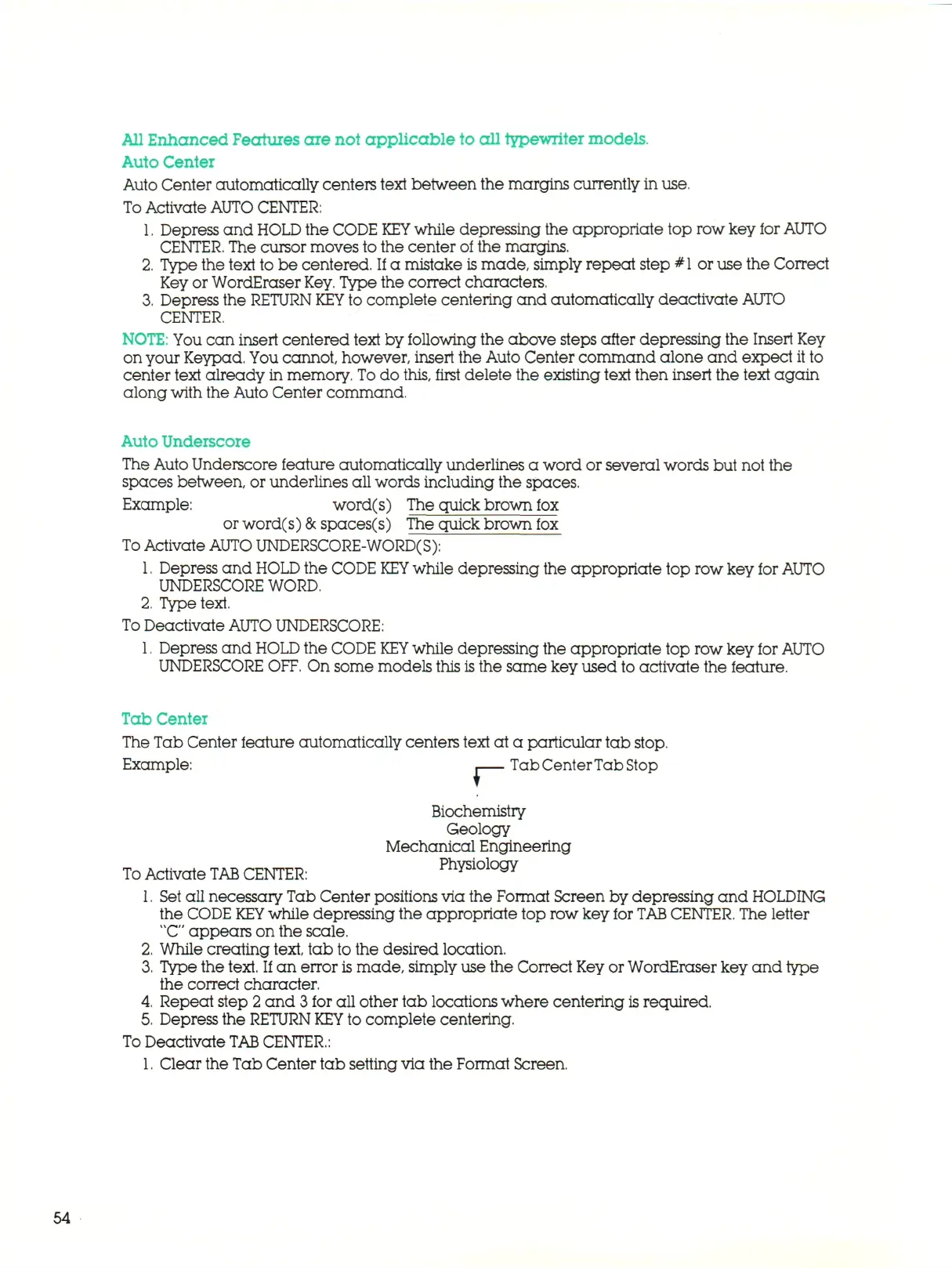
The Tab Center feature automatically centers text at a particular tab stop.
Example: . Tab Center T a b
Stop
Biochemistry
Geology
Mechanical Engineering
To
Activate
TAB
CENTER:
Physiology
1.
Set all necessary Tab Center positions via the Format Screen by depressing and HOLDING
the CODE
KEY
while depressing the appropriate top row key for
TAB
CENTER.
The letter
"C"
app ears on the scale.
2.
While creating
text,
tab to the desired location.
3.
Type the text. If an error
is
ma d e , simply use the Correct Key or WordEraser key and type
the correct character.
4.
Repeat step 2 and
3
for all other tab locations where centering
is
required.
5.
Depress the
RETURN KEY
to complete centering.
To
Deactivate
TAB
CENTER.:
1.
Clear the Tab Center tab setting via the Format Screen.
54



 To Next Page