44
D335 User Manual Directories
Adding/editing entries on the web interface
Click Directory in the menu on the left side.
Adding new entry
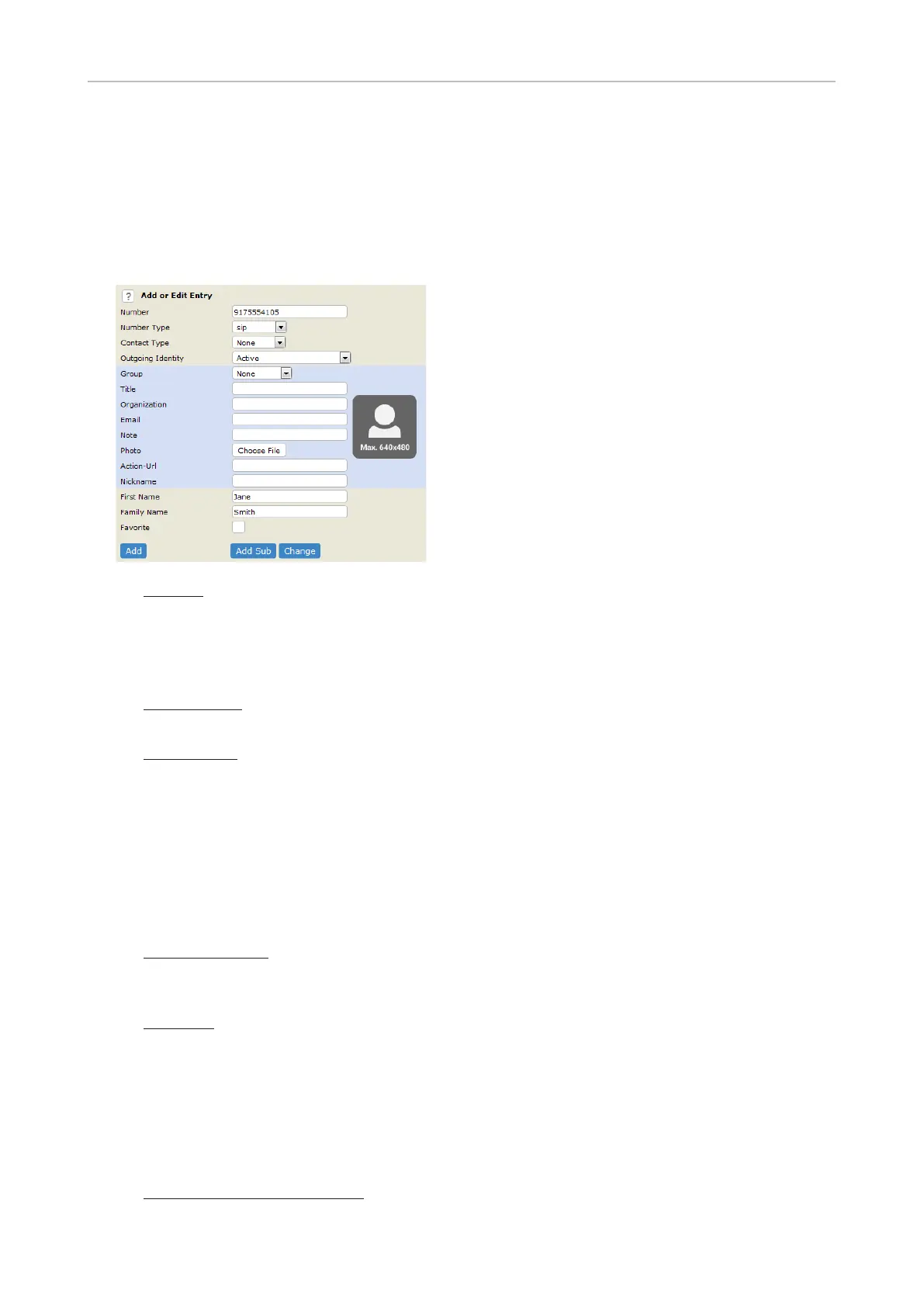
1. Add or Edit Entry.
◦ Number: Type the number exactly as you would dial it, with country and area codes, if
necessary, and without parentheses, hyphens, blank spaces.
Note: If the directory already contains the number you have entered, the existing
directory entry with that number will be overwritten when you save the new entry.
◦ Number Type: Select the type of connection from the drop-down menu. The default setting is
SIP.
◦ Contact Type: Select "None", "VIP", or Deny" from the drop-down list. The default setting is
"None".
- Calls from entries on the "VIP" list will always ring on the phone, even when the phone is
in a call or in DND mode.
Note: You can assign a distinct ringtone to the contact type "VIP": Preferences
page > Directory Ringtones section.
- Calls from entries on the "Deny" list will not ring on the phone. The caller will always hear
the busy signal.
◦ Outgoing Identity
select one of the identities for one of the numbers listed in the phone book, all calls to that
number initiated from the phone book will show that identity on the callee’s phone.
◦ Blue area
the phone. The data can be used to sort entries by group, name, organization, etc., and can be
edited on the phone.
- "Group" drop-down menu: Available types are "Friends“, "Family“, "Colleagues“, or "Work".
You can assign a distinct ringtone to each group type: Preferences > Directory Ringtones.
- "Nickname": If you enter a nickname, it will appear under the "Name" header of the
Directory on the web interface.
◦ First name, family (last) name: Will be added in this order under "Name" in the directory,
unless you have also entered a nickname.



 To Next Page