83
D335 User Manual Conguring the Function Keys
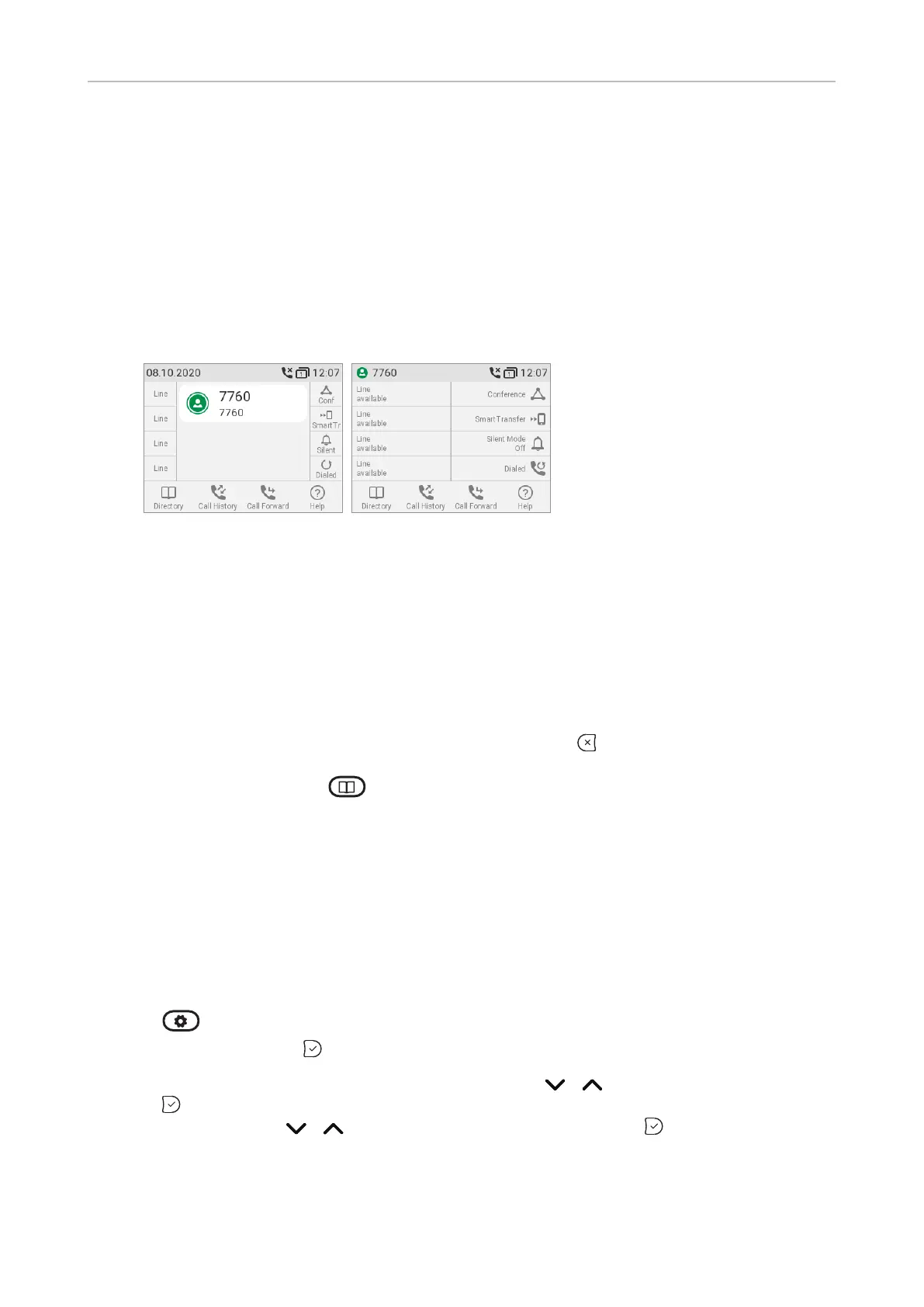
Display options for SmartLabel keys
A number of settings control the appearance of the SmartLabels on the display; they can be set on the
phone and on the phone's web interface. There are separate settings for the idle screen, call screens,
and other screens. Settings options:
◦ Default display mode and Alternative display mode. The display will revert to the default
mode after the number of seconds set in Back to default display mode have elapsed.
The factory defaults are Short label for the Default display mode, and Full label for the
Alternative display mode
Short label Full label
◦ Alternative display trigger
is switched from the default to the alternative appearance. The default setting is Proximity
sensor; moving your hand or an object across the sensor (see "At a glance" on page 18)
triggers the switch.
◦ Return/Reset to default mode timer after (sec.)
the appearance of the SmartLabels will automatically return to the default. Valid values are 0
Manually returning the display mode to the default: Press . The display mode will also
return to the default setting when another key is pressed, e.g., a number key to open the dial
screen, the directory key to access the phonebook, etc.
◦ Return to label page 1 after (sec)/Return to rst page
seconds the key page shown on the display, if other than 1, will automatically return to the
Settings on the phone
Display mode settings
1. Press -> Preferences.
2. Select Display and press .
3. If any expansion modules are connected to the phone, use / to select Primary display and
press .
4. Use the navigation key / to select SmartLabel options and press .



 To Next Page