84
D335 User Manual Conguring the Function Keys
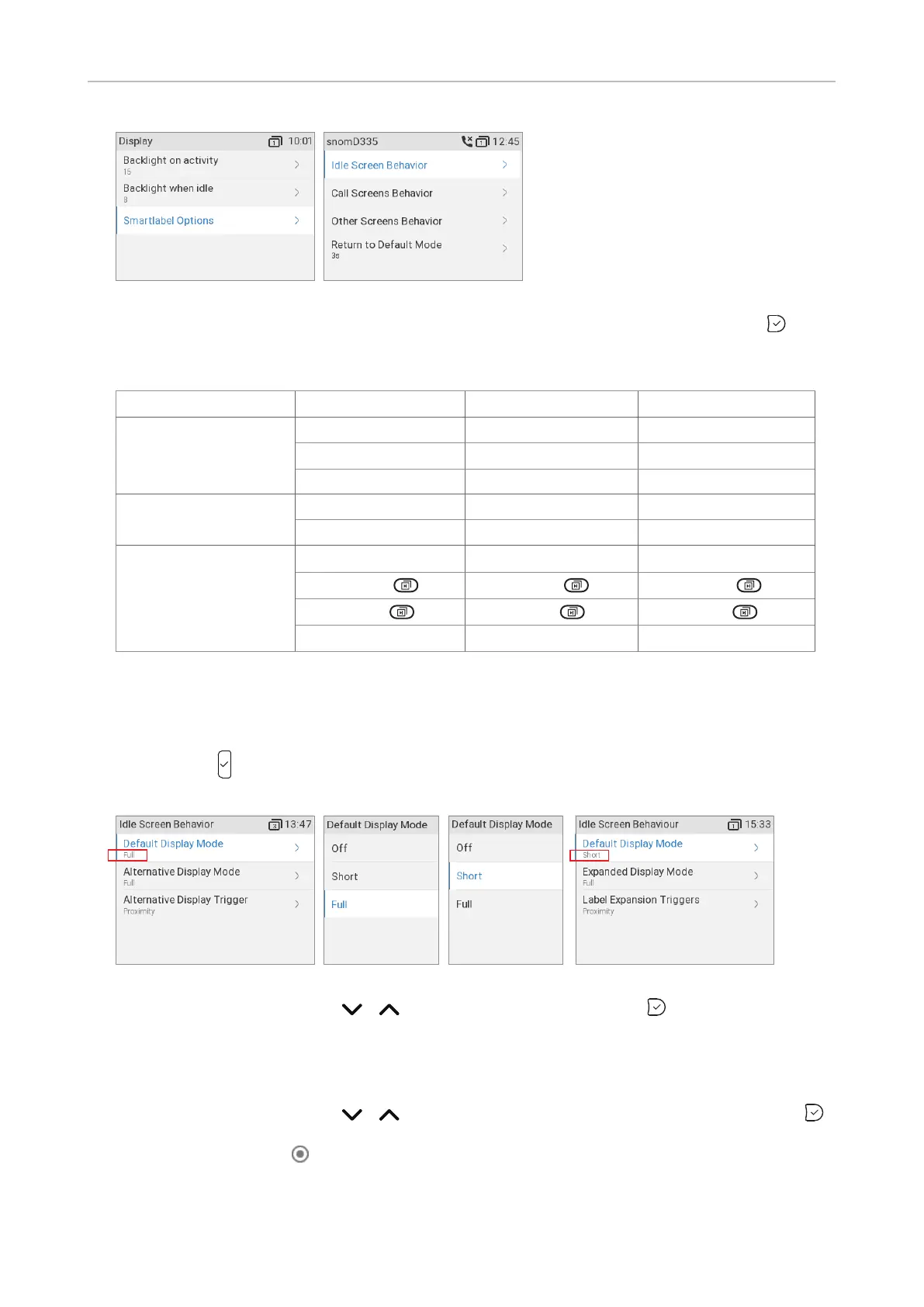
Fig. 1 Fig. 2
5. Select Idle Screen Behavior, Call Screen Behavior, or Other Screen Behavior and press . The
default settings are indicated in bold italic in the table. The available options for the three
Idle screen Call screens Other screens
Default display mode -
Short Short
-
Full - -
Alternative display
mode
Short Short -
Full Full
-
Alternative mode
trigger
O
Short-press Short-press Short-press
Long-press Long-press Long-press
Proximity sensor Proximity sensor
6.
◦ Default and alternative display mode.
a. Select the display mode you want to change, for example the default mode (Fig. 3), and
press . In the following example, the default mode is set to Full (Fig. 3 and 4), and we
want to change it to Short.
Fig. 3 Fig. 4 Fig. 5 Fig. 6
b. Use the navigation key / to select Short (Fig. 5) and press to save and return to
the Screen Behavior menu where the line underneath Default display mode now reads
Short (Fig.6).
◦ Alternative mode trigger.
a. Use the navigation key / to select Alternative display trigger (Fig. 7) and press .
In the following example, the trigger is currently set to Long-press (Fig. 7), as indicated by
the radio button (Fig. 8), and we want to change it to Proximity sensor.



 To Next Page