76
D335 User Manual Conguring the Function Keys
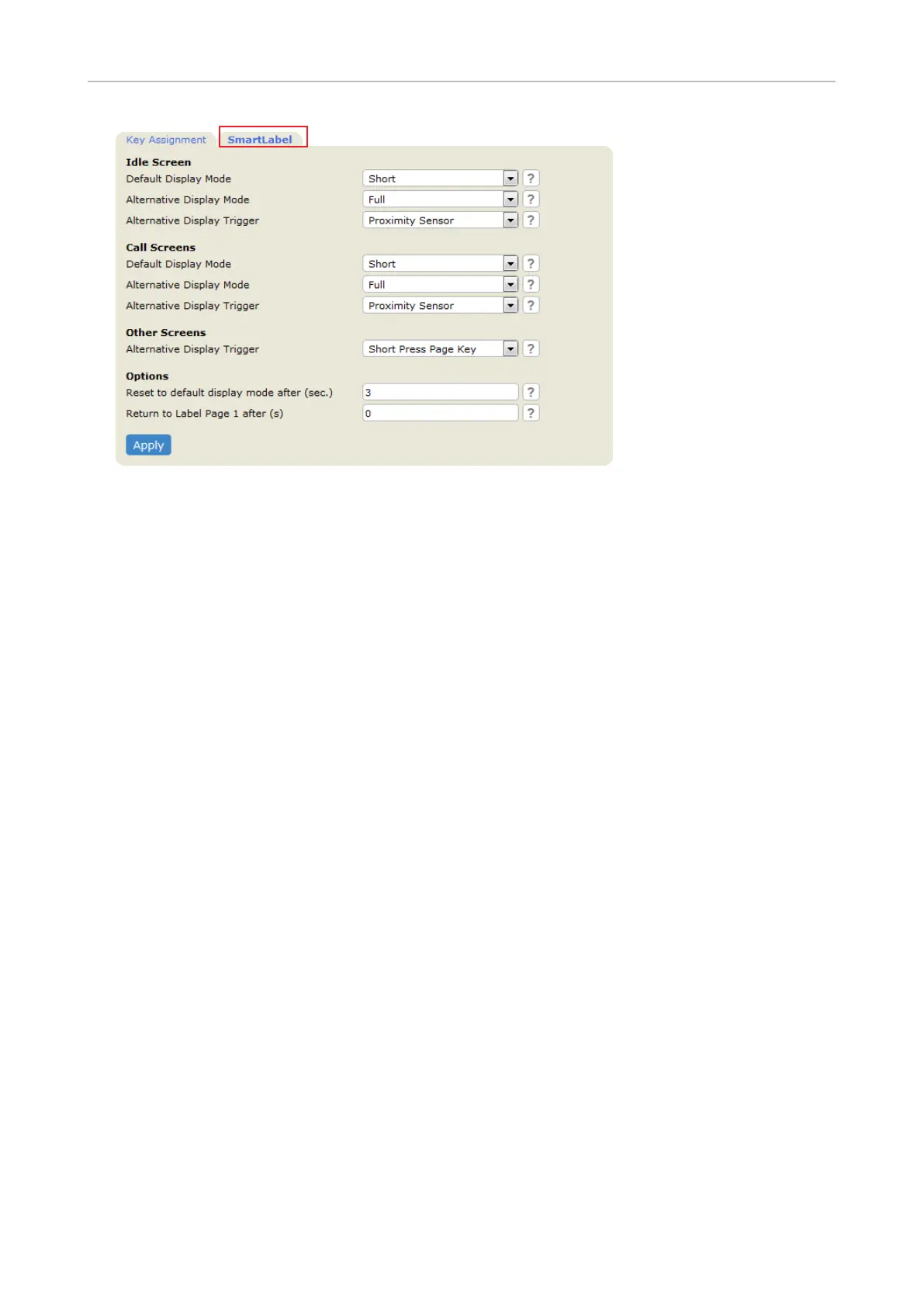
Fig. 2
1. On the phone's web interface, click on Function Keys in the menu on the left. When the page is
opened, the Key Assignment page is on-screen, as indicated by the bold font of its tab (Fig. 1). The
2. Click the SmartLabel tab to open the settings for the appearance of the SmartLabels on the
display (Fig 2). For the instructions on these settings, see "Display options for SmartLabel keys"
on page 83.
3. Apply to save them before
opening the other subpage or any other page of the phone's web interface, and before closing the
web interface.
4. After you have clicked Apply, the button Save will appear at the top of the page. We strongly
phone is unplugged from its power source or when there is a power outage.
Selected examples for function key programming
This chapter will show you a few examples for customizing function key settings to your needs and
preferences, using the phone's web interface:
• First example: Extension monitoring and call pickup via one of the phone's freely programmable
and self-labeling function keys with LED
• Second example: Extension monitoring and call pickup via a function key on the D3 expansion
module
• Third example: Speed dialing with a freely programmable function key with LED
• Fourth example: Changing setting of context-sensitive key



 To Next Page