74
D335 User Manual Conguring the Function Keys
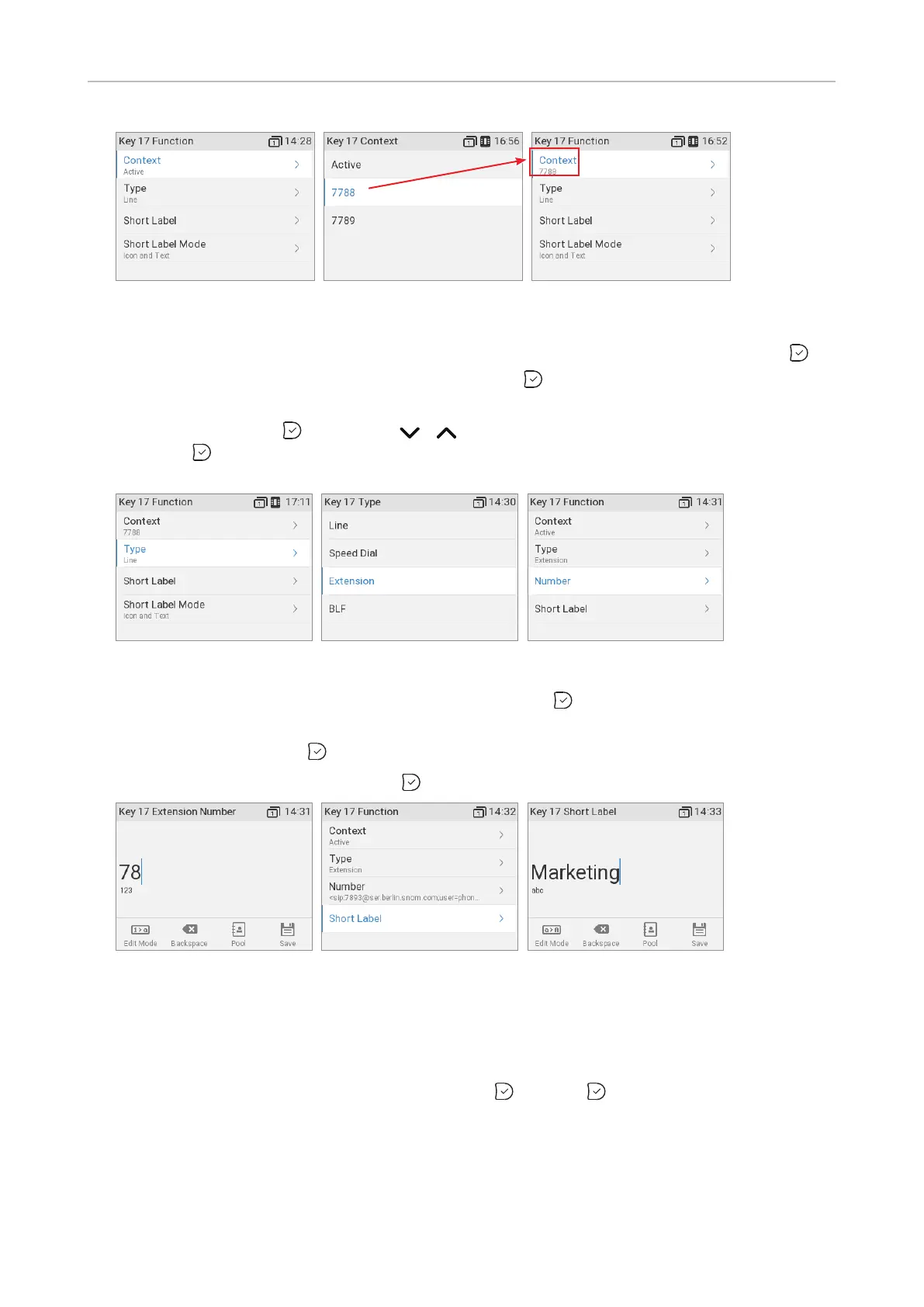
Fig. 6 Fig. 7 Fig. 8
5. The default for Context is Active,
a. Context and press .
b. Select the identity from the menu (Fig. 7) and press . The following prompts depend on the
selected functionality.
6. Select Type and press (Fig. 9). Use / to scroll to a functionality on the list (Fig. 10)
and press . The information you will then be prompted to enter depends on the selected
functionality.
Fig. 9 Fig. 10 Fig. 11
7. In our example, the functionality is Extension (Fig. 8). Press to select and return to the Key 17
function menu where Number has been added to the menu below "Type" (Fig. 11).
8. Select Number and press .I
9. Enter the extension number and press (Fig. 12).
Fig. 12 Fig. 13 Fig. 14
10. Short Label (Fig. 13) and Full Label on the phone, and Label on the D3, are optional. This is the
data displayed on the key's label area on the phone's function key screen and on the D3's display,
respectively (see "Function key page of phone's web interface" on page 71
do not enter data for each label type, the number will be displayed in the label area instead. Enter
a name or other descriptive text (Fig. 14) and press , or press . without entering data.



 To Next Page