27
Manually registering via the Web UI
1� Make sure the base station is connected to power and the network�
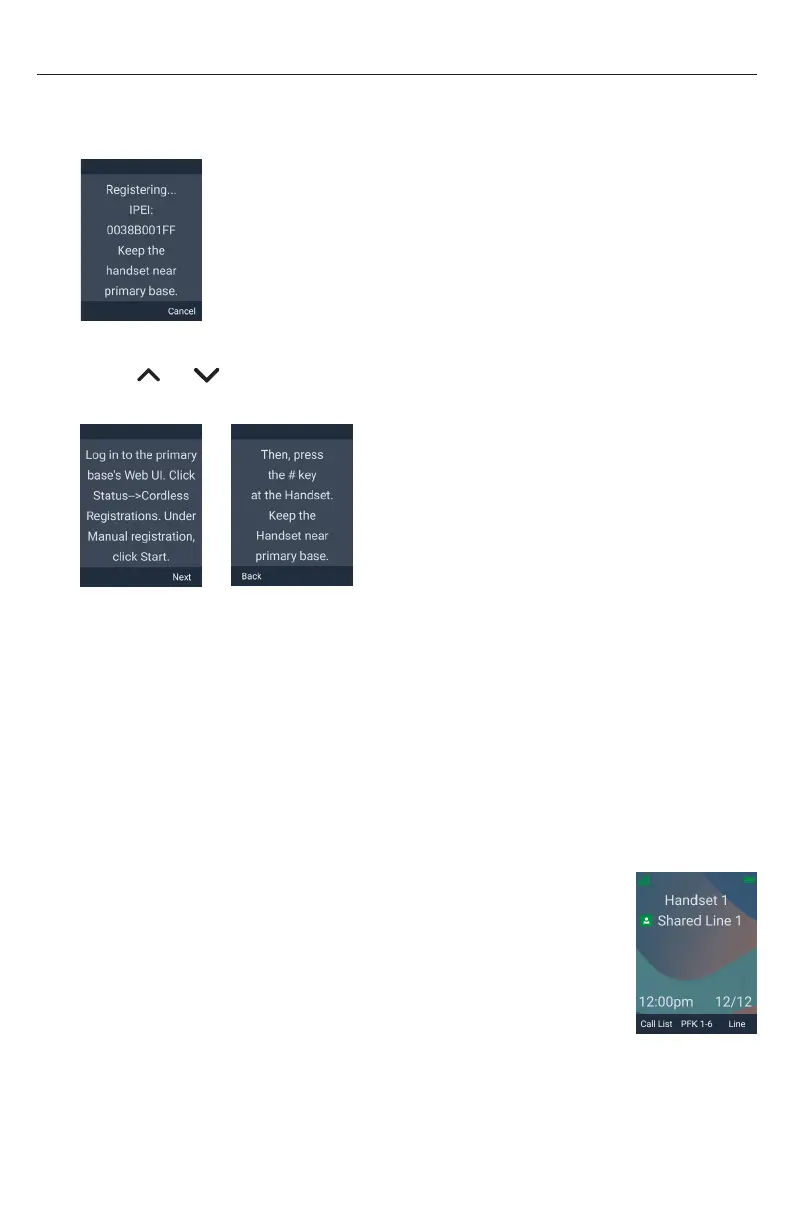
2� If the handset is displaying the following screen:
a� Press Cancel�
The handset displays “Registration failed”�
b� Press OK�
The handset displays “Device not registered to base station�”
3� On the “Device not registered to base station�” screen, press Reg�
4� Press or to scroll to Manual start on WUI and press Sel�
The handset displays the following screens (press Next or Back):
5� Using the base station’s IP address, open the base station’s WebUI in a web
browser�
NOTE: If your phone system is a multi-cell environment, you must open the
WebUI of the Primary base station� To check, click Status in the WebUI sidebar,
and then click Base Status� See which base station IP address is set to “Primary”
mode� Open the WebUI for this IP address�
6� On the WebUI, click Status and then click Cordless Registrations�
7� Under Manual registration, click Start�
The WebUI displays “Success / Registration started”�
8� Press the # key on the handset to begin registration�
The handset displays “Registering��� Please Wait�”
If registration is successful:
The handset beeps and displays “Handset Registered”, and
then displays the idle screen
If registration fails:
The handset beeps and displays “Registration failed”�
a� Press OK�
The handset displays “Device not registered to base station�”
b� Make sure the handset is near the base station�



 To Next Page