32
Using the Handset
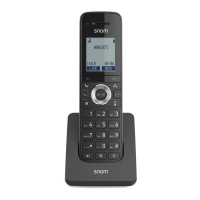
This section describes how to use the handset to make calls and answer calls� This
section also describes how to put calls on hold, transfer calls, and create conference
calls�
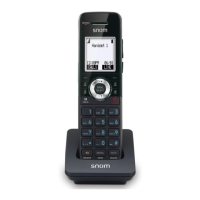
Idle screen
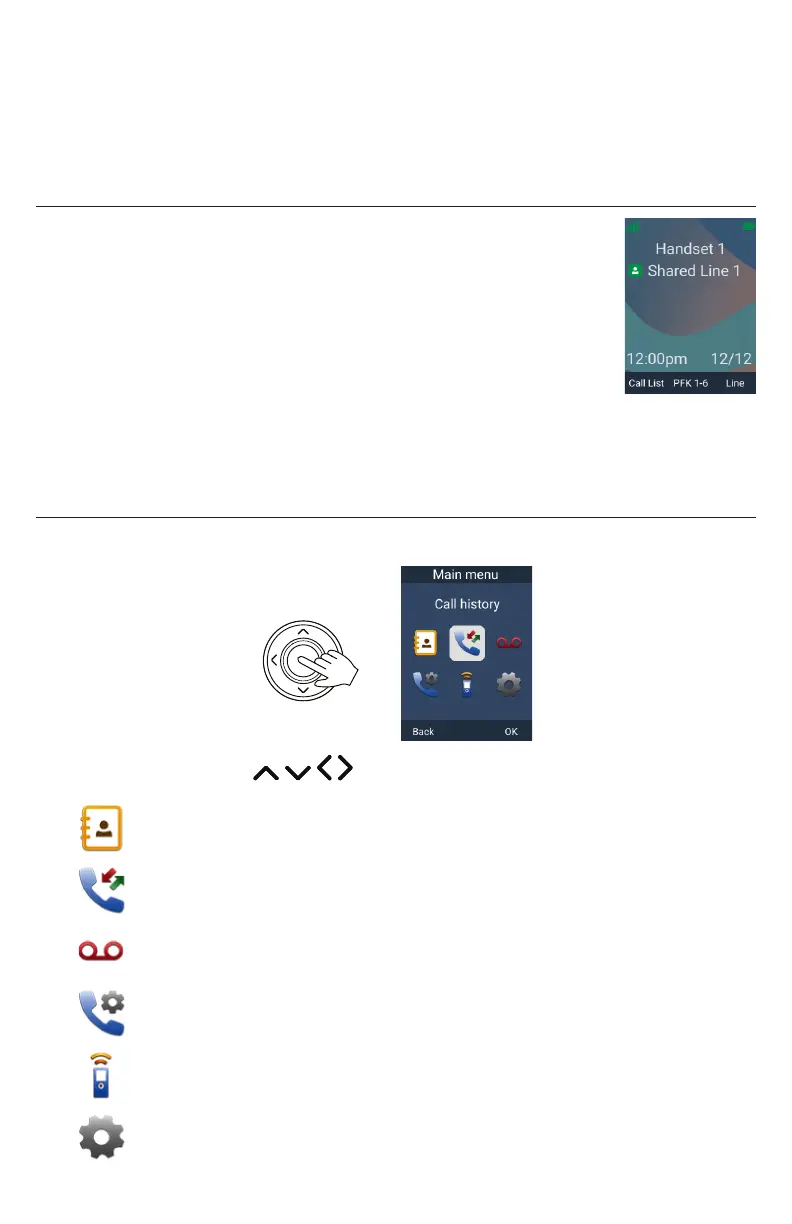
The Idle screen appears after the phone is connected and configured
for your SIP PBX service� The Idle screen indicates that you have no
active or held calls�
From the Idle screen, you can press:
• Call list to view the Call List�
See “Displaying calls on the Call List” on page 44�
• Line to select another account (SIP Account)�
When you make a call, the phone will use this account� See “If you wish to
choose a dialing line (account) for the outside call:” on page 33�
• MENU/Confirm key to view the main menu - see below�
Main Menu
When your handset is idle, press the Menu/Confirm key to display the Main Menu�
Press the navigation keys to highlight a menu item, and press OK�
Directory - see “Using the Directory” on page 53�
Call history - see “Using the Call History” on page 55�
Message - see “Listening to messages” on page 52�
Call features - see “Connecting a Bluetooth Headset” on page 57
and “Setting call waiting” on page 60�
Intercom call - see page 34 and 40�
Settings - see “Configuring the Handset” on page 60�



 To Next Page