58
If adding the device is successful:
The handset displays “<device name> is added and
connected to this phone”�
Press
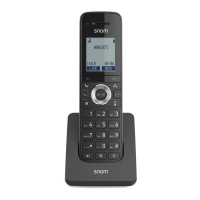
Taihoon Kim | 24. Jan. 2019 | Revision 1.0AW | M10-Handset (US version)
illustration scale 100%
Silkscreen on the Rear
Pantone 8001C
Silkscreen on the Rear
Pantone Cool Gray 3C
Silkscreen on the Rear
Pantone Cool Gray 3C
Silkscreen on the Top
Pantone 200C
Silkscreen on the Rear
Transluscent
Pantone Cool Gray 3C
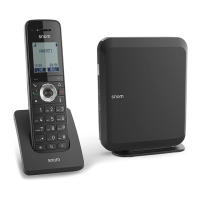
Taihoon Kim | 24. Jan. 2019 | Revision 1.0AW | M10-Handset (US version)
illustration scale 100%
Silkscreen on the Rear
Pantone 8001C
Silkscreen on the Rear
Pantone Cool Gray 3C
Silkscreen on the Rear
Pantone Cool Gray 3C
Silkscreen on the Top
Pantone 200C
Silkscreen on the Rear
Transluscent
Pantone Cool Gray 3C
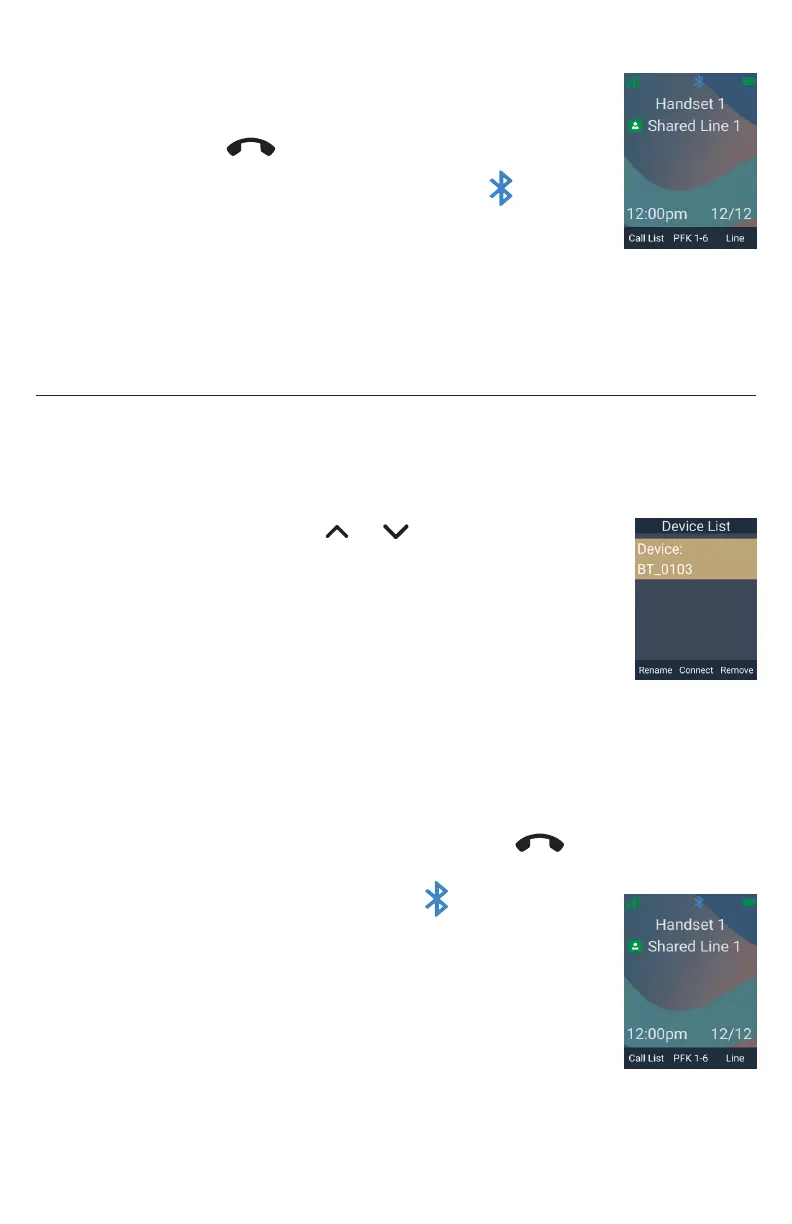
to return to the idle screen�
On the idle screen, the Bluetooth icon indicates
the headset is connected�
If adding the device fails:
The handset displays “<device name> is added to the device list”�
The handset displays “Please use the Bluetooth device to connect to
this phone”�
Using the Device list
The device list displays a device (Bluetooth headset) that has been previously
connected to the handset� From this list, you can connect/disconnect/rename the
Bluetooth headset, or remove it from the Device list�
To open the Device list:
• On the Bluetooth menu, press or to scroll to Device list,
then press OK�
The Device list appears�
If the Device list is empty, follow the instructions in “Adding a
Bluetooth headset to the Device list” on page 57�
To connect a Bluetooth headset:
• On the Device list, press Connect�
The handset displays “Connecting <device name> to this phone”�
If connecting is successful:
The handset displays “Headset setup is completed� Device is connected�”
The handset displays the Bluetooth menu� Press
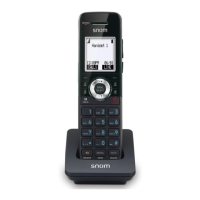
Taihoon Kim | 24. Jan. 2019 | Revision 1.0AW | M10-Handset (US version)
illustration scale 100%
Silkscreen on the Rear
Pantone 8001C
Silkscreen on the Rear
Pantone Cool Gray 3C
Silkscreen on the Rear
Pantone Cool Gray 3C
Silkscreen on the Top
Pantone 200C
Silkscreen on the Rear
Transluscent
Pantone Cool Gray 3C
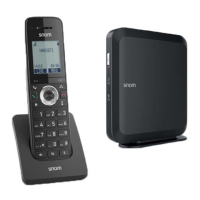
Taihoon Kim | 24. Jan. 2019 | Revision 1.0AW | M10-Handset (US version)
illustration scale 100%
Silkscreen on the Rear
Pantone 8001C
Silkscreen on the Rear
Pantone Cool Gray 3C
Silkscreen on the Rear
Pantone Cool Gray 3C
Silkscreen on the Top
Pantone 200C
Silkscreen on the Rear
Transluscent
Pantone Cool Gray 3C
to return to the idle
screen�
On the idle screen, the Bluetooth icon indicates the
headset is connected�
If connecting fails:
The handset displays “Connection failed”�
To disconnect a Bluetooth headset:
• On the Device list, press Discon’t�
The handset displays “Disconnecting device���”
The handset displays “Device disconnected�”



 To Next Page