69
Accessing the WebUI
1� Ensure that your computer is connected to the same network as your base station�
2� On your computer, open an Internet web browser� Depending on your web browser,
some of the pages presented here may look different and have different controls�
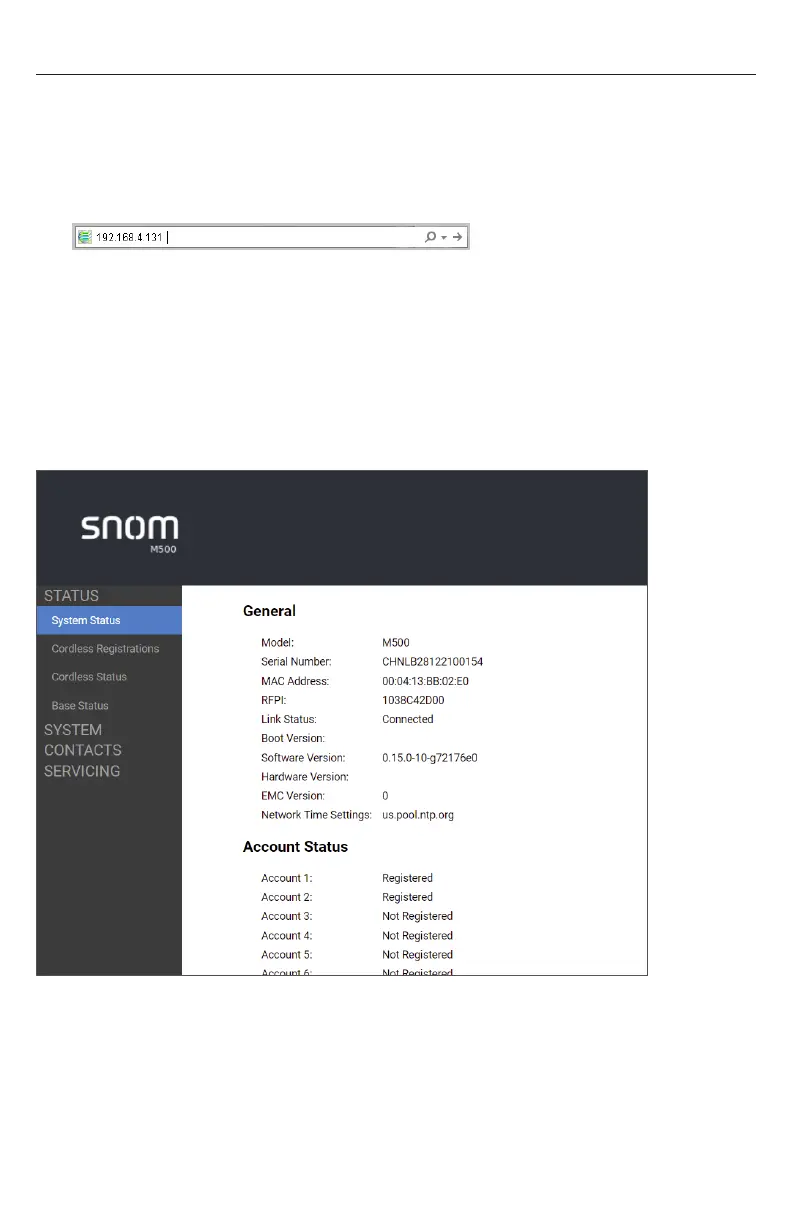
3� Type the base station’s IP address in the web browser address bar and press
ENTER on your computer keyboard:
NOTE: If you do not know what IP address to use, see “How to identify the IP
address of the base station” on page 67�
A Login window appears�
4� For the Username, enter user�
5� Enter the Password (default is user)�
You can change the password after you sign in�
6� Click Sign in� The WebUI appears�
Click topics from the navigation bar on the left side of the page, and then click the
desired setting on the left side of the WebUI to see the page for that setting� You
view and change settings in two different types of fields: drop-down lists and entry
fields into which you type information� For your security, the WebUI times out after 10
minutes, so if it is idle for that time, you must log on again�
The remaining procedures in this section assume that you have already logged on to
the WebUI�



 To Next Page