68
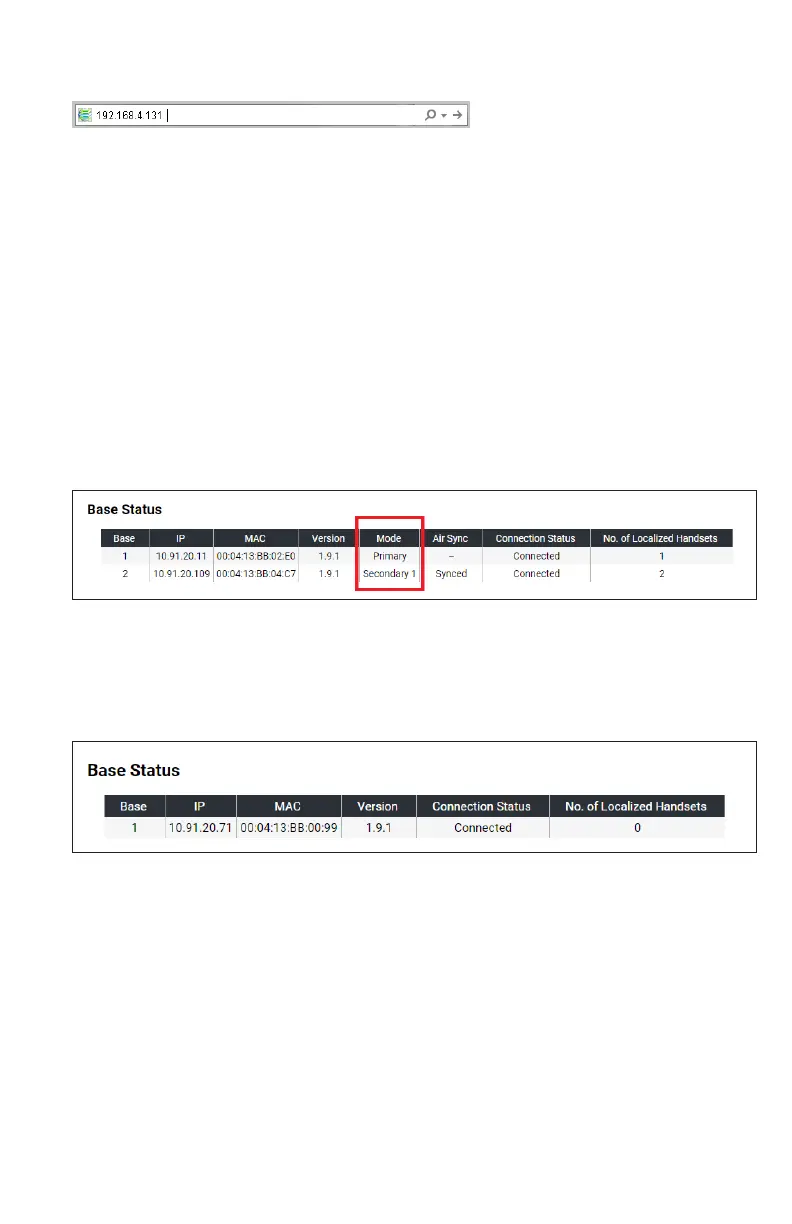
8� Type the IP address from step 6 in the web browser address bar and press ENTER
on your computer keyboard:
A Login window appears�
9� For the Username, enter user�
10� Enter the Password (default is user)�
You can change the password after you sign in�
11� Click Sign in�
12� On the left sidebar of the web page, click Status, and then click Base Status�
The Base Status page appears�
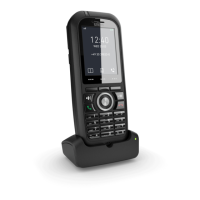
13� If you see a Mode column, it indicates the base station’s mode in a dual cell
configuration� Look up the base station’s Mode to find its corresponding IP
address in the IP column� Use this IP address to access the WebUI� See “Accessing
the WebUI” on page 69�
In the example below, the Primary base station’s IP address is 10�91�20�11 and the
Secondary base station’s IP address is 10�91�20�109�
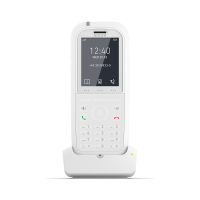
14� If you do not see a Mode column, it indicates a single cell configuration�
The IP column shows the base station’s IP address (which matches the IP address
displayed on the handset/deskset)� Use this IP address to access the WebUI�
However, at this point you have already accessed the WebUI (in Step 8)�
In the example below, the base station’s IP address is 10�91�20�71�



 To Next Page