45
Barging In
You can “barge in” on a shared call in progress on another handset/deskset that shares
the account� Barging in establishes a three-way call with two internal parties� Only
one barge in party is allowed per active call�
To barge in on a call:
• Press the steady red PFK (assigned as a shared line key) of the call you want to
barge in�
-OR-
1� Press Call List to display the Call List�
2� Press or to select the call you want to barge in�
3� Press Barge�
Note: The barged call cannot be placed on hold� Only a conference call with two
external parties can be placed on hold�
Call Privacy
During an active shared call, you can turn on Call privacy in order to prevent other
handsets/desksets from barging in�
If Call privacy is on and your put your call on hold, then your handset resets Barge-in to
“Allowed”� When you resume the call, other handsets/desksets will be able to barge in
your call from the Call list�
To turn call privacy on/off during an active shared call:
1� Press the MENU/Confirm key�
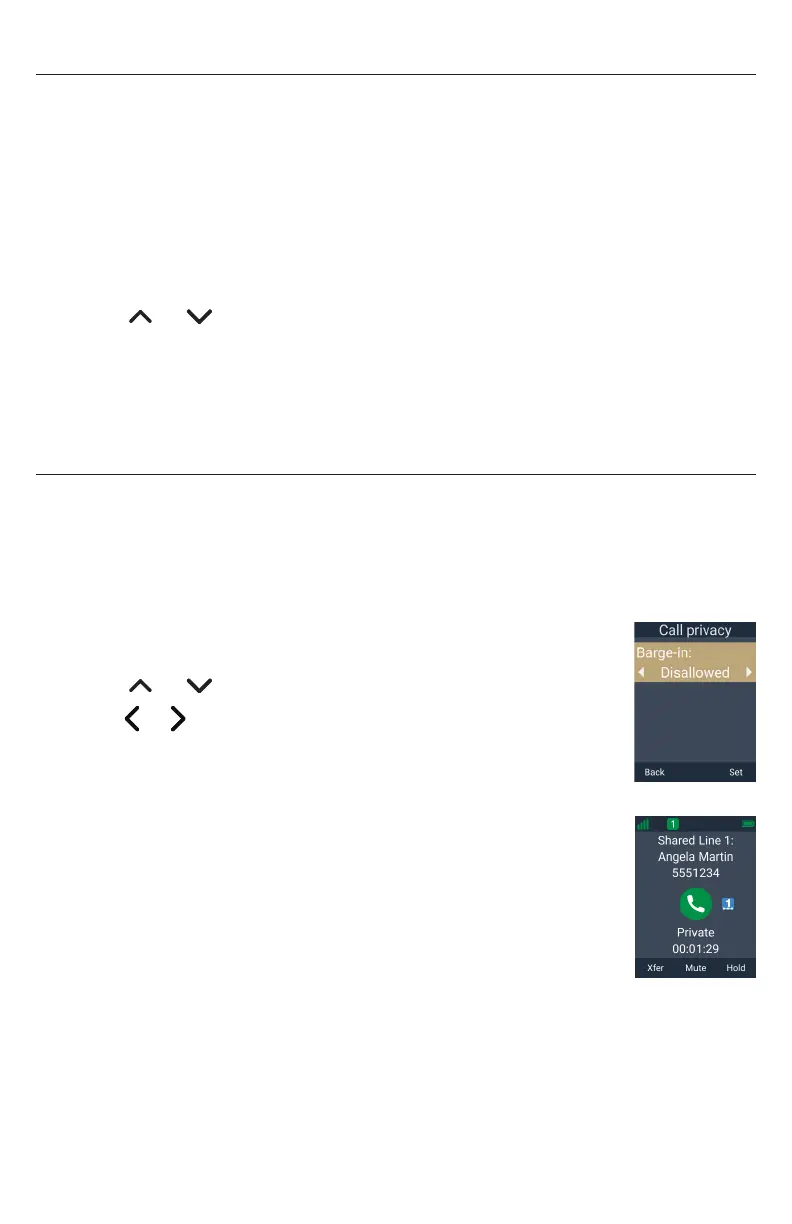
2� Press or to scroll to Call privacy and press Select�
3� Press or to select Barge-in as Disallowed or Allowed, then
press Set�
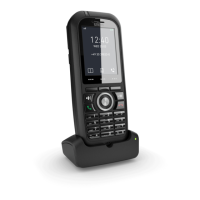
When Barge-in is disallowed, your handset’s call screen shows
“Private�”
When Barge-in is allowed, your handset’s call screen shows
“On a call�”



 To Next Page