Replacing Consumables
23
6.2.1 Adding Material
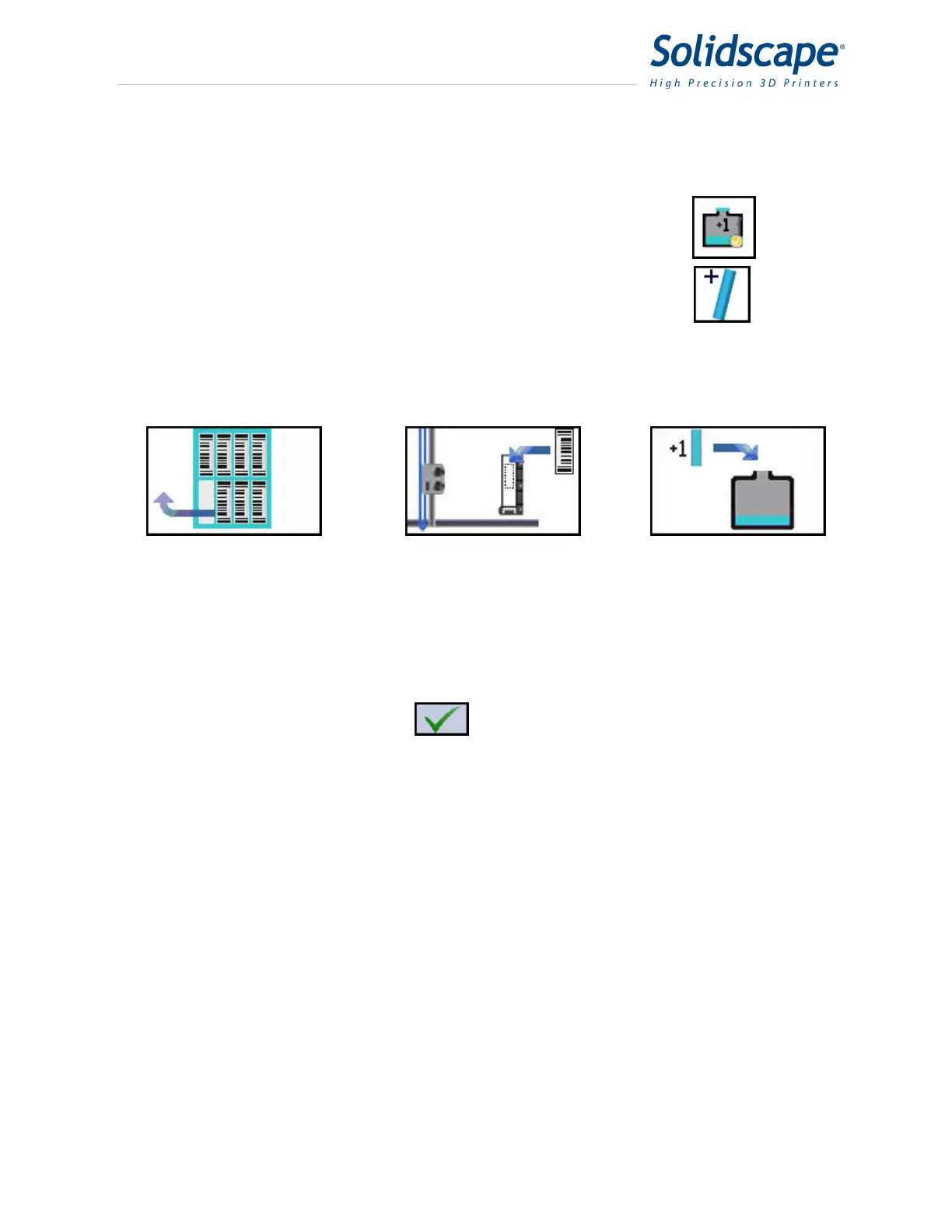
To add a crayon, follow the example below. The example is illustrated for the build reservoir.
1. On the system Idle screen, Touch the Reservoir icon.
2. A new information screen will open. Now touch the Add icon.
3. The paper tape will move forward and a rectangle frame will be printed on the paper.
The top cover will then open. Follow the touch screen instructions as shown in
Figure 6-3 Adding Material.
A B
C
A. Remove a barcode label from the barcode sheet.
B. Place the label on the paper tape within the printed rectangle.
C. Remove the tank cap and add 1 crayon.
D. Replace the tank cap and close the cover.
E. Touch the Ready icon.
Figure 6-3 Adding Material
The crayon will completely melt in approximately 40 minutes for the 3Z Support material and
60 minutes for the 3Z Model material. Another crayon can then be added with an
associated bar code. If the barcode cannot be read because it is damaged, misaligned, or
dirty, then the printer will allow you to enter the crayon barcode number via a keypad
display. See Figure 6-4 Entering Barcode Manually


 To Next Page